
Windows 11 brings several innovations. Whether it concerns the refreshed user environment, the included apps, new functionalities or technical changes under the hood: we will update you in one go.
Dennis Gandasoebrata
 |
| The Start Menu has been redesigned in Windows 11 |
HOME MENU
The renewed Start menu is made up of a number of parts. At the top you will find the search box. You can find different parts with this: files (such as Office documents and videos), apps, settings, email and online information. The search results are organized into different tabs, such as apps, Documents and Web. click on Lake for an overview of the other search areas, such as E-mail and Videos. on the tab All the complete overview is displayed. The second section of the Start menu – Pinned – contains an overview of apps that you Start menu pinned, for example because you use them regularly. click on All apps for a complete overview of apps. The third section Recommended lists files you’ve worked with recently (such as Office documents), but is also used by Windows to suggest certain apps. For example, our test system showed the Tips app. Via the button Lake you have access to a more comprehensive list of recent and recommended items.
At the very bottom of it Start menu you will find the photo and username of the logged in user. Click to access the account settings, as well as to lock the computer and sign out. Hibernation, shutdown or reboot is done via the button at the bottom right of the menu.
It Start menu stands out because of the extent to which you can adjust the operation and appearance to your liking. In the article ‘Make Windows your way’ read more about customizing it Start menu.
 |
| The contents of the Windows taskbar are now centered |
TASKBAR
The Windows taskbar is of course still present in Windows 11, but differs from its predecessor in characteristic parts. For example, the taskbar buttons are centered by default and are no longer aligned to the left. Next to the button of the Start menu the taskbar is equipped with a number of fixed buttons.
Fixed place?It is striking that the Windows taskbar has a fixed place and can no longer be moved, for example to the top of the screen. Various step-by-step plans for this have appeared online, but Windows 11 does not offer any help in that area via the official route. This may be changed in the final version. |
With the button next to the Start button you can create an extra desktop and request an overview of open windows. The button next to it opens the widgets, which you can read more about later. It is also noticeable that the Taskbar is equipped with the button chat. This allows you to set up an ad-hoc chat session with Microsoft Teams. You don’t have to see the standard buttons if you don’t want to use them: right click on them and choose Hide from taskbar. On the far right is the taskbar corner, with items such as the clock and icons for the volume and network. Clicking this once will open a compact window Quick Settings. This window shows the status of the wireless network and bluetooth connections, as well as access to airplane mode, battery saver and the Concentration aid (which allows you to suppress Windows notifications and events if you want to continue working undisturbed). You can also adjust the volume and brightness of the screen in the same window.
 |
| The Quick Settings window, with access to things like network and battery status |
Click once on the clock in the taskbar corner to open the window Date and time to open. You can also show this window in a compact view: click on the arrow at the top right. Furthermore, the same click opens the window notifications. This contains an overview of reminders and notifications generated by Windows or by an app. Choose Clear all to clear the list at once. In addition, you can close individual notifications by clicking on the cross. Via the button Settings (recognizable by the three dots) you can indicate that you no longer want to see the notifications for the program in question, give the notifications of the program a higher priority or open the general settings for notifications.
 |
|
| The range of widgets is still limited at the moment |
WIDGETS
Remember it from days long gone? The ‘dynamic content’ of Active Desktop in Windows 98? In Windows 11, the dynamic blocks of information are back and now Microsoft calls them “widgets.” That comparison is of course not entirely fair: the widgets have evolved, but the principle has similarities. You call up the widgets window via a separate button on the Windows taskbar. A new window will open with an overview. Widgets can be blocks with an overview of the latest news, stock prices and sports results, but can also show personal content. A good example of this is the widget that gives access to the photo folder on OneDrive. The widgets thus partly function as a replacement for the live tiles in the Start menu from earlier Windows versions.
Ultimately, other developers are also encouraged to create widgets and should make the feature more attractive with this. The makers also seek this external collaboration in other areas. Microsoft announced earlier this year that you can set up a focus session via the clock in the Windows taskbar to work undisturbed. You can link that session to a to-do list (based on Microsoft To Do), but also to your Spotify music list. The Spotify functionality is integrated in the focus session.
MORE CONTROL ABOUT WINDOWS
The resolution of monitors is increasing, as is the average size of the screen and the amount of monitors the average user works with. Windows 11 responds to this by giving you more control over the window layout.
 |
| Handy: determine the position of your windows |
This way you can quickly organize windows according to a number of fixed grids. Open a window and place the mouse pointer in the title bar on the button maximize. A small window will appear with available ‘window layouts’ . Clicking on an area within a layout automatically places the window in that position and resizes it. You repeat this action for each window, so that you fill the window layout with this. After you have given a program a place in the grid (and possibly also other programs), you can call this composition again at a later time. Place the mouse pointer on the program’s taskbar button and wait until an overview with the corresponding windows appears. Choose the layout with the indication Group. All windows in the correct format are restored. Handy: determine the position of your windows
 |
|
| The menus have been cleaned up and contain fewer options |
MINIMALIST MENUS
Over the years, Windows context menus — like the one that appears when you right-click on the desktop — have become quite filled with options. The consequence of this is that you often find your way less quickly. Windows 11 tries to improve on this: the dust comb is through the systemmmenus, so that they now only show the ‘most important’ options. To see the full list, click Show more options. Try it out on the aforementioned desktop or in the File Explorer window.
 |
| The settings window provides a good starting point for Windows personalization |
SETTINGS WINDOW
The classic Control Panel has already been replaced a few Windows versions ago for the settings window (which you can open quickly via the Windows + I key combination, among other things). In Windows 11, further work has been done on this part. With the result: the settings window looks clearer and most settings can be found faster than in the previous versions. On the left you will find the different categories, such as System, Personal settings and Privacy & Security. Click on a category to display its settings on the right side of the window. Alternatively, you can also use the search box at the top left of the window: type here The settings window provides a good starting point for customizing Windows The menus have been cleaned up and contain fewer options with one or more keywords. That search box comes in handy in practice if you don’t want to search endlessly for a specific setting, which also doesn’t always seem to be located in a logical place. This is how we find the option Windows backup (for making backups) in the section Accounts, while the categories System or Privacy & Security seem more logical for this.
Two or more monitorsDo you use two or more screens? Windows 11 now also takes that into account better. Once you disconnect an external display, Windows will automatically minimize all windows on that display. If you connect the same screen again at a later time, all windows are restored: Windows places them in their original position and gives them the same window size. |
MICROSOFT STORE
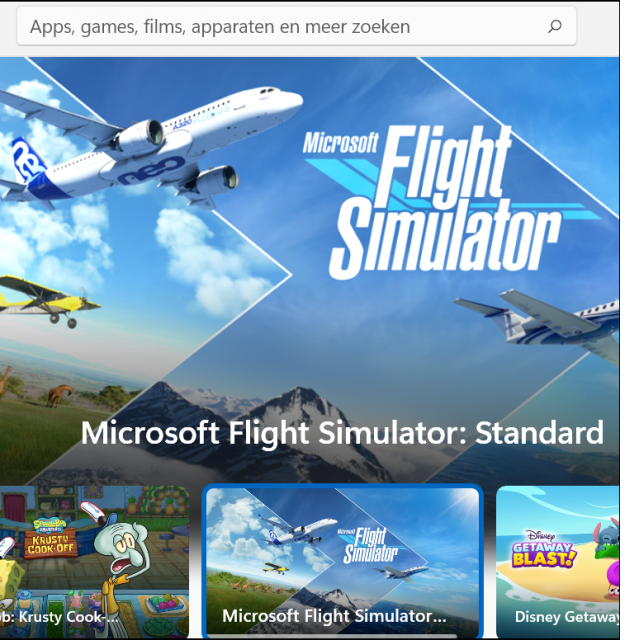
Since the introduction of the Microsoft Store, this store has been tinkered with several times. The Store has also been addressed in Windows 11. The store layout has been improved and the store content loads faster than in previous versions. On the home screen you will find popular and selected apps. The section apps allows access to the app collection while you are in Gaming an overview of the available games. Finally, there is the section entertainment, with movies, music, and entertainment apps like Netflix and Prime Video. Through Library you can request an overview of installed apps and you can install updates.
FOR GAME LOVERS
For those who regularly play a game on the computer, Windows 11 also has a number of novelties. To shorten the loading time of games, the new operating system features DirectStorage. Borrowed from the Xbox, this technology enables the computer to process data more efficiently: it allows for more game data to be loaded at the same time and the technology takes into account the SSD used. Furthermore, Windows 11 uses DirectX 12 Ultimate. This technique is particularly interesting for game developers: it provides them with additional tools to make the games look even better, even on computers that do not have the latest hardware. Finally, Auto HDR (High Dynamic Range) is present in Windows 11. If you use a suitable display, games will be shown with more detail, even if they were developed for SDR (Standard Dynamic Range) display at the time. Auto HDR is also ‘borrowed’ from the Xbox.
 |
| You can also install Android apps later via the Microsoft Store |
ANDROID APPS
In Windows 11 it is possible to run Android apps. While this functionality was not yet available on our test systems, the Android apps will eventually be made available through the Microsoft Store discussed earlier. The Windows makers work together with Amazon’s AppStore: the Android collection comes from that store. In addition, as a user you can probably use APK files within Windows 11, so that you can also install Android apps outside the store.
Under the hood, Windows 11 uses Intel Bridge Technology: a ‘translator’ that ensures that the Android mobile apps also function within Windows. Intel Bridge Technology consists of a compiler that makes the existing code suitable for the Windows platform. From a technical point of view, the method differs from an Android emulator, which mimics an Android environment. The biggest difference is in the speed: apps in an emulator often run slower than when they run natively on the device they were originally developed for. With the Windows 11 compiler approach, such a delay should be smaller.