
Version 11
Internet Explorer 11 is for people with Windows 7, Windows 8.1 and Windows 10. Be careful if you use Windows 8.1. This article is about the desktop version of Internet Explorer, not the stripped-down Tile that appears on the Start screen. You start the Desktop version by double-clicking the Internet Explorer icon on your Desktop. In Windows 10 you will find Internet Explorer 11 by searching for ‘Internet Explorer’ in the search box at the bottom left.
Which version?
Not sure which version you are using? Then start Internet Explorer and click the gear icon in the top right > About Internet Explorer . A window will appear with the version of your program. There is also the option to install new versions automatically.
Default Window
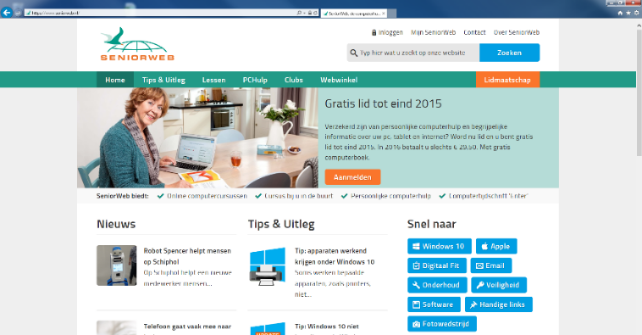
The default Internet Explorer 11 window consists of the following components:
- At the top of the screen the address and search bar, with the address of the website you are currently visiting.
- To the right of that are the tabs where you can open several websites at the same time.
- On the far right three standard buttons: Home (image of a house), Favorites (image of a star) and Tools (image of a gear).
- Below that you will see the website you are currently visiting.
Address bar: surfing and searching
In IE11, you use the address bar to surf to a website or start a search. So surfing and searching are together in one place. When you type a web address, AutoFill will fill in the address right away. You can also simply type searches in this box.
The arrows allow you to go to the previous or next web page you have visited on the Internet. On the right side in the address bar you will see icons for search (magnifying glass), and refresh (circle arrow). This allows you to reload the website you are visiting or to stop loading (for example, if it takes too long to load). If the lock icon appears in the address bar, the website is secured.
.png "211015_Search bar")
Turn on pop-up blocker
Pop-ups are windows on websites that suddenly open and are usually in the middle of the screen. Offers are often made in it, such as subscriptions to magazines. You can manually click away pop-ups via the cross in the top right of the pop-up. Sometimes there is also an option ‘Exit’. Internet Explorer can automatically block the pop-ups.
You do this as follows:
- Click on the gear icon in the top right corner.
- A menu opens. Click on at the bottom of the menu Internet options. There you will find the Internet Explorer settings.
- Now in the ‘Internet Options’ window, click on the tab Privacy. That tab opens.
- You will see some options that have to do with privacy. Put a check in front of the ‘Block pop-up’ heading Enable Pop-up Blocker.
- click on OK. This confirms your choice.
The block will take effect immediately. You will be notified every time a pop-up is blocked on an open website. You can also indicate in that notification that you still want to see the pop-up, for example on a website with a pop-up that is desired.
Video
In the video below you can see exactly how this works in real life:
Set up a search engine
In IE11, Bing is set as the search engine by default. But you can add other search engines like Google yourself. This goes like this:
- Click on the magnifying glass in the address bar and then on the button Add.
- Click on the image from Google.
- In the window that appears, click Add to Internet Explorer.
- click on Add.
You will not be notified that the installation was successful. But now if you click on the magnifying glass, in the box that pops out, you’ll see the Google icon. To set Google as the default search engine, click this icon.
Working with Favorites
You can save a website that you want to keep as a Favourite. It goes like this:
- Go to the website you want to save.
- Click the “Favorites” icon (that’s the asterisk on the top right).
- click on Add to Favorites.
- The name of the website appears in the ‘Name’ field. You can change this name.
- click on Add.
In the future, you can quickly access this website by clicking the Favorites icon and then clicking the name of the website.
Tip: You can also save a website as a Favorite by using the shortcut Ctrl+D on your keyboard.
Tabs
Tabs have been around in Internet Explorer since version 7. You can put a different website on each tab. In this way, several websites can be open side by side, without having to restart Internet Explorer. As soon as you open IE11, you’ll have two tabs ready: one with the page you’re looking at and one small blank next to it. You can click the new tab to open another web page on it. But you can also have a second home page open on this tab.
Tabs – New Tab
When you open a new tab, it shows several options:
- Frequently used websites
If you’re using IE11, here are the websites you visit most often. Click on a block and you will go to the relevant website. - Discover other websites you may find interesting
IE11 makes suggestions based on the websites you frequently visit. This can be a fun way to discover new websites. - Reopen closed tabs
Click on this and you will get a drop-down menu with a list of websites that you have closed this session. - Reopen last session
IE11 remembers which websites were on different tabs the last time you closed the browser. click on the link Reopen last session to start them all again. - Hide websites
If you do not need an overview of the most visited websites, click on this option. - InPrivate Browsing
If you enable this, you can surf the Internet without leaving your traces.
You can close the tabs one by one. Each tab has a cross on the right for this. Click to close the tab.

The Tools . button
The Tools button is located at the top right. It’s the button with the gear. If you have opened an internet page, for example www.seniorweb.nl, you will find the following options under that button:
- Print
Prints the active web page in your browser. Choose Tools > Print > Print if you want to print the page right away. Choose Tools > Print > Print Preview if you want to see a preview first. - File
Through Tools > File > Full Screen hides all browser window borders so that you only see the web page on your screen. When you move your mouse pointer to the top right, the tabs and the Tools button reappear. Go to Tools > File and click Full screen to exit full screen again. You can also use the F11 key for this. - Zoom in and out (100%)
Through Tools > Zoom in and out (100%) you can enlarge or reduce the webpage.