
A thief can ruin your digital life after copying the passcode for your iPhone. Read here how to prevent it and more useful tips!
In a revealing video from the Wall Street Journal you can see what can happen if your iPhone is stolen and the thief (or an accomplice) has recently copied or filmed the passcode of your iPhone. With that passcode, a thief can unlock your iPhone and change the Apple ID password, locking you out of your own Apple ID and the photos stored in it. They can then turn off the Find My feature and the thief will also have access to all the passwords in the iCloud keychain. He will also often be in the Photoapp for photos containing sensitive information, such as your social security number, that they can use to steal and misuse your identity. Your iPhone will then be erased and resold.
Reset passcode and recovery code
Without a recovery code, you can no longer access your data if the thief has changed your Apple ID password. So you run the risk of not only losing your iPhone, but also all your photos if you only have them stored in iCloud. But even if you have set a recovery code, things can still go wrong. The problem is that with the passcode of your stolen iPhone, a thief can also reset a recovery code. This is a weakness that Apple really needs to do something to prevent. Only if your iPhone is managed for business, there turned out to be a way to prevent resetting the recovery code with your access code. This is probably related to the possibility that the contents of such devices can often be remotely erased. An additional problem is that after setting up a recovery code, Apple can no longer do anything to help you, because the data is then encrypted with a key that Apple also has no control over.
Solution
The solution that Apple should implement for this is to use not only the passcode to set or reset the recovery code, but also a Face ID or Touch ID that has been used on the device for quite some time. Such a relatively simple measure prevents a thief from taking advantage of this. By now you will also understand that you should never give the access code of your iPhone to anyone, even under duress. As an extra measure of protection, you might also consider making a local backup of anything you absolutely never want to lose. For many users, this will mainly concern the photos. A relatively simple solution to this on a Mac is to download your photoslibrary to an external hard drive and in photos download all your originals. As an HCC member, you can log in to apple.hcc.nl under downloads for HCC members and download a handout download with smart backup solutions for your Mac, iPhone and iPad. Via the new menu choice videos you can also watch a recording of the accompanying presentation.
Tip 1 Extra password
Because this abuse is becoming more common, we expect that in iOS 17, when changing the Apple ID password, Apple will also require you to enter the current Apple ID password. The thief will still have access to your iCloud keychain (so keep the most sensitive data in an app that can’t be accessed with your iPhone passcode), but at least you can still remotely wipe your iPhone.
You could also go through Institutions > Screen time > Use Screen Time Passcode be able to set a four-digit Screen Time passcode for added protection. Go to next Institutions > Screen time > Limits and put the switch in front of it Limits On. Scroll down, tap Account changes and choose that Don’t allow. Now no one can change your Apple ID password without this extra Screen Time passcode. Because of this extra security, however, your account is at the top Institutions also grayed out and you will first go through again Institutions > Screen time > Limits the slide behind Limits have to turn it off again.
Tip 2 Strong password
It is always wise to choose a somewhat stronger iPhone password. By default, the iPhone password consists of six digits. Do not choose obvious codes such as 111111 or 123456, which are even easier to read. Through Institutions > Face ID and passcode can you through Change access code and Access code options opt for a custom alphanumeric code that can also be much longer, which makes copying a bit more difficult. But if the typing is filmed, this measure will not be powerful enough either.
Tip 3 Contact account recovery
It is also very wise to go to the top of your settings within the settings Name through Password and security bee Account recovery designate a friend or family member as an account recovery contact. This will allow you to regain access to your iPhone data through that person.
Tip 4 Turn off the control panel
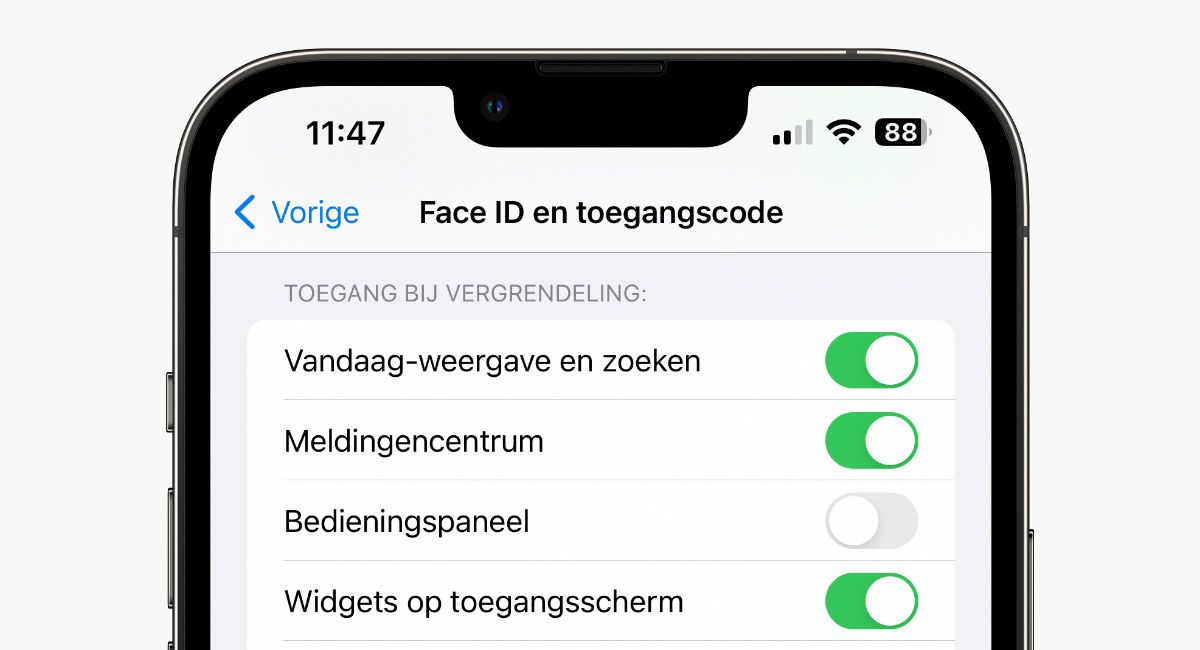
Another handy tip: put via Face ID (or Touch ID) and passcode It Control panel off (see image below). For example, a thief cannot press the airplane button without logging in to the control panel Find myfeature can no longer see where your stolen iPhone is. (article continues below image)
Conclusion
The best and simplest protection against this abuse is to ALWAYS use Face ID or Touch ID in public places. Then a thief cannot copy your iPhone’s password, which is the key to this abuse.
More Apple tips, HCC!apple and becoming an HCC member
Would you like to receive more useful Apple tips like this? Then add HCC!apple to your HCC membership via apple.hcc.nl or this link. Not yet a member of HCC? Then choose Apple as your 1st and free Interest group here when joining HCC.
Bert van Dyke
Volunteer apple.hcc.nl