
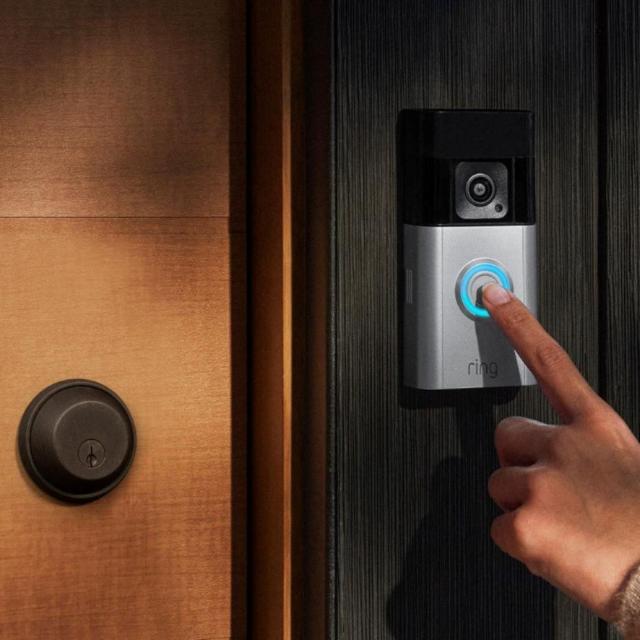
With a Ring video doorbell you will receive a notification when someone presses your doorbell or when motion is detected. We have 6 useful tips and tricks that you may not know yet that will help you get even more out of your Ring video doorbell.
We regularly write about and test video doorbells, of which Ring is probably the best-known brand. For example, Ring recently launched the Battery Video Doorbell Pro. You will receive a notification from such a Ring video doorbell when someone presses your doorbell or when motion is detected. You can also see, hear and speak to everyone at your front door via your smartphone, from anywhere. With these 6 tips and tricks you can get even more out of your Ring video doorbell. For each tip we have included whether or not you need to have a subscription to use the tip.
1. See more with detailed notifications (with Ring Protect subscription)
Although you can use your video doorbell without a subscription, you can enable extensive notifications with a Ring Protect subscription. You can do this in the section Notification settings from the Ring app. These notifications are snapshots that appear along with your doorbell notifications and give you a preview so you can easily see what’s going on without opening the Ring app.
2. Answer your doorbell with Quick Answers (free for all users*)
Quick answers can be found in the section Quick answers from the Ring app and is a kind of answering machine for your doorbell. Handy if you can’t come to the door or if you just don’t feel like responding yourself. You can choose from a list of preset responses, such as “We can’t come to the door right now, but if you’d like to leave a message, you can do so now.”
* Free for all users, but only with a subscription it is possible to listen back to a voicemail message that people have left at the front door.
3. Set up geofence via your smartphone (free for all users)
When you set up a Geofence under Location settings in the Ring app, the app may remind you to set your mode to Away when you leave the Geofence. Handy, because this way you are always reminded to leave your home safely. When you return home and re-enter the Geofence, the Ring app can automatically silence alerts from your doorbell so you aren’t alerted when you arrive home.
4. Exclude areas from recording with the Privacy Zones feature (free for all users)
Your video doorbell’s field of view may contain images that you would prefer to exclude from Live View or video recording, such as a neighbor’s property or the sidewalk in front of your door. Then you can Privacy Zones use those areas as forbidden area to mark. After setting the zones in the Privacy settings of your app, your designated privacy zones will be covered with black rectangles. From then on, the Ring app will not show a live view in that specific area, nor will it be recorded.
5. Choose the zones in which you want to detect motion on your app (free for all users)
In addition to the privacy zones you can go to the section Motion settings Adjust motion zones from the Ring app. This ensures that your doorbell only detects movement in the areas that are most important to you. You can set your motion zones so that areas you would rather not record, such as passing cars, are excluded and you do not receive ‘false’ alerts.
6. Don’t miss anything with the photo function (with Ring-Protect subscription)
With a Ring Protect subscription you can enable the photo feature underneath you Device settings. When this feature is enabled, images are captured and saved to your event timeline at certain intervals. The camera or doorbell only records when it is connected to WiFi, while this function also records images when the camera is offline. This way you can see what happened in front of your door between notifications and motion events.