
When I’m at home, I often watch Netflix. I also want that when I’m not at home, but without 5G so I don’t use data. So how do I watch offline Netflix films and series on my smartphone or tablet outside the home? Walter R.
Netflix is the most popular streaming service in the Benelux and many films and series are watched on Netflix ‘at home’. Many people also watch these films and series on the go, sometimes via an internet connection (Wi-Fi or 5G).
Are you often on the road, for example by public transport, and do you want to be able to enjoy your favorite Netflix series and films without using data and with a good and stable image? Then you don’t need an internet connection: you can legally download your favorite content for offline use.
How do you download series or films on Netflix?
Of course you need a Netflix subscription, a stable, preferably fast internet connection at home and your smartphone, tablet or (portable) computer has the Netflix app. The function in question does not work via the web browser. Be sure to check in advance whether your device has enough storage space to store the downloaded films and series and free up space if necessary. Downloading only happens via WiFi, so you don’t have to worry about the data limit of your mobile subscription.
Step 1 Downloads in the Netflix app
Open the Netflix app on your smartphone, tablet or computer. Log in with your account if you haven’t already done so. Is this the first time you want to use downloads on your device? Keep in mind that not everything on Netflix is available for download. To quickly view this, tap or click on the download icon at the top of the screen (the down arrow, next to the magnifying glass).
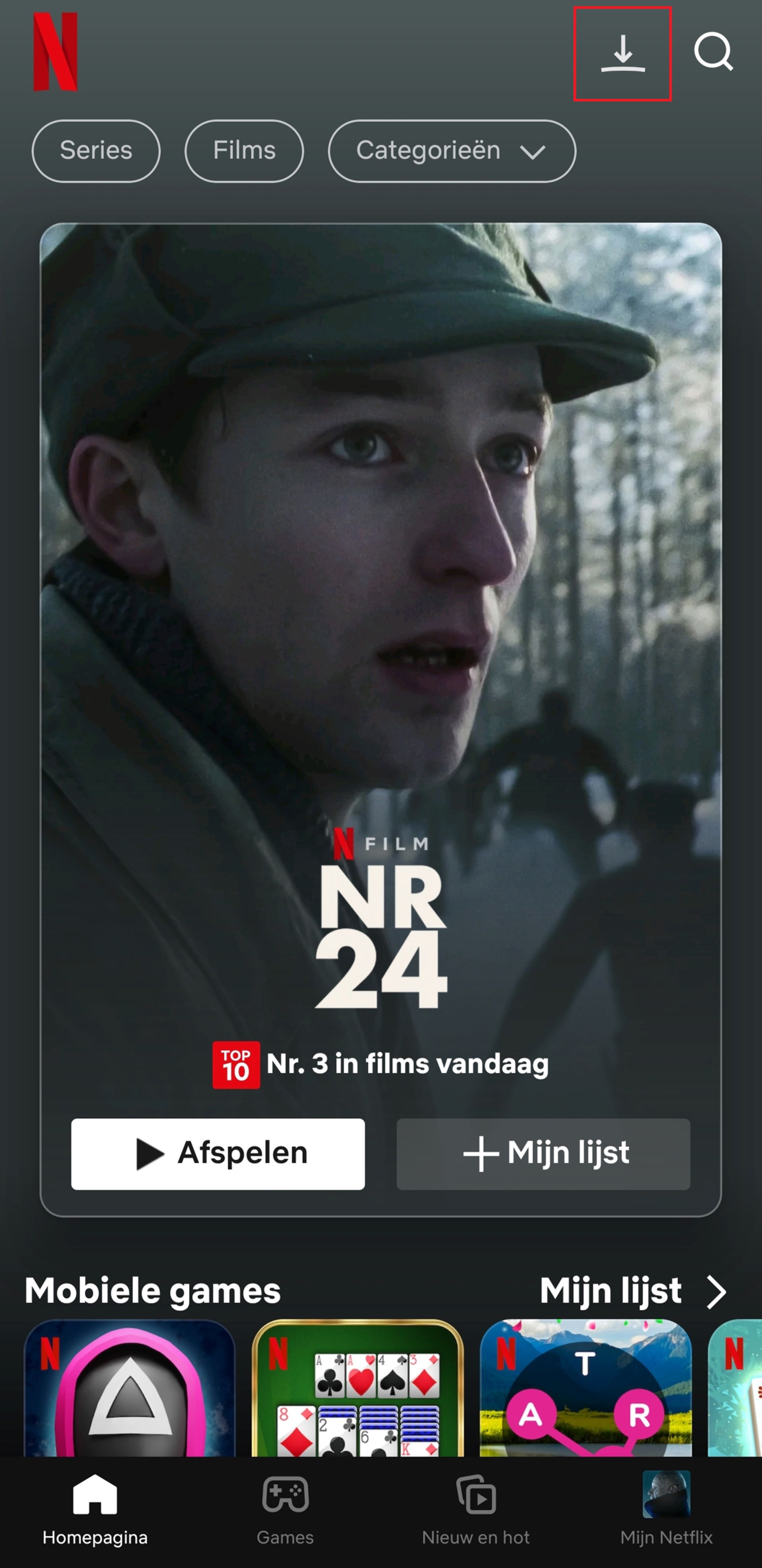
Click on the down arrow next to the magnifying glass to go to downloads
Step 2 Download Netflix movie or series
Then click on the blue button Set. The Netflix app takes the storage capacity of your device into account. You can indicate how much space you want to take up. Select Find more downloadable titles for an overview of the available content. Here you will find a selection of films and series that are available offline. You can also simply search for a film or series and see if there is a download button. Tap the download button (a down arrow) below the episode or movie and the download will start automatically.
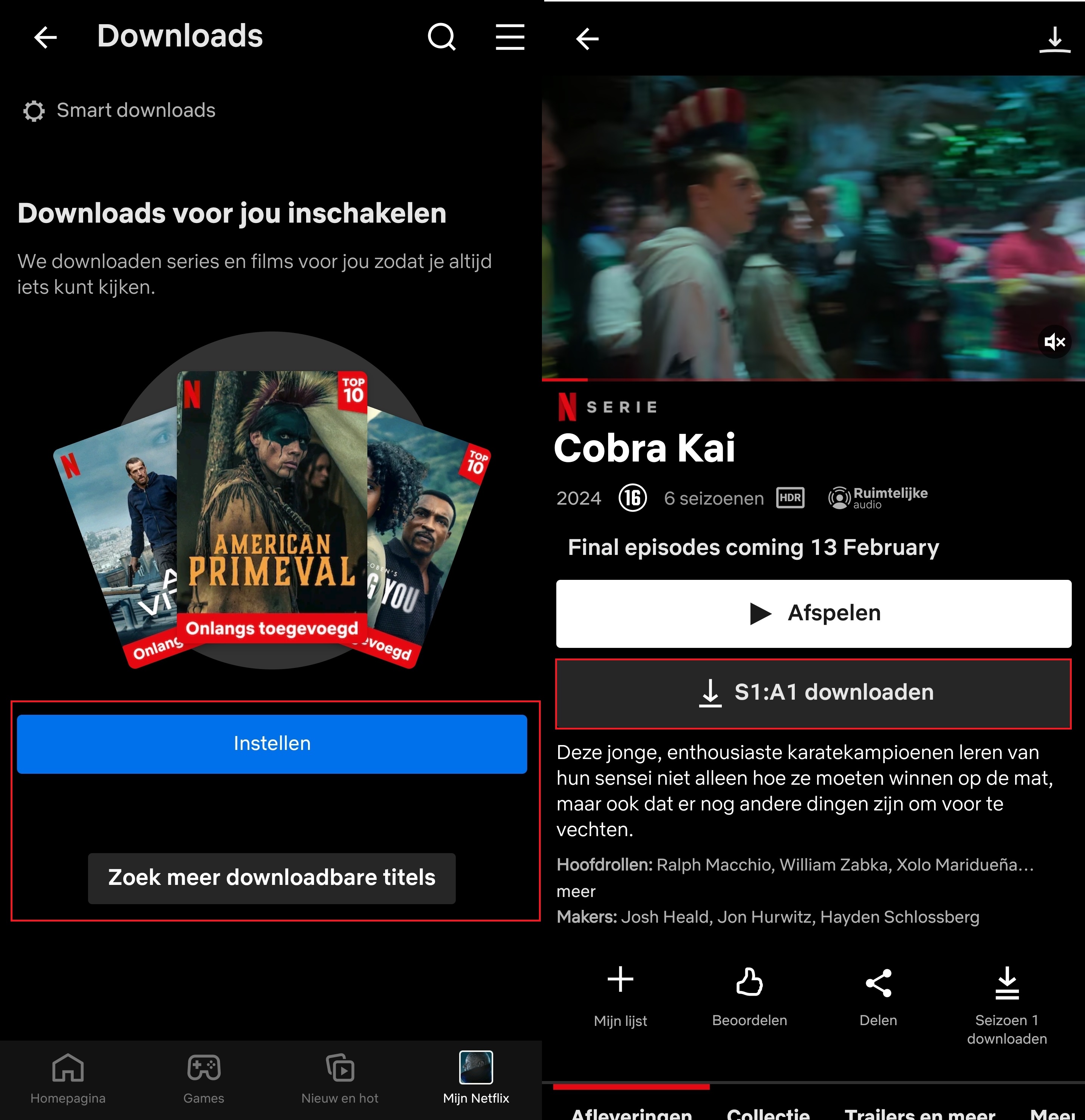
Click on the blue Set button or click on Find more downloadable titles
Step 3 View downloads
In the menu Downloads (see step 1) you get an overview of all films and series that are downloading and the content that has already been downloaded. Tap it to start watching.
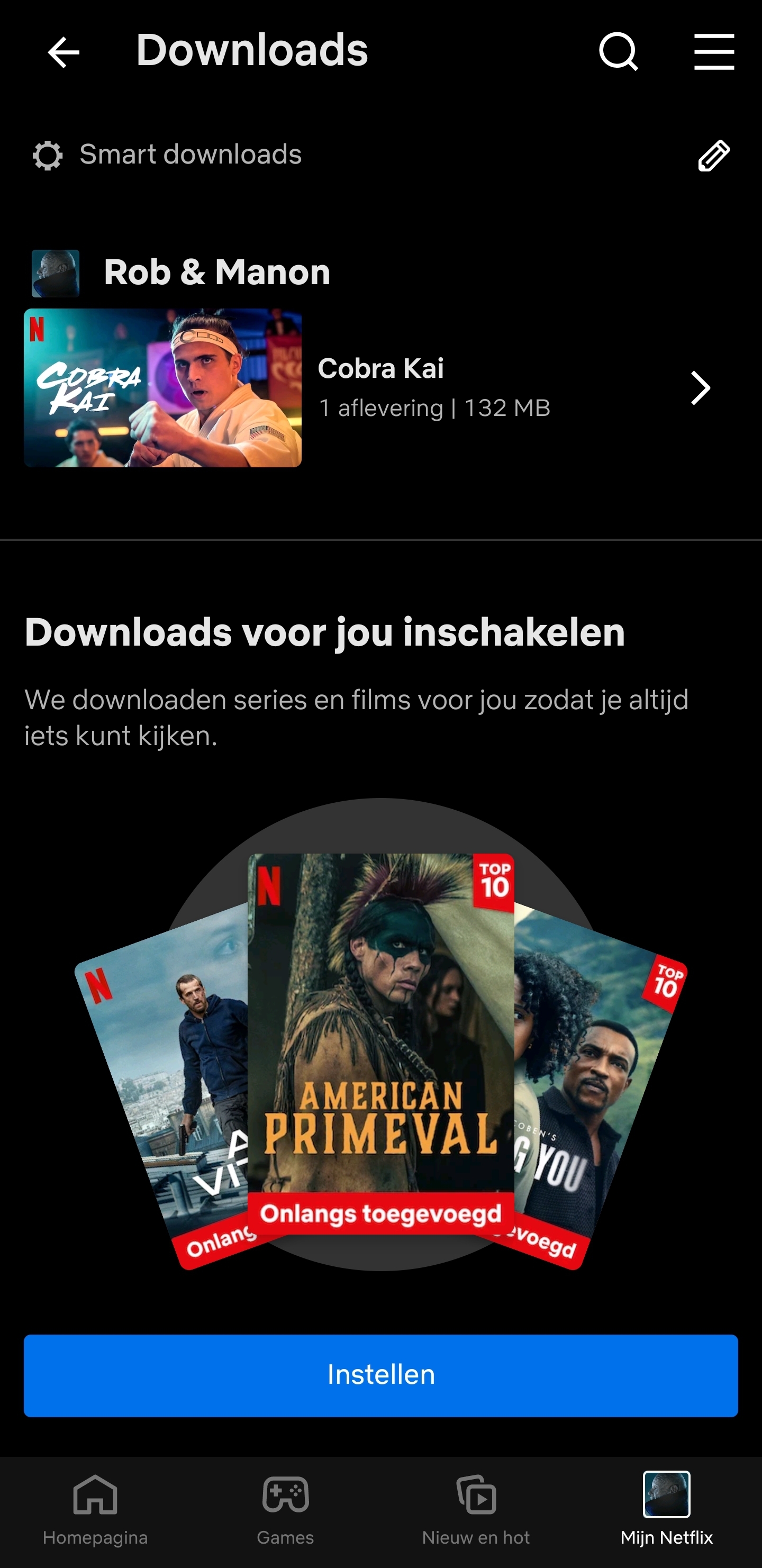
Once you’ve downloaded your movie or series, you can see them in the Downloads tab