
Apple has enabled a feature by default in iOS 26 that you should really disable if you value your privacy. We show you how it works.
Protect your privacy and disable this feature in iOS 26
When you install a new version of iOS, most settings are simply adopted. Things you disabled are usually still disabled after installing the update. But sometimes new settings are also added, which means that there may be features that are enabled by default even though you don’t want them at all.
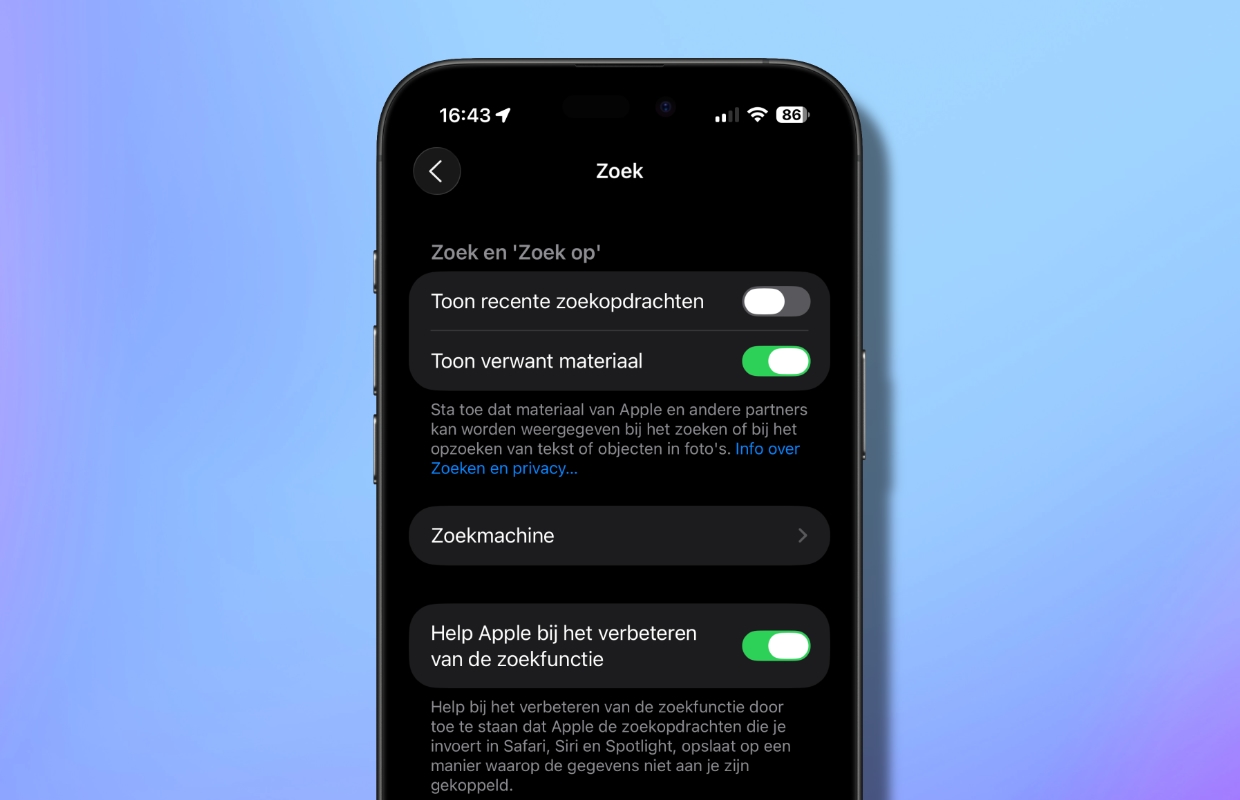
This is the case with a feature called ‘Help Apple improve search’. This is enabled by default after installing iOS 26. This allows Apple to store the searches you enter in Safari, Siri, and Spotlight in a way that doesn’t associate the data with you. Searches include looking up general knowledge and requests to do things such as play music and get directions.
Merging information
While Apple says the information in iOS 26 won’t be tied to you, this isn’t something you want if you want to protect your privacy. Apple also indicates that information is aggregated and used to improve other products and services. This merging of information can then lead back to you. Therefore, it is better to simply disable the feature completely. We show you how to do that:
- Open the Settings app;
- Scroll down a bit;
- Tap ‘Search’;
- Uncheck the ‘Help Apple improve search’ option.
Show related material
While you’re here, we recommend that you also disable another iOS 26 privacy feature: ‘Show Related Content’. This prevents material from Apple and other partners from appearing when searching for text or objects in photos.
More tips
Did you find this a useful tip and would you like more? On iPhoned you can read useful tips and tricks for your iPhone every week. Check out the most recent tips below!
-
Protect your privacy and disable this feature in iOS 26 immediately!
-
These are the nicest and funniest names for your WiFi network
-
Apple Intelligence: 3 tips if you have already installed iOS 26.1
-
How to turn off Apple Intelligence on your iPhone (and why you want to)
-
This is Visual Intelligence on your iPhone (and here’s how it works)