On iPhones you can turn Apple Intelligence on or off and it is possible to disable specific functions. But that option is well hidden.
This is how you disable specific functions of Apple Intelligence on your iPhone
If you have (purchased) an iPhone with support for Apple Intelligence, you must first enable this functionality in order to use it. But once you have done that, all AI components are immediately turned on.
At first glance, there is no option to disable specific functions in Apple Intelligence. But if you look carefully, it is secretly there. It’s just tucked away a bit.
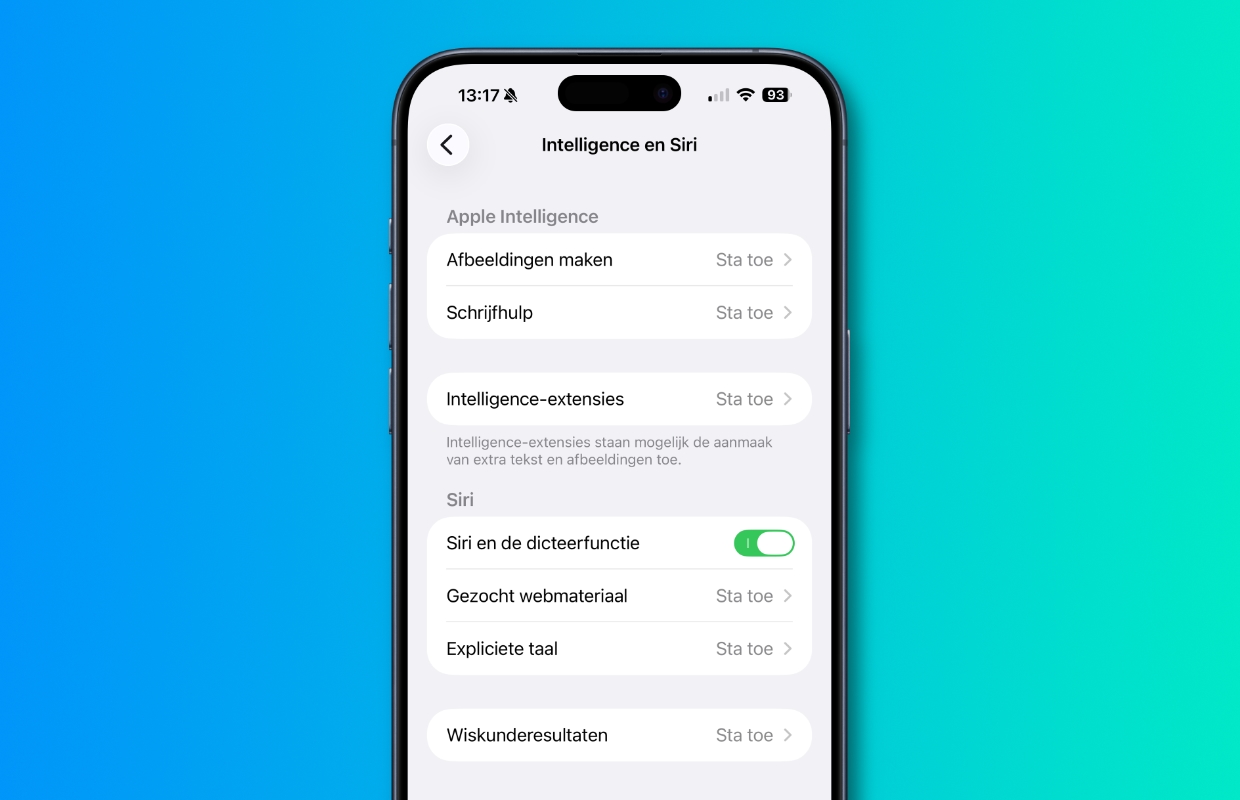
When you have enabled AI, you can turn off some components. You do this in the ‘Screen Time’ section. To do this, follow the steps below.
Disable specific AI features on iPhone
- Open the ‘Settings’ on your iPhone;
- Scroll down and tap ‘Screen Time’;
- Choose the ‘Restrictions’ option;
- Tap ‘Intelligence and Siri’;
- Here you can switch the various components of Apple Intelligence off and on as desired.
Would you rather disable all Apple Intelligence functions? You do this by tapping ‘Settings > Apple Intelligence and Siri’. Then turn off the slider next to ‘Apple Intelligence’. Here you can also enable Apple Intelligence again in the future if desired.
Apple Intelligence: Only on these iPhones
To use the function, your iPhone needs support for Apple Intelligence. For this you need an iPhone 15 Pro (€ 55.50 with subscription) or better. Apple Intelligence is also available on the iPhone 16e and on the iPad. You can read which other Apple devices support Apple Intelligence in the article below.
Want to learn more about Apple Intelligence on your iPhone or other devices? Or the latest news from Apple in your mailbox as quickly as possible? Then sign up for the iPhoned newsletter!

Download the iPhoned app