
Do you wear your AirPods regularly, but do they no longer make it to the end of the day? With these three functions, your AirPods will run out of power much less quickly!
AirPods drain too quickly
Do you often listen to music and podcasts while exercising, traveling or working? In that case, AirPods are indispensable these days. With the earphones you can listen to your favorite songs without any problems and without annoying cables. It is convenient that the AirPods do not have a cable, but that also means that they can run out of power. Do your earphones not make it to the end of the day? Then adjust these three settings so that the battery of your AirPods lasts longer!
1. Sleep detection
With iOS 26, Apple has not only brought new features to your iPhone, the AirPods also have new settings. One of those new options is sleep detection, which automatically pauses the audio when you have fallen asleep. This way, the AirPods’ battery will drain less quickly, because the audio will not continue to play for an unnecessarily long time. This is how you enable sleep detection on the AirPods 4, AirPods Pro 2 and AirPods Pro 3:
- Remove the AirPods from the charging case;
- Go to ‘Settings’ on your iPhone;
- Tap ‘AirPods’ at the top of the settings;
- Scroll down;
- Turn on the switch behind ‘Pause media when you fall asleep’.

2. Head gestures
With iOS 18, Apple brought a new way of operating the AirPods. The earphones have recognized head gestures since that software version. For example, you can shake no or nod yes to accept and reject calls. Registering head gestures is a useful addition, but also ensures that the battery of the AirPods drains faster. Do you want your AirPods to last as long as possible? Then adjust this setting:
- Remove the AirPods from the charging case;
- Go to ‘Settings’ on your iPhone;
- Choose ‘AirPods’ at the top of the settings;
- Scroll down and tap ‘Main Gestures’;
- Turn off the switch behind ‘Main gestures’.
3. Optimized charging
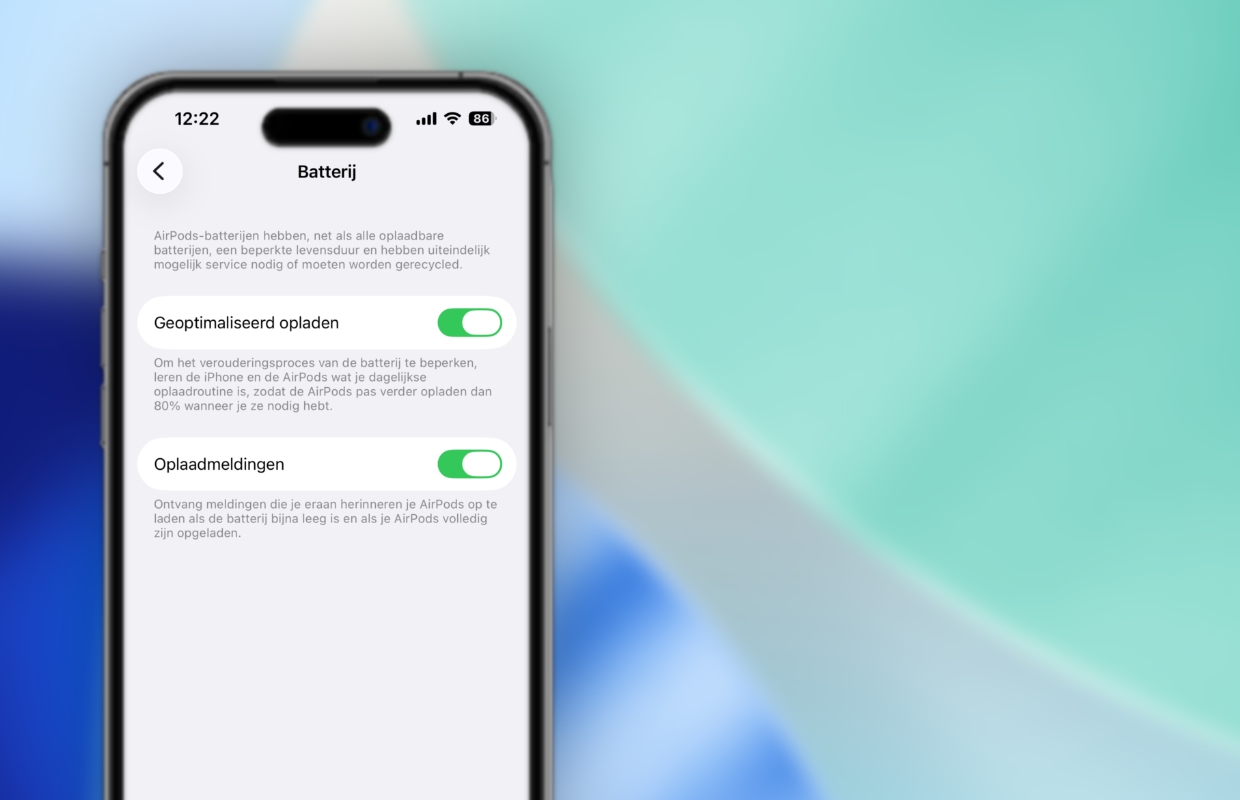
Various settings of the AirPods ensure that the battery lasts as long as possible, but it is also important to prevent the battery from aging too quickly. An easy way to do that is to enable ‘Optimized Charging’. With this feature, the AirPods only charge beyond 80 percent when you need them, limiting the battery’s aging process. You can find this function as follows:
- Remove the AirPods from the charging case;
- Go to ‘Settings’ on your iPhone;
- Choose ‘AirPods’ at the top of the settings;
- Go down and choose ‘Battery’;
- Turn on ‘Optimized Charging’.
Get new AirPods
These three functions extend the battery life of your AirPods, so you can still listen to your favorite music and podcasts at the end of the day. Do you have an earlier generation of AirPods or AirPods Pro and are your earphones emptying faster and faster? It is then wise to look for new AirPods, because unfortunately it is not possible to replace the battery of the earphones.
At the moment, the AirPods 4 and the AirPods Pro 3 are the latest versions. With the AirPods 4, you decide whether you opt for the cheaper version without noise reduction or the more expensive version with noise reduction. The AirPods Pro 3 have active noise cancellation as standard and come with silicone attachments. View the lowest prices of the AirPods here, so you never pay too much:
Apple AirPods 4 deals
Compare all Apple AirPods 4 prices
Apple AirPods Pro 3 deals
Compare all Apple AirPods Pro 3 prices