
iOS 26 brings many useful features to your iPhone, but most users find one feature annoying. This is how you solve it!
Screenshots in iOS 26
In 2025, iOS 26 was the biggest software update for the iPhone in years. The operating system has many more functions and a new interface. With the introduction of Liquid Glass, we see many more transparent elements in the software for the iPhone. Apple has not only changed the interface, but also the way certain functions work. For example, saving screenshots is done differently in iOS 26.
Taking a screenshot still works the same way in iOS 26. You press the top volume button and the lock button of your iPhone at the same time to take a photo of your display. Where a small version of your screenshot used to appear on the screen, this has become a full-screen image in iOS 26. This new feature can be annoying, as it takes more effort to save screenshots in iOS 26. Yet there is a simple way to solve this annoyance.
Text continues below the video.
@iphonednl Apple has made screenshots so different in iOS 26 😩📸 Suddenly you get a full screen view instead of that little window in the corner 😅 Luckily, you can easily switch back to the old iOS 18 iPhone screenshot style! ✅ ➡️ Go to Settings → General → Screenshot and turn off ‘Full Screen Previews’ 📴 And that’s it… you’re welcome 😌 🪄 #iphonetips #iphonetricks #ios26 #screenshot #techtok ♬ оригинальный звук – julia౨ৎ˚
Disable full-screen playback
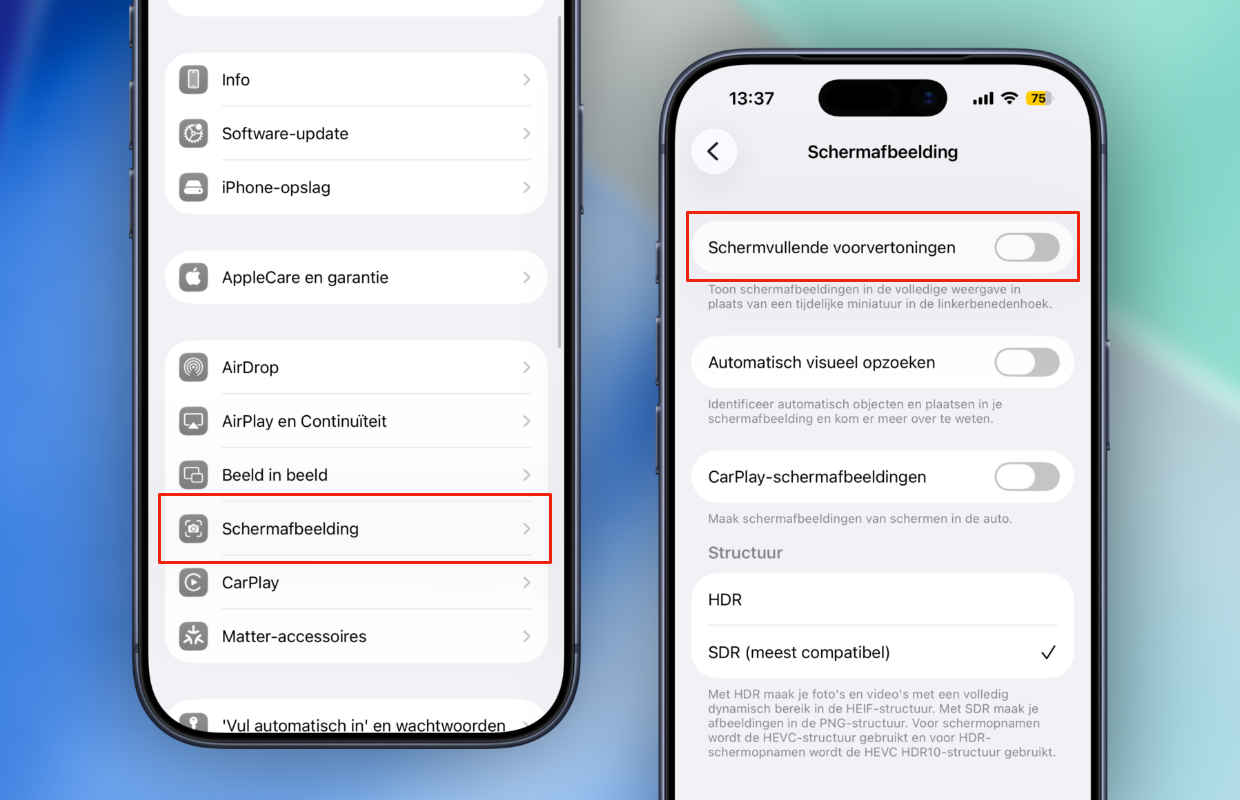
Do you regularly take screenshots and find the new feature of iOS 26 annoying? In that case, you can adjust the display of screenshots. In your iPhone settings you can choose how screenshots appear. There you also have the option to select the display of iOS 18 and earlier, so that screenshots are no longer shown in full screen. This is how you adjust the display in iOS 26:
- Open the Settings app on your iPhone;
- Go to ‘General’;
- Tap ‘Screenshot’;
- Turn off Full Screen Previews.
Have you disabled the full screen previews? From now on, a small version of your screenshot will appear at the bottom left of the screen on your iPhone. This disappears after a few seconds and is then automatically saved to your camera roll. So you no longer have to manually click away and save the screenshot. This is a small change that makes it easier to add screenshots to your photo library.
More iPhone tips
Please note, because screenshots are automatically saved to your iPhone without full-screen display. That is an important difference with the new function in iOS 26, where this is not the case. There you can immediately delete a screenshot, so that your photo library is not filled with unnecessary screenshots. The annoying feature of iOS 26 also has an advantage, because you decide for each screenshot whether it should be saved or not.
In the Photos app you can see at a glance which screenshots you have saved. Under ‘Collections > Media types > Screenshots’, all screenshots are placed in a separate album. It is wise to review these once in a while and delete unnecessary screenshots to save storage space. Did you find this tip useful and would you like to know more? Then sign up for our daily or weekly newsletter so you always stay informed!

Download the iPhoned app

Subscribe to our newsletter