
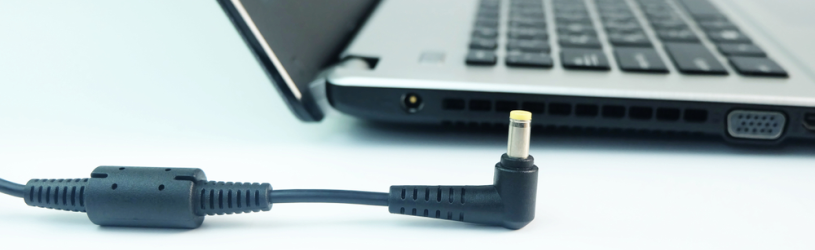
 A laptop consumes power. If you rely on the battery while on the road, it is wise to set the laptop optimally. Because those who know how to tame large consumers will enjoy the battery longer.
power guzzler
The translation of the English language ‘laptop’ is ‘lap computer’ for a reason. The device is intended as a portable computer. Convenient to take anywhere. And to make that possible, the laptop is equipped with a battery, so that it works in places where no power is available.
But computers are power guzzlers. That is why a laptop can be without a power outlet for much less time than a tablet or smartphone. Optimally set, the battery lasts the longest. What are those optimal settings?
large consumers
Several laptop parts require power. Large consumers are the screen and the processors. Together they account for about 80 percent of the power consumption. In addition, connections such as WiFi or Bluetooth would like some energy and the various USB connections require power. Optimizing the large-scale users yields the most profit. But it is also wise to set up connections and connections correctly. Below we discuss the options.
Display
The monitor, or the screen, likes it. He eagerly sucks up the battery power. But the display can be tamed somewhat. Every laptop has the possibility to adjust the brightness of the display. Go as low as possible to save battery. Adjusting the brightness can be done in several ways.
From the Taskbar
- In Windows 10, click the Action Center icon at the bottom right. This is a speech bubble icon. In Windows 11, click the battery icon at the bottom right.
- Move the slider at the bottom to the left for a less bright screen. To do this, use the slider next to the sun icon.
- Click anywhere on the Desktop to close the menu again.
Using the keyboard
Some laptops allow the brightness to be controlled via the built-in (physical) keyboard. Follow the steps below. If you don’t see these keys, it won’t work for your laptop model.
- Look at the keys at the very top. These are numbered from F1 to F12. In some cases these keys have icons. Look for two icons of a sun with rays. The icon on the left is smaller than the icon on the right.
- Press the icon on the left to decrease the screen brightness.
- Doesn’t this work? Then press and hold the Fn key at the bottom of the keyboard and press the key with the little sun.
The minimum brightness of a screen is largely determined by the ambient light. In the evening in a dimly lit room, the minimum brightness is sufficient, outside in the bright sun the brightest setting is sometimes insufficient. Some laptops have sensors that sense the ambient light and adjust the screen brightness accordingly. If the laptop does not do this automatically, set it yourself as follows:
- Click the Start button.
- Click on the gear to go to Settings.
- In Windows 10, click System.
- click on Display.
- Place a check next to Adjust brightness automatically when light changes.
(If you don’t see this option, your laptop doesn’t have this option) - Close the Settings window.
Under processors
The processor (and graphics processor) plus the available memory form the beating heart of the laptop. Whether it concerns starting Windows, editing a photo, typing an email or showing all this on the screen. They are all instructions that are processed by the processor. And guzzle that flow. Turn off programs that start automatically with Windows but that you don’t need right away. They can always be started later when they are needed.
- Click the Start button.
- Click on the gear to go to Settings.
- click on apps.
- click on Startup.
- A list of programs and apps that start automatically will appear. Turn off the slider behind a program that does not have to start automatically by clicking on it.
Not sure about a program? Then leave it alone. Parts that you can safely disable are Cortana, Skype, Your Phone, Microsoft Teams, Microsoft Edge and Adobe Reader.
Connections
Bluetooth and WiFi always require power. Even when they are not actively used. So the battery will last longer without these connections. If you are not using Bluetooth (for a while), turn it off. The same goes for the Internet. If you really need WiFi to surf or to receive/send emails, then it should of course be left on. But, no internet needed: WiFi off!
- In Windows 10, click the Action Center icon at the bottom right. In Windows 11, click the Wi-Fi icon (four dashes) at the bottom right.
- Turn off Wi-Fi. That’s how it works:
- Windows 10: click on the light gray block Network. Then click on the blue block WiFi.
- Windows 11: Click the blue Wi-Fi icon. This is the icon with the four hyphens.
The WiFi connection is now turned off. Follow the steps again to reactivate the connection. You can also disable bluetooth via the same menu. To do this, find the option with the bluetooth icon.
USB connections
A laptop usually has several USB ports. For example, a mouse, external hard drive or USB stick can be connected to it. Remember that any connected USB device will continue to draw power. So do not leave the USB stick in the laptop. Only connect when you need it and then remove it immediately.
Power management and sleep mode
If the laptop is running on battery, it is recommended that you do not leave the device on for a long time without working on it. This can be done by turning off the screen and putting the laptop in so-called sleep mode. The device then uses little power.
- Click the Start button.
- Click on the gear to go to Settings.
- In Windows 10, click System.
- In Windows 10, click Power management and sleep mode and click below Screen and Sleep mode on the menu. In Windows 11, click On/off & battery > Screen and Sleep Mode.
- Determine when the screen turns off when using battery power, for example 5 minutes.
- Determine when the laptop goes into sleep mode, for example 5 minutes.