
 You don’t want to lose the photos taken with the iPad or iPhone. Make a backup via iCloud.
iCloud Photos
iCloud lets people store files on the web, manage photos, contacts, or notes, among other things. iCloud Photos is part of iCloud. It allows the user to save, view, search and share photos and videos.
Opportunities
With iCloud Photos, the user can access their entire photo and video collection anytime, anywhere. All photos (and videos) are stored online in iCloud. The photos are available on all Apple devices with iCloud and an internet connection. Changes and edits are also automatically included on all devices. Pay attention! Thus, a deleted photo will be removed from all paired devices.
Supplies
iCloud users need an internet connection and a free Apple ID. The Photos app is already on the iPhone and iPad by default.
login
To work with iCloud Photos, the user must first sign in with the Apple ID:
- Tap on Institutions.
- If your name is at the top, you are logged in.
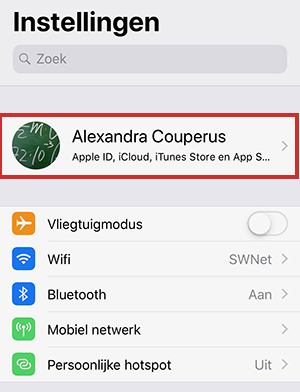
- If not, but do you have an Apple ID? Then tap Log in to your iPhone/iPad.
- Tap on E-mail and type the email address.
- Tap on Next one.
- Enter the corresponding password and tap Next one.
- If you have additional Apple devices or have provided a phone number, a verification code will be sent to them. Enter this code.
- If there is a passcode set for the iPad/iPhone, enter it now.
Turn on iCloud Photos
First turn on the different parts of iCloud on the iPad/iPhone. To make sure iCloud Photos is on:
- Tap the app Institutions.
- Tap your account name at the top.
- Tap on iCloud > photos.
- Make sure the slider behind iCloud Photos is green. Isn’t this so? Then tap it.
- The photos are stored in iCloud in original quality. Indicate whether you want to keep the original photo or video on the device or if you just want to see a preview in lower quality.
- Optimize iPhone Storage: This option creates space. Only when editing or sending the photo will the original be downloaded to the device
- Download and keep originals: With this option, the photo/video is simply stored on the device. The photos are always available in the highest quality, even if you do not have an internet connection for a while. Only choose this option if you have enough space on your device.
Open Photo from iCloud
All images stored in iCloud are in the Photos app. They are small and automatically organized by date. Open a photo like this:
- Tap the app photos
 .
. - Tap the photo you want to open.
- At the bottom are thumbnails of the other photos. Tap a thumbnail to view a photo.
- Tap the left arrow at the top left to return to the overview with all photos.
Create new album
Lots of holiday photos or a mountain of photos of the grandchildren? Organize the photos together in an album. Create an album like this:
- There is a menu bar at the bottom. Tap here Albums.
- Tap the plus sign in the top left.
- Tap on New album.
- Give the new folder a name.
- Tap on Keep.
- Tap the photos you want to put in the album.
- Tap on Ready.
The photos have been added to the album. They are also still in the overview with all the photos. A photo can also be in different albums.
put photo in album
Put one or more photos in an album directly from the gallery. This can be done like this:
- Tap the tab Library.
- Tap on Select.
- Tap all the photos you want to put in the album.
- Tap a square icon with an up arrow, then tap put in album.
- Tap the desired folder.
The photos are right in the folder.
Remove photo from album
To remove a photo from an album:
- Tap the tab Albums.
- Tap the desired album.
- At the top right, tap Select.
- Tap the photos you want to remove from the folder.
- Tap the trash can icon at the bottom right.
- Tap on Remove from album.
The photos are now removed from the selected album, but are still in iCloud Photos.
Delete photos from iCloud
If photos are really allowed to go, remove them completely from iCloud:
- Tap the tab Library.
- Tap on Select.
- Tap the photo, or multiple photos, that you want to delete.
- Tap the trash can icon.
- Tap on Delete photo.
The photos have been removed from iCloud Photos on all your devices.
Recover Deleted Photo
Deleted photos are stored in the Recently Deleted album for 30 days. After that, they will disappear from all your devices for good. You can recover the deleted photos within 30 days:
- Tap the tab Albums.
- Scroll all the way down.
- Tap on Recently deleted.
- Tap the photo.
- Tap at the bottom right put back.
- Tap on restore photo.