

Send messages, photos and sound recordings, among other things, with the popular messaging app WhatsApp.
What is WhatsApp?
With the app on the smartphone, people can send each other messages and call via the internet connection. Users therefore do not pay per call or message, but for the so-called data traffic.
to install
Install WhatsApp from the App Store on iPhone. Read here how that works. This tip also explains how to set up WhatsApp for use.
Info
Your contacts will also see some information with your name. This info shows your state, for example whether you are available to have a WhatsApp conversation. In practice, most users do not adjust this. By default, your WhatsApp account already has a status set. Adjust the status like this:
- In WhatsApp, tap Institutions.
- Tap your name.
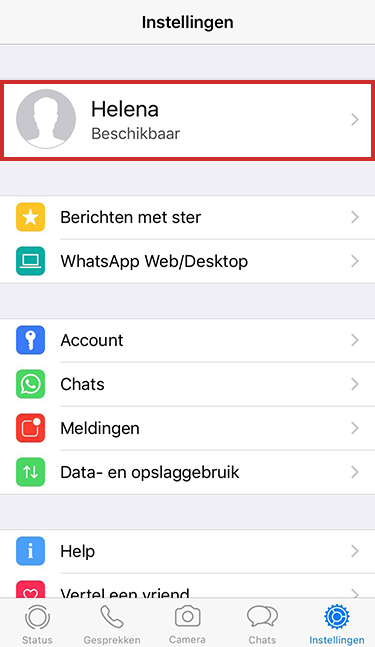
- Under ‘About’, tap the bar that shows your current status.
- Tap one of the options under “Select your info.”
- Make up your own text?
- Tap the bar under ‘Current info’. Delete the text with the Backspace key on the keyboard.
- Type a text.
- Tap on Keep.
- Tap at the top left Change profile > Institutions.
To send a message
The ‘Chats’ tab shows the conversations you had. Tap a name to view the conversation. Want to start a new conversation? Then read the tip ‘Start a conversation in WhatsApp’.
Send photo
It’s nice to occasionally send a photo via WhatsApp. For example, a nice meal in a restaurant or a beautiful location on holiday.
- In the menu at the bottom, tap chats.
- Tap the person you want to message.
- Tap the plus sign to the left of the text box.
- There are several options. Tap on Photo and video library to send an existing photo.
- Tap the correct photo.
- Tap on joint Ocaption.
- Enter a text with the photo.
- Tap the send button.
The photo will now be sent to your contact via WhatsApp.
Send voice message
Send voice messages with WhatsApp like this:
- Tap the tab chats.
- Tap the person you want to message.
- Tap and hold the microphone icon at the bottom right.
- Please leave your message.
- Release the microphone when you are done.
Tip: Play a received voice message by tapping the play button near the message.
Group conversations
Several people participate in a group conversation in WhatsApp. All chat participants will receive all messages sent in the group conversation. And they can also send messages themselves. Read in the tip ‘Starting a group conversation in WhatApp’ how group conversations work exactly.
To call
Calling with WhatsApp is very simple. Every contact in WhatsApp that you can call has a telephone receiver icon.
- Tap the tab Conversations.
- Tap the handset icon with plus sign at the top right.
- Tap the contact you want to call.
The contact person is now called via WhatsApp.