
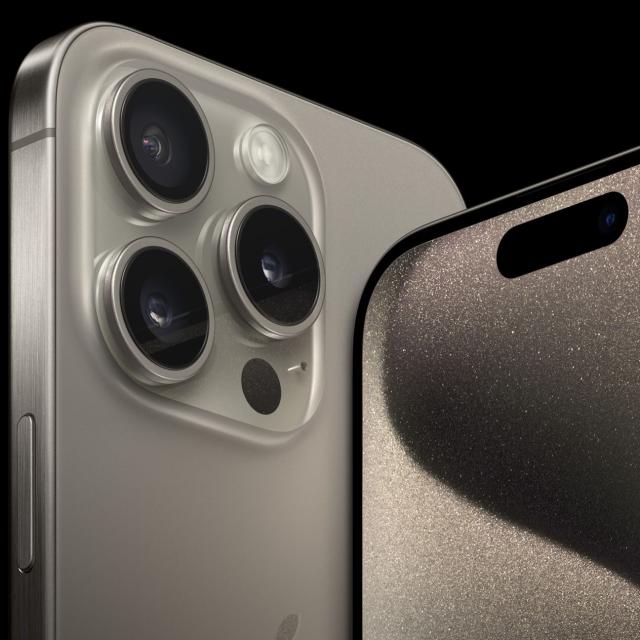
With the introduction of the iPhone 15 Pro and iPhone 15 Pro Max also came the introduction of the new Action Button. Combined with shortcuts, you can change the action button, giving you quick access to important app features without having to open an app.
The iPhone 15 Pro and iPhone 15 Pro Max feature an Action Button that offers personalization options for users seeking more control. We would like to recommend a number of options for using the Action Button:
• Music: Quickly playing music from the Apple Music app is made very easy.
o Make sure the Apple Music app is installed on your iPhone 15 Pro or iPhone 15 Pro Max
o Open Institutions and then Action Button.
o Click on Music: you can choose between Recently Played or Playwhich will bring up all the playlists you’ve already created.
o From then on, every time you want to use this shortcut, you can simply hold down the Action Button.
• Streaks: Streaks is a to-do list app that’s all about building better habits.
o Download the Streaks app (note: this is a paid app)
o Open Institutions and then Action Button.
o You can then choose from:
– “Complete Task”, “Streaks”, “Start Timer”, “Pomodoro”.
– Press on the Action Button.
– Tap on Pomodoro.
o From then on, every time you want to use this shortcut, you can simply hold down the Action Button.
• Waterless: If you are health conscious, there is an app called Waterminder that helps you track your daily water intake. The action button makes it easy to keep track of how much water you drink.
o Download the Waterminder app.
– Open the app and connect it to the Health app.
o Open Institutions and after that Action Button.
o Search for Waterless in the menu selector.
o From there you can choose from several options, including: Log in cup, Drink logging, Current hydration, Remaining hydration and Last log.
o From then on, every time you want to use this shortcut, you can simply hold down the Action Button.
In addition, there are also hundreds of examples of items from the Assignments app that go well with the Action Button.
- Start Pomodoro: Start a custom timer and turn on your focus until it’s done.
- Speed dial: call anyone quickly and easily. If you add multiple contacts, you will be asked each time who you want to call.
- Home & Away Settings: Configure your iPhone’s settings (audio route, volume, brightness, text size, and appearance) for when you’re at home or on the go. This shortcut allows you to set your preferences for when you work from home (at your desk) or away from home.
- Add bulk reminders: add multiple reminders at once to the Memoriesapp, by entering multiple lines of text or from the share sheet. Works great for recipes or other lists in text form. When viewing recipes online, highlight the list of ingredients and in the sharing sheet, use this shortcut to add each item as a reminder.
- Pizza Assistant: Call a local pizzeria to place an order and automatically add a reminder to pick up your order.