Sometimes you see colored dots at the top of the screen on your iPhone. But what do these dots actually mean?
Colored dots at the top of the screen on the iPhone? This is what’s going on
You may have noticed that you sometimes see a colored dot at the top of your iPhone screen. A green dot then means that an app is currently using the camera.
Usually you see the green dot immediately when you turn on the camera, but sometimes it remains active in the background for a while. In such moments, that green dot is a handy signal that your camera is still doing something.
Do you see an orange dot appearing on your iPhone screen? Then you know that an app is currently using your microphone. This could, for example, be Siri or perhaps the Dictaphone app.
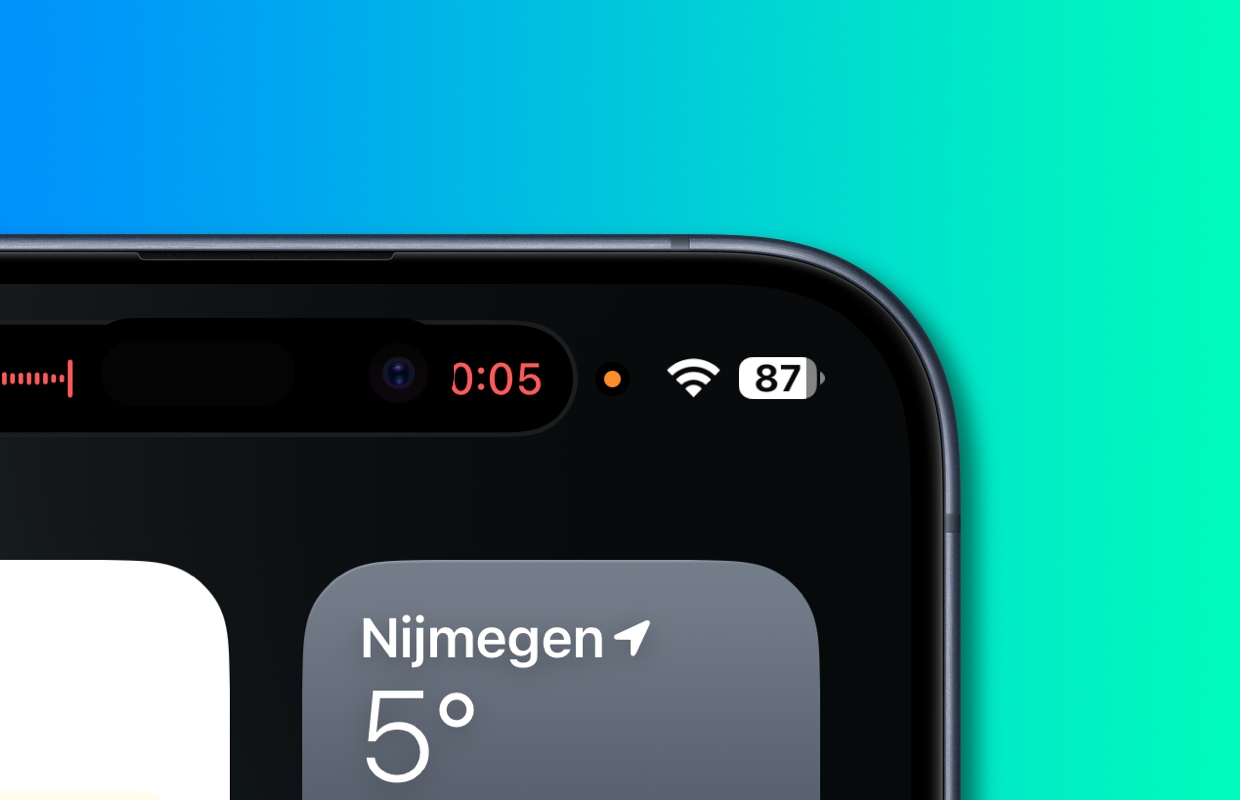
Which app provides the colored dots? This is how you find out!
If you have started an app yourself, you often know which app is responsible for the colored dots at the top of the screen of your iPhone. But sometimes you don’t know exactly which app uses your camera, microphone or location. Fortunately, you can check that quite easily.
Open the Control Panel and you will immediately see which app has activated something. On iPhones without a home button, you do this by swiping down from the top right corner. Do you still have a home button? Then you swipe up from the bottom of the screen.
You will then see at the top of the Control Panel which apps use the camera, among other things. By tapping here you will get more information and see exactly which app is using what.

Also other icons
In addition to the colored dots, other icons may also appear at the top of your iPhone screen. For example, a blue dot with an arrow in it will appear when your iPhone requests your GPS location in the background. You will see that dot if, for example, you are planning a route in the background with Google Maps.
Looking for more Apple tips? Then sign up for our newsletter and you will receive the latest tips and Apple news straight to your mailbox.

Download the iPhoned app