
There are a number of iPhone settings that it is best to adjust immediately – in these iPhone tips we show you no fewer than 10 of them.
iPhone tips: you need to adjust these iPhone settings
There are many hidden features in iOS that most users don’t know about. It is best to adjust some of these immediately – in these iPhone tips we show what they are and how to do it.
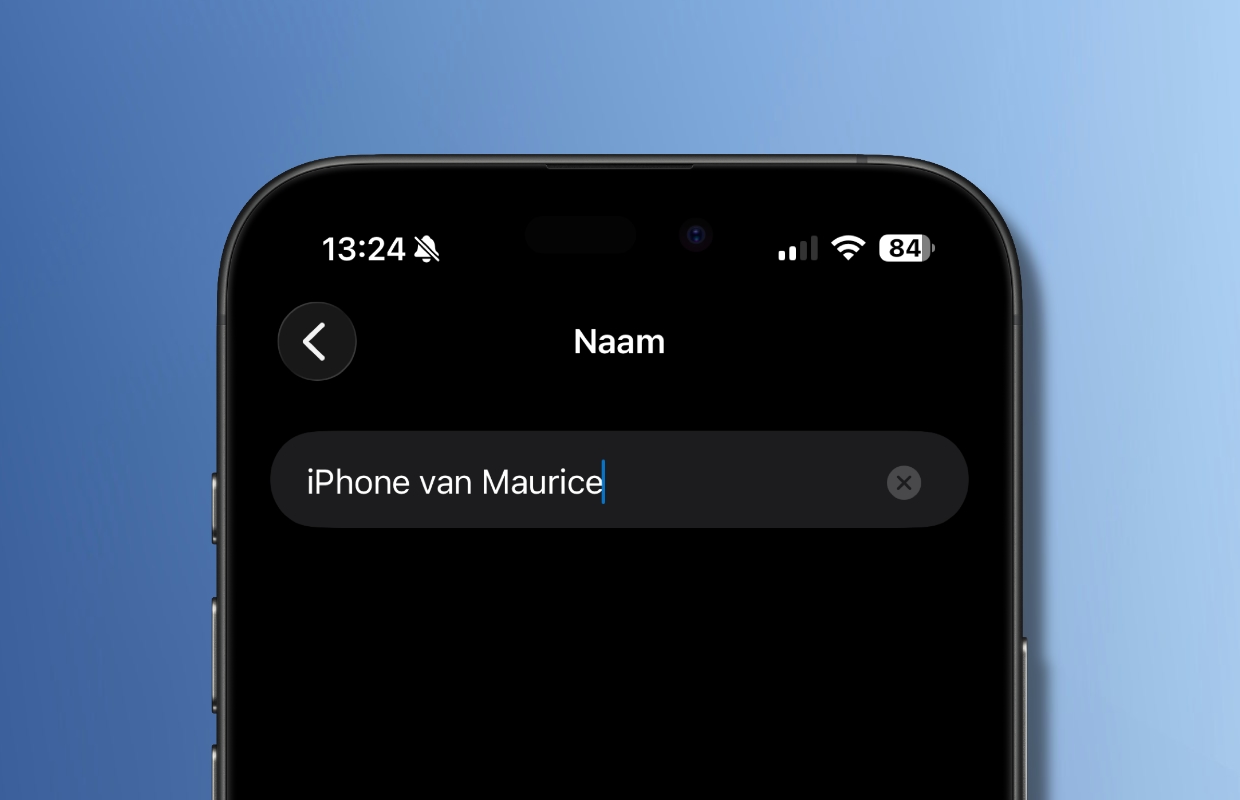
1. Give your iPhone a name
Did you know that your iPhone has its own name? It does not only appear in the list of devices that are registered with you iCloudaccount, but is also visible to others when you send something via Airdrop. That may already be a reason to change the name. By default, your iPhone will be named “iPhone from [voornaam uit jouw iCloud-account]”, but you can change that name. This is how you do it:
- Open the settings app;
- Tap ‘General’;
- Tap ‘Info’ and then ‘Name’;
- Enter the desired name.
2. Turn off Background Refresh
By default, apps are updated automatically, without you noticing anything. This also happens if you are not using the app. Although it is useful in principle that all apps are immediately ready for use, it also costs a lot of energy. The result is that your battery drains a lot faster. In addition, mobile data may be used to update the apps. It is therefore a good idea to adjust this function. This is how you do it:
- Open the Settings app;
- Tap ‘General’;
- Tap Background Refresh.

You can now choose from three options:
- Out: Turn off Background Refresh completely (you will still receive notifications from apps).
- WiFi: Apps are only updated when your iPhone is connected to a Wi-Fi network.
- WiFi and mobile data: Apps are always updated regardless of whether you’re connected via WiFi or 5G.
If you want to keep the feature enabled, you can also choose to limit it to certain apps. To do this, all you have to do is disable the apps that are not allowed to update in the background.
3. Automatically switch between Light and Dark
You can adjust various settings on your iPhone, such as the text size and whether you want to use your iPhone in light or dark mode. You can also just leave the latter to your iPhone. It can automatically switch between light and dark mode. This is how you adjust that option:
- Open the Settings app;
- Tap ‘Screen & brightness’;
- Enable the ‘Automatic’ option;
- Tap ‘Options’ and set your preference.

4. Make Liquid Glass less transparent
In the same ‘Screen and brightness’ menu there is also the ‘Liquid Glass’ option. By default, iOS 26 activates ‘Clear’ mode, which makes the entire user interface appear more transparent. Choose ‘Toned’ for a more opaque look with better contrast. Please note that this option is available in iOS 26.1 or later. If you don’t see the option, make sure you update your iPhone to the latest version of iOS.

5. Always on function
Some iPhone models have an Always-On screen, which allows the screen to display information even after locking. If you don’t like this or want to disable the option to save battery power, do the following:
- Open the Settings app;
- Tap ‘Screen & brightness’;
- Scroll down and tap ‘Always on’;
- Adjust the operation or disable the function completely.
For example, you can set the background image to be turned off and only the clock to be shown. There is also an option to show or hide notifications. If you don’t want to use the Always On feature at all, simply turn off the main power switch.

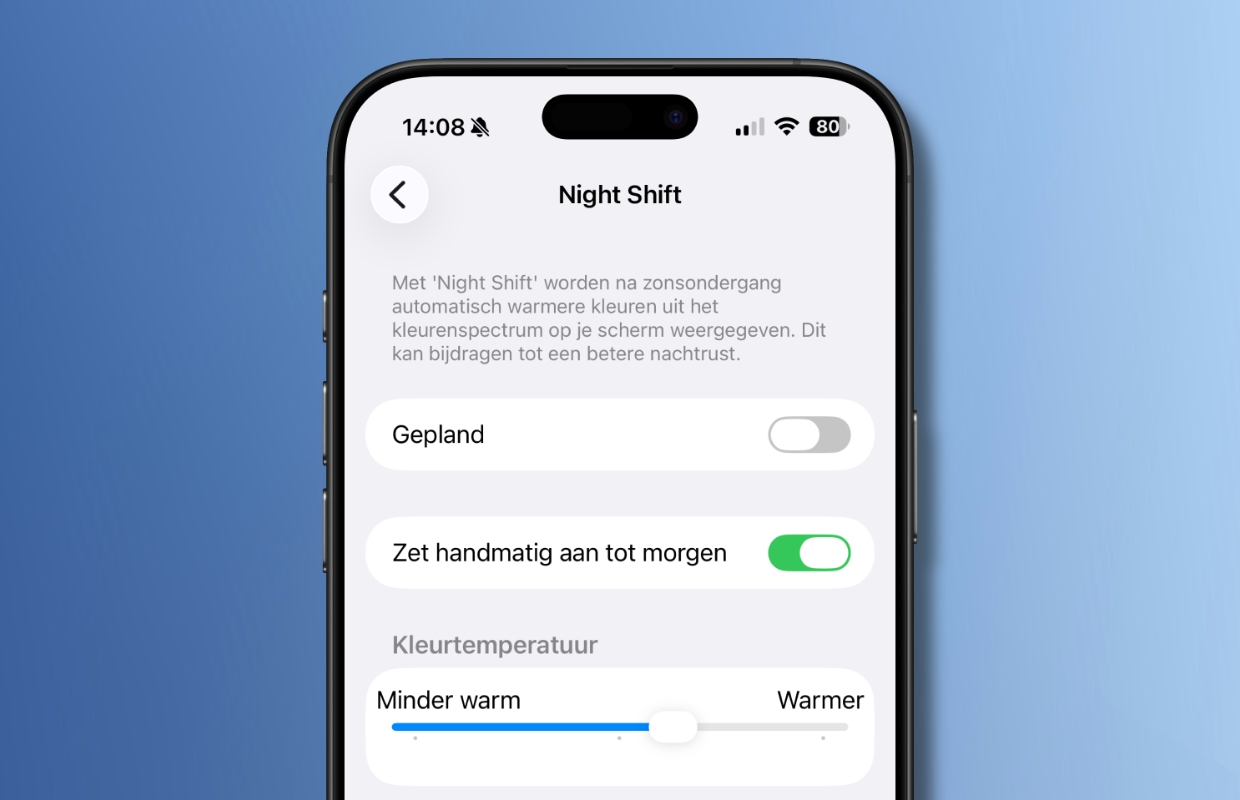
6.Night Shift
The Night Shift feature was introduced in iOS 9 and essentially reduces the blue light from the screen and makes it appear warmer. The idea behind this is to make the screen easier on the eyes, especially at night. You can manually activate Night Shift from sunset to sunrise or set a custom schedule. There is also a slider that allows you to adjust the intensity of the effect on the screen. You will also find the function under ‘Screen and brightness’, just like Always on (see tip 5).
7. Camera features
If you want to use all of your iPhone’s camera features, it’s definitely worth checking out the Camera section in the Settings app. By default, the iPhone is set to record 1080p videos. You can change this default resolution to 4K in the ‘Record video’ menu. There you can also disable HDR video if desired.
If you have an iPhone Pro (iPhone 12 Pro or newer), you can also enable ProRAW in the ‘File structures’ menu. Once you enable ProRAW, a button will appear in the camera app that allows you to turn the feature on and off while shooting.

8. Control panel
The Control Panel gives you quick access to a number of useful settings. Think of managing Wi-Fi and Bluetooth, changing the volume, activating ‘Do Not Disturb’ or even turning AirDrop on and off.
You can open Control Center from anywhere by swiping down from the top right corner of the screen. This works not only from the home screen or from apps, but also from the lock screen. This also means that anyone who gets their hands on your iPhone can change these settings. Fortunately, you can adjust that:
- Open the Settings app;
- Tap ‘Face ID & Passcode’;
- Scroll down a bit;
- Under ‘Access when locked’, disable ‘Control panel’.
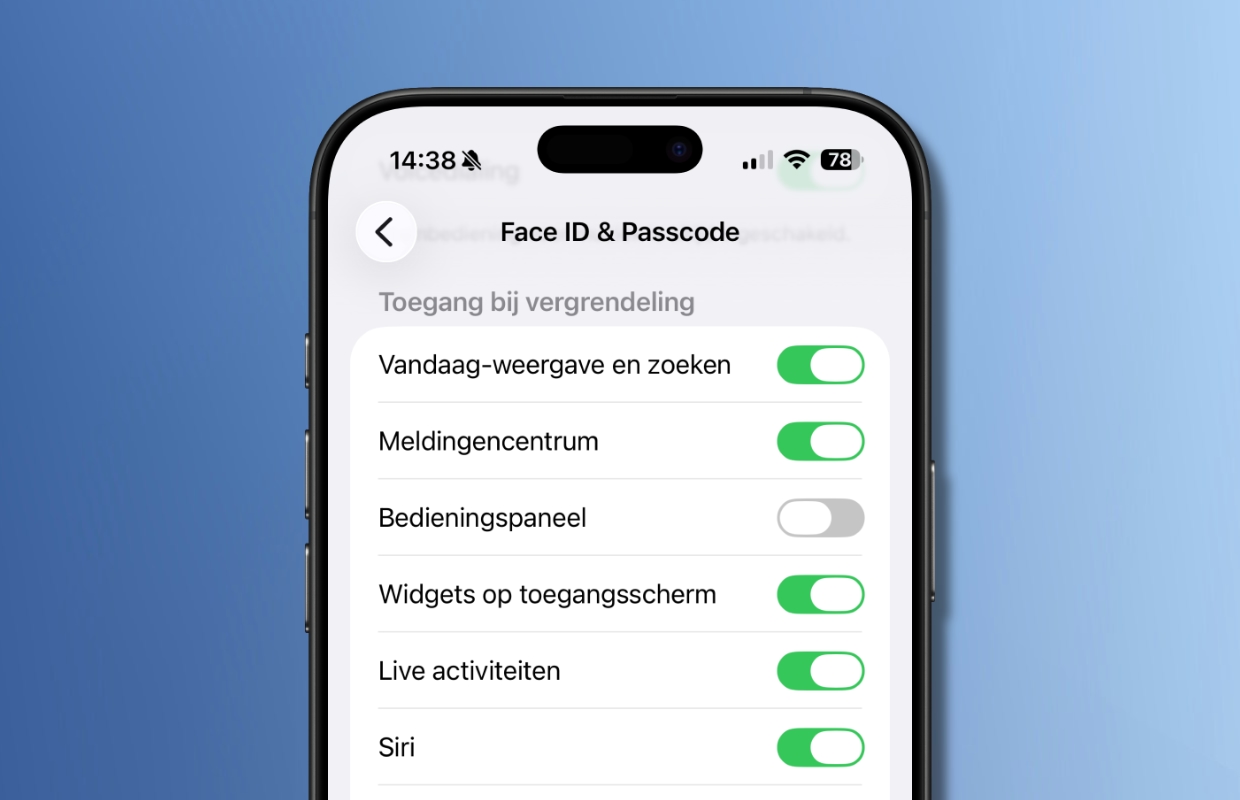
You can also disable other options here to prevent them from being accessible from the lock screen, giving you more privacy and security. From now on, the functions first require authentication with Face ID.
9. Protection for stolen device
The theft protection introduced in iOS 17 provides extra security in case your iPhone is ever stolen. Especially when the thief also knows your access code. When enabled, Face ID is necessary for sensitive actions like changing your Apple ID password, turning off Find My iPhone, or accessing saved passwords without being able to use the passcode. To enable it:
- Open the Settings app;
- Tap ‘Face ID & Passcode’;
- Tap ‘Stolen device protection’;
- Turn on Stolen Device Protection.

10. SOS contacts
Setting up an SOS emergency contact ensures that first responders can reach someone you trust when something happens to you. These contacts can be accessed directly from the lock screen, without having to unlock iPhone.
To add an SOS contact, open the Health app, tap your profile photo and go to ‘Medical ID. Then tap ‘Add’ behind ‘SOS contacts’. Then tap ‘Add SOS contact’.

More iPhone tips?
Did you find these iPhone tips for adjusting iPhone settings useful and want more? On iPhoned you can read useful tips and tricks for your iPhone every week. Check out the most recent tips below!
-
iPhone tips: you need to adjust these 10 iPhone settings immediately!
-
These 3 New Spotify Features Are Now Available (and Here’s How to Find Them)
-
Please note: this is how you prevent your iPhone from being stolen as best as possible
-
This iPhone feature could save your life (if you enable it yourself)
-
We have been waiting for this WhatsApp feature for a very long time – but it is disappointing