Do you always place your iPhone with the screen up when you are not using it? Don’t do that, because that’s really asking for trouble.
Never do: place your iPhone with the screen up (here’s why)
Put your iPhone away with the screen up? You actually shouldn’t do that. As soon as a notification arrives, the screen turns on briefly. And that one short flash seems innocent, but you still (unconsciously) look at your phone every time.
Of course, much to the dismay of your partner who just asked a serious question and you had to take another iPhone peeking moment. So don’t do that.
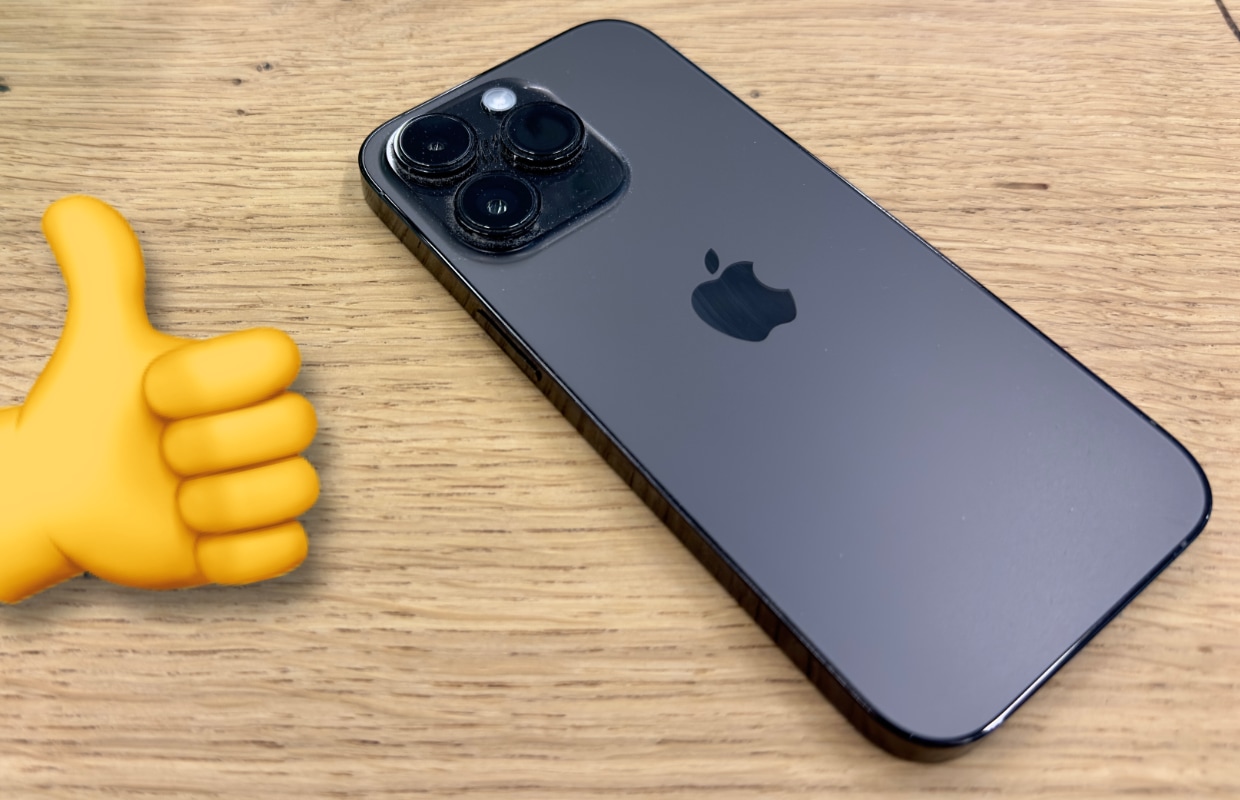
Of course, you don’t want an angry partner. But the constant lighting of your iPhone also has another disadvantage. It also takes a toll on your battery. Don’t expect it to eat hours off your battery life, but all those little bits will slowly add up. Especially during the popular days around the holidays, you often receive more notifications than normal.
There is a simple solution to all this. Place your iPhone with your screen down! Your iPhone will then stop lighting up with every notification. Your smartphone understands that the screen is not visible when you place the device face-down on the table, and that is why it does not light up the screen.
No more glowing screen for notifications
Do you really never want that glowing screen with (certain) notifications again? Even if you place the iPhone with the screen up? Then you can set notifications to no longer activate your lock screen. You do this in the following way:
Open ‘Settings’ on your iPhone. Go to ‘Notifications’, scroll down and tap the app for which you want to turn off the notifications. Then set the options for ‘Access screen’, ‘Notification center’ and ‘Strips’ to off. Then do this for each app.

It is even easier to put your iPhone on ‘Do not disturb’. You do this via the Control Panel or ‘Settings > Focus > Do not disturb’. Then turn on the button for ‘Intelligent transmission and hold still’.
Do you always want to stay informed of all the Apple news? Or useful iPhone tips? Then sign up for our newsletter.

Download the iPhoned app