Do you use Spotify in combination with CarPlay in your car? Then you may also be dealing with an annoying bug that prevents you from playing music. This is what’s going on and this is how you solve it.
Spotify has an annoying bug
Spotify’s CarPlay app is generally very convenient. There’s clear navigation to get to your favorite playlists, albums and songs, and thanks to an offline backup, you’ll always have something to listen to – even if you don’t have internet.
Speaking of which: if you have disabled mobile data for Spotify, for example to save your bundle for the holidays, the music app will go into a special mode where only downloaded items are visible. That has always worked well until now, but since the last few updates, Spotify has a pretty annoying bug that prevents you from playing music. iPhoned explains what exactly happens.
No content for downloaded songs
The bug therefore occurs if you use Spotify with CarPlay and have disabled mobile data. In that case, all your downloaded albums and playlists will still appear, but as soon as you tap one, the message ‘There’s nothing here yet’ will appear. No matter what way you try to get there, you can’t play music.
Fortunately, there are two solutions to at least be able to put on some music, but these are not at all convenient. In fact, one of those variants is even dangerous if you do it in your car. Below we list the two ways, but be warned.
Fixing the Spotify bug: the safe (but clumsy) variant
One way to be able to play music is to go to the special offline environment of the Spotify CarPlay app. You’ll find this at the top of the Spotify home screen in CarPlay – the option is called ‘Spotify is offline’. Tapping it will again give you an overview of your downloaded playlists and albums, just like on the previous screen. But the difference is that after the next tap, an overview of songs does not appear first, but starts playing immediately – from song 1 of the album or playlist. This way you can put on music, but not choose what you play. Clumsy, but workable.
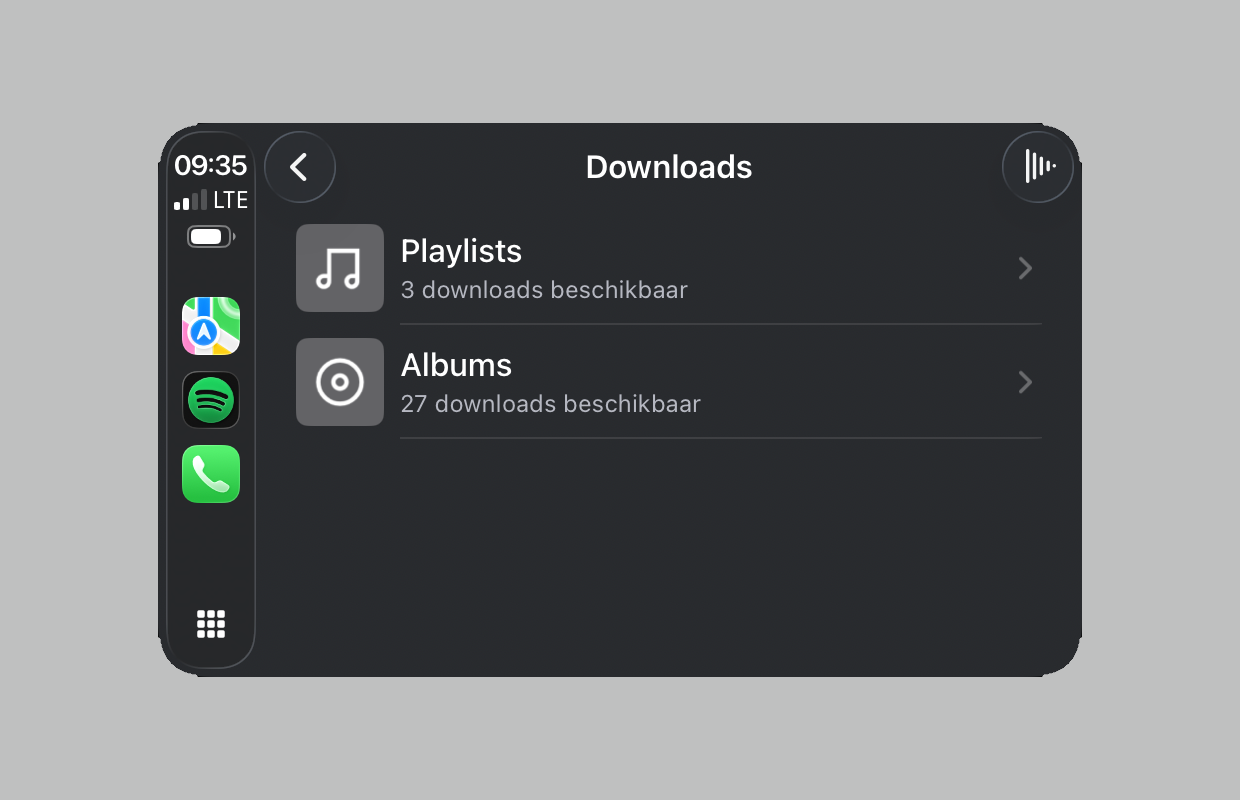
Fixing the Spotify bug: the practical (but dangerous) variant
There is also a second solution. This one just lets you choose all the numbers as usual, but we still can’t recommend it. The alternative is to pick up your phone, select what you want to listen to and then play it. That just works, and the number then appears neatly in CarPlay.
However, we do not consider it at all safe to do this while driving and it is of course not Apple’s approach with CarPlay at all. Let’s hope that Spotify fixes this bug soon – although the last few updates in the App Store have not provided any relief.
Work around it: mobile data on
There is an alternative solution, and that is (temporarily) activating mobile data for Spotify. You do this via ‘Settings>Apps>Spotify’. There you will find a switch for mobile data. This means everything works properly, and as long as you only play songs that have been downloaded, your data consumption will also remain within limits. Did you find this tip useful and would you like to know more? Then sign up for our daily or weekly newsletter so you always stay informed!

Download the iPhoned app