iOS 26.2 is coming this month and introduces new ways to customize your iPhone – here are 3 highly requested features coming.
3 features coming to your iPhone with iOS 26.2
We expect Apple to release iOS 26.2 to the general public in December. Here are 3 in-demand features you can expect to see on your iPhone.
1. Liquid Glass slider for the lock screen
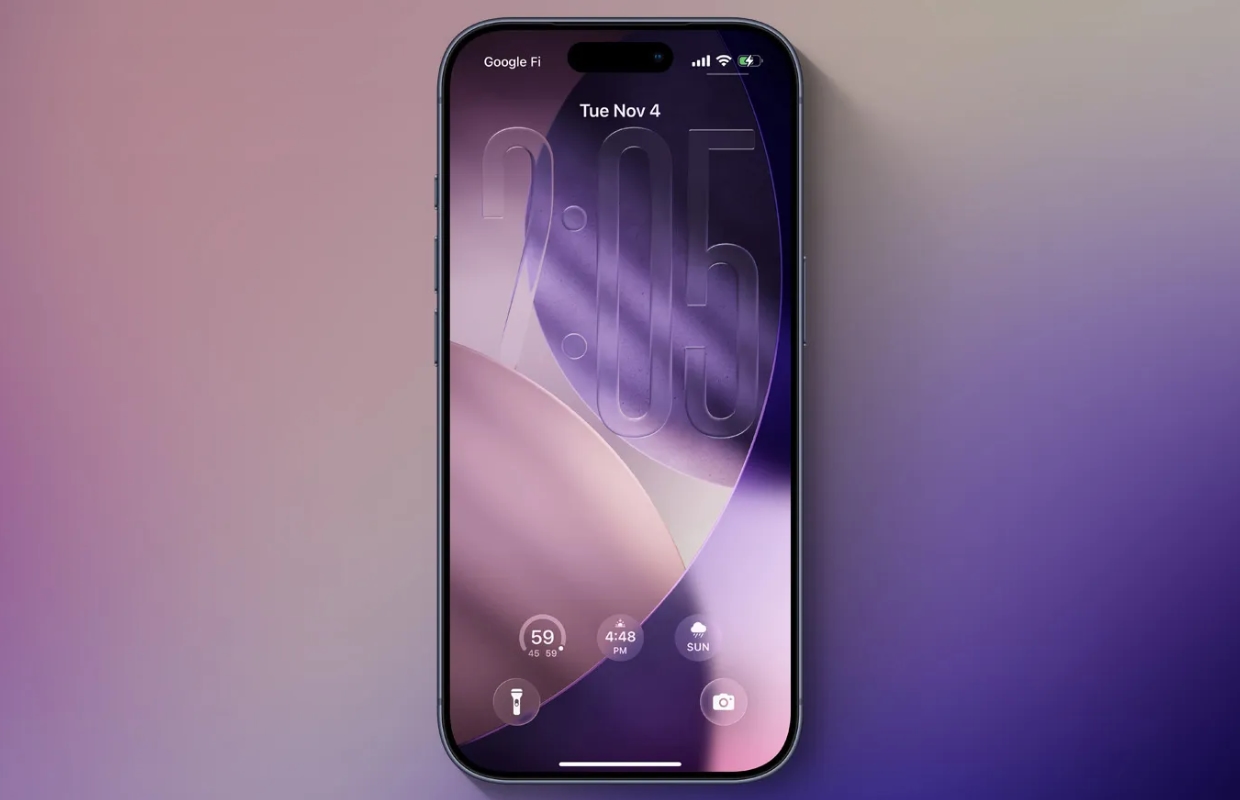
In iOS 26, Apple added the ability to give the lock screen clock a Liquid Glass design. In iOS 26.2, Apple expands the slider for adjusting the transparency of the clock. You can then make the clock more or less transparent than before.
Make sure the clock is set to ‘Glass’ and not ‘Solid’, then play with it to find the look you want. The image below shows the new, most transparent clock. The updated slider is available regardless of the font you chose. Unfortunately, adjusting the size of the clock is still only possible with the standard font.
2. New flash for notifications
Notifications have long offered the opportunity to show an additional visual signal. You can set the camera flash to go off when a notification arrives. This feature is ideal for the hearing impaired, but it is also just a nice option to make notifications extra noticeable.
In iOS 26.2 there is a new alternative that is along the same lines. In ‘Settings > Accessibility > Audio and visual > LED flash on notification’ there is a new ‘Screen’ option. When this option is enabled, your iPhone’s screen will be fully illuminated for a moment for notifications, after which it will return to normal brightness. you can also combine this feature with the existing flash option to maximize the effect.

3. Alarm in Reminders
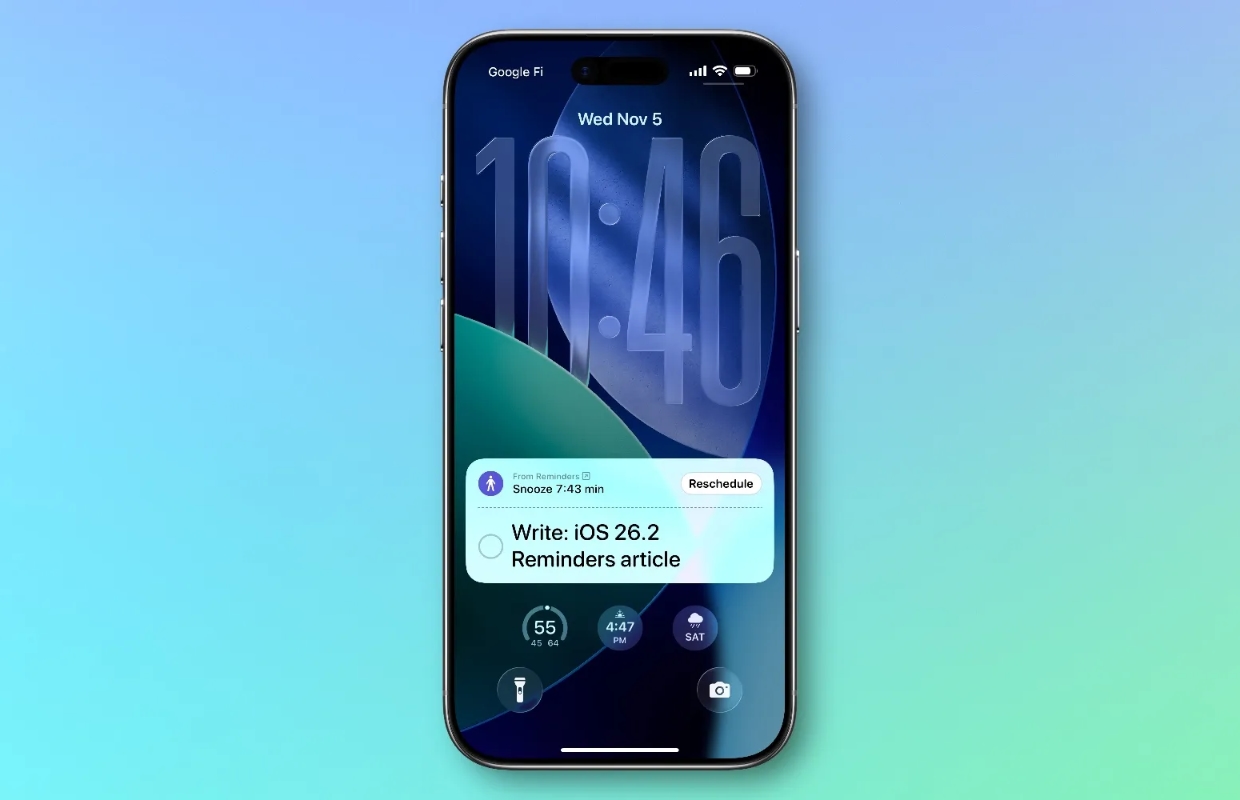
iOS 26.2 adds a brand new Urgent switch for timed reminders in Apple’s Reminders app. By default, an alarm will sound on your iPhone’s lock screen when an Urgent reminder expires. You will then see the options ‘Snooze’ and ‘Stop’, just like with your alarm clock in the morning.
But in ‘Settings > Apps > Reminders’ you can change this and replace the ‘Snooze’ option with the ‘Finish’ button. ‘Finish’ not only stops the alarm, but also immediately marks the reminder as completed. If you stop the alarm in the usual way, the task will not be marked as completed.
Don’t want to miss any of the 3 new features in your iPhone’s upcoming software update? Then sign up for our newsletter!

Download the iPhoned app