
 Build a music collection and listen to your favorite songs on Mac with the Music app. The successor to the well-known iTunes.
iTunes Replacement
The Music app replaces the well-known iTunes program. Apple and iTunes were inextricably linked. Through the program, users listened to music and podcasts or watched movies. For these functions, Apple will introduce three new apps with the arrival of the macOS 10.15 Catalina operating system: Music, TV and Podcasts. In this article we discuss the Music app.
App Music
You can do many of the same things in the Music app as you did in the old iTunes. You import music, for example from a CD or USB stick, into the library of the app. To then play this music or organize it into playlists. In addition, you can purchase music tracks or albums through the iTunes Store section. You can listen to millions of songs unlimited via the paid service Apple Music.
Apple Music
An important part of the Music program is Apple Music. This is a service that allows you to listen to music unlimitedly over the internet. There are millions of songs in the database. To use this service you need a paid subscription. As soon as you open the Music program, Apple tries to convince you to take out such a subscription. However, you can also use the Music program without a subscription.
Open the Music app
On a Mac running the macOS 10.15 Catalina operating system, open the Music app as follows:
- In the Dock, click finder
 .
. - On the left side of the Finder window, click apps.
- Double click on Music.
- Click the first time Start listening.
- Apple wants to sell a subscription to Apple Music. click on not now or Not now.
Menu
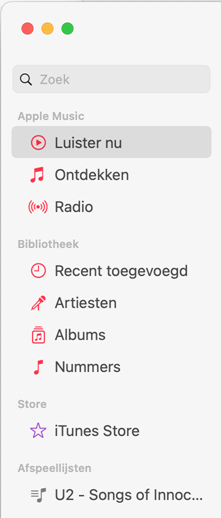
On the left side of the Music window is a menu. The menu is divided into four sections: Apple Music, Library, Store, and Playlists. If you don’t have any playlists yet, this part is not yet displayed. If you don’t have an Apple Music subscription, the corresponding menu item will remain unused. The most important part is then ‘Library’. That gives access to imported music. It provides an overview of all artists, albums and songs. ‘Store’ provides access to the iTunes Store for purchasing music.
Import music
You can put music in the app’s library in two ways. The first way is through music import. The second way is through purchasing songs or albums from the iTunes Store. Put songs from, for example, a CD, USB stick or the computer in the app:
- Insert an external storage medium into the Mac, for example a USB stick or external hard drive with audio files.
- click on Archive.
- click on Import.
- The Finder opens. Navigate to the place (for example USB stick) where the music is located.
- Click on the song or album.
- click on Open.
The music is now in the library.
Buy music
You can buy individual songs or albums through the iTunes Store. This requires an Apple ID. Don’t you? Read in the tip ‘Create an Apple ID’ how to create such an account.
- Click in the search bar at the top left Search.
- Click on the top right iTunes Store.
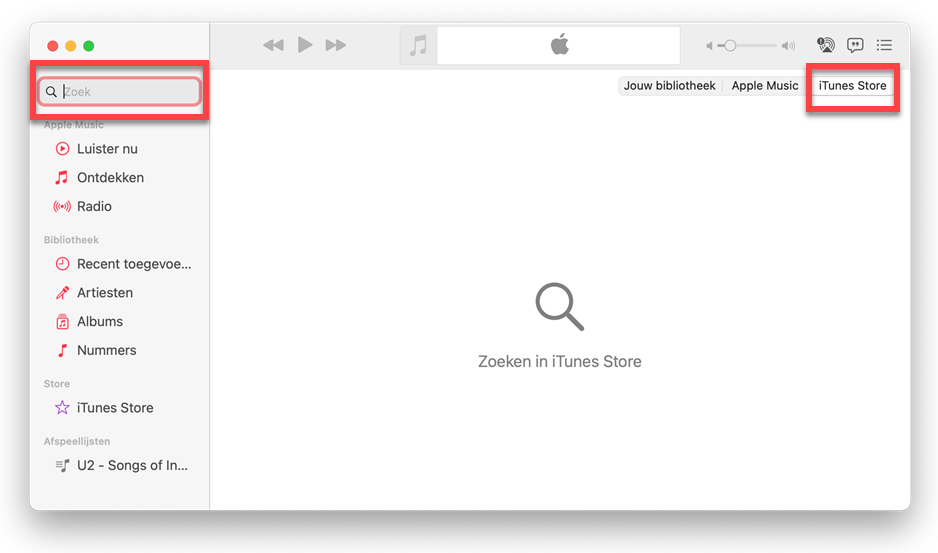
- Type the name of the song, album or artist and press the Enter key.
- Suggestions appear. Click on the amount of money at the correct suggestion.
- If you are not already logged in with an Apple ID, a login screen will appear.
- Type the Apple ID email address and click Buy.
- Enter the corresponding password and click Buy.
- Finally, click again Buy to confirm the purchase.
Listen to music
Songs that you put in the library yourself are also easy to listen to.
- Click on a category in the menu under ‘Library’, for example numbers.
- Show all items in this category. Double click on the item.
- The song starts playing. Click the pause button at the top left to stop the music.
Create playlist
Music also offers the possibility to create playlists. It allows you to make selections of songs for all kinds of occasions.
- Click in the menu on Archive.
- click on New playlist.
- Type the name of the playlist and press the Enter key.
- The playlist has been created and can also be found in the left menu under ‘Playlists’. Time to fill the playlist.
- Navigate through the library to songs you want to add.
- Add more songs to the list at once? Click on the first number. Press and hold the Cmd key. Then click on the other numbers.
- Right click on the song.
- click on Add to playlist and then the name of the created list.