
Chat service WhatsApp is also available for Windows and Mac computers. WhatsApp Desktop is useful for sending files or for those who prefer to type on a large keyboard.
WhatsApp Web and WhatsApp Desktop
WhatsApp is a popular messaging app for smartphones. But the service also has a special program for Windows and Mac computers. This is called ‘WhatsApp Desktop’. This app is useful, for example, for those who find the keyboard of the PC better than that of the smartphone. Or for those who want to send files from the computer. Also, all conversation history is available in this program. It is extra handy that you can make video calls from this program.
You may also be familiar with WhatsApp Web. This is a version of the messaging app that you open in the browser. So you don’t need to download a program for it. It works the same as WhatsApp Desktop, except that video calling is not possible in it. Prefer this extra service? Then read the article ‘Using WhatsApp on the computer’.
WhatsApp on the PC can not do without a phone
WhatsApp Desktop cannot be used on the PC without a phone or tablet running WhatsApp. In fact, that device must be nearby if you are using WhatsApp on the PC. Because even if the program is on the computer, it remains linked to the smartphone or tablet. In other words: you cannot send or read messages on the PC if your smartphone or tablet is out of range or switched off.
WhatsApp on Windows
Download the WhatsApp Desktop program from the WhatsApp website. The WhatsApp app must be on your phone and linked to a phone number.
- Open the browser and surf to whatsapp.com
- click on To download.
- click on Download for Windows (64-bit) or 32-bit version. This depends on which Windows version you have.
- The installation file is downloaded.
- In Edge: Click at the top of the screen Downloads
 and click WhatsAppSetup.exe to start the installation.
 - In Chrome the download is at the bottom of the screen. When the download is complete, click on the file to start the installation.
- In Firefox: first click Save file and then the blue arrow to the right of the address bar. click on WhatsAppSetup.exe.
- In Edge: Click at the top of the screen Downloads
- The program starts automatically. Isn’t that the case? Then click on the Start button > whatsapp.
WhatsApp on Mac
Download the WhatsApp Desktop program directly from the App Store (Mac).
- Open the App Store program. To do this, click the application on the Dock or click the Apple logo in the top left, then App Store.
- In the search window click on Search, type ‘WhatsApp’ and press the Enter key.
- Under ‘WhatsApp Desktop’, click Download.
- click on Install or Install app.
- If prompted, sign in with your Apple ID.
- The program is installed. As soon as the ‘Open’ button is displayed, the program can be found on the computer. Click on finder > apps > whatsapp. For macOS 10.14 Mojave or earlier operating system, click finder > Programs > whatsapp.
Login to the PC
Log in using the phone to use the open WhatsApp Desktop.
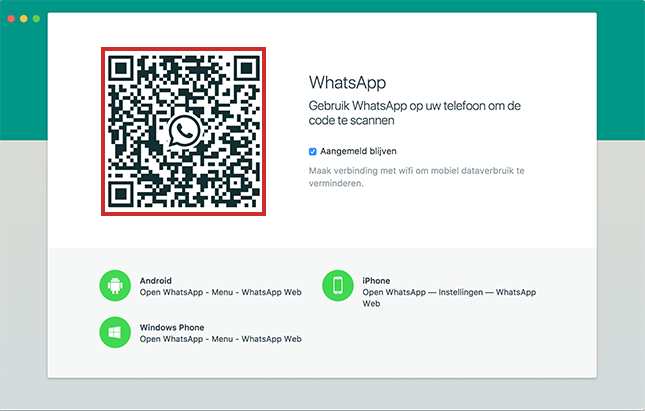
- A window with a QR code will appear on the screen.
- Grab the phone and open the WhatsApp app.
- For phones with Android, tap the three dots > Paired Devices. Optionally tap OK understood > Pair a device.
- Enter the access code or (if set up) use facial recognition or fingerprint. Tap on Get on.
- For phones with iOS (iPad/iPhone) at the bottom, tap Institutions > Paired Devices > Pair a device.
- Hold the phone’s camera in front of the code on the computer screen.
A connection is established and on the computer you can access your WhatsApp messages. Once the computer or phone loses connection to the Internet, you will need to reconnect via the QR code.
View chats
Once you are logged in, you can get started with the desktop version of WhatsApp. On the left side of the window is an overview of all chats. By clicking on one of these chats, all the messages associated with it will appear on the right.
To send a message
Sending messages via WhatsApp Desktop works almost the same as via the mobile app.
- At the top, click the plus sign (Windows) or the pencil square icon (Mac).
- A contact list opens. Tap the contact you want to message.
- The chat screen opens. Click on the ‘Type a message’ bar at the bottom and start typing.
- Optionally, click the smiley icon to the left of where you type to add an emoji.

- The options for gifs and stickers appear next to the smiley. Click here for moving pictures.
- Finished? Press the Enter key to send the message.
Send photo or video
You can also easily send a photo or video while chatting. In the steps below, we already assume that a chat window is open.
- Click the paper clip icon.
- Click on the purple circle (‘Photos and videos’)
 to share existing footage.
 - Navigate to the appropriate photo or video from the opened window and click To open (Windows) or Open (Mac).
- Enter a caption if necessary and then click on the green circle
 .
.
The footage is sent.
Save photo or video to computer
The photos and videos you receive via Whatsapp can be saved directly to the computer.
- Click on the image you want to save.
- Click the arrow icon at the top right
 .
. - Choose the location where you want to save the image and click Save.
Send voice message
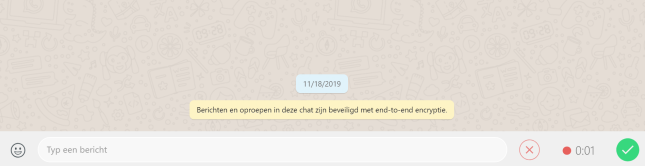
Via the microphone icon  (bottom right of the screen) you send a voice message.
- Click the microphone icon.
- Leave a message.
- Click on the green circle if you are satisfied with the message. Don’t want to send this message? Then click on the red cross.
Video calling with WhatsApp via the PC
Just like in the app on the smartphone or tablet, you can also call (video) via WhatsApp on the computer. Choose whether you want to call with or without an image. This is only possible in one-on-one conversations, not in group conversations.
- On the left, click on the person with whom you want to make (video) calls.
- Click on the movie camera icon at the top
 to start a video call or click the handset icon
  for a conversation without a picture.
 - During (video) calling, a number of standard options are shown at the bottom of the screen.

- Click on the first icon to turn off the image, for example if the connection is not good enough to support video.
- Click the second icon to mute your sound. This is useful if you are briefly talking to someone who is not in the conversation.
- Click on the red telephone receiver to end the call. This can also be done by closing the window with the cross.
Sign out
We assume that you only install WhatsApp Desktop on a computer that you do not share with others. Someone who opens the program can also view your chats. If you want to prevent this, always log out after use.
- In the left pane of the window, click the three dots (Windows) or the down arrow icon (Mac).
- click on Sign out or Log out.
Next time you will have to log in again using the QR code.
Comment on WhatsApp
WhatsApp is a great user-friendly app, but since it became part of Facebook, there have been concerns about user privacy. Facebook can earn a lot of money from information about its users, so the company prefers to collect as much as possible. Not everyone agrees. In addition, WhatsApp is also popular among cyber criminals. Some users therefore want to get rid of WhatsApp and switch to alternative services, such as Signal.