
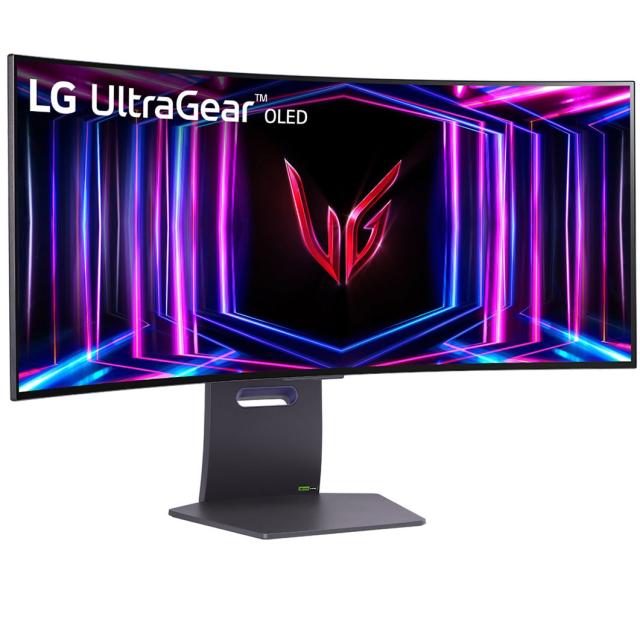
It is sometimes said that OLED screens can suffer from burn-in. What actually is burn-in and what solutions are there to prevent burn-in on OLED screens?
OLED screens offer a number of advantages, such as fast response time, deep black and high contrast. If you have an OLED TV, you will take full advantage of it when, for example, watching films and series. However, OLED screens also offer advantages if you use them in combination with a computer. If you play games or watch a lot of videos on your (OLED) screen, you will be happy with a fast response time, deep black and high contrast. You wouldn’t expect it, but you also benefit from OLED screens on monitors used for office automation. For example, if you work a lot with dark images or backgrounds, a higher contrast on an OLED screen will of course help. If you sometimes allow more than one person to look at your screen, a good viewing angle on an OLED screen helps.
Preventing burn-in
Burn-in is often mentioned as a disadvantage of an OLED screen. Burn-in is the aging of the organic material of the pixel and this can leave an afterimage when displaying (bright) static images for a long time. Now you won’t get that easily with YouTube videos or films on TV, but you will if, for example, you sit in an Excel spreadsheet for a very long time or often only play 1 game where the interface does not move. Fortunately, there are techniques to prevent this and as an example, solutions from LG are shown here. With OLED screens from other brands it will probably be called slightly different.
OLED Image Cleaning
Modern OLED monitors such as the LG UltraGear 32GS95UE-B have a function that checks the status of the OLED pixels and refreshes them if necessary to prevent burn-in of your monitor and optimize image quality. This function is automatically activated when the monitor is on standby and the process is completed very quickly. As your OLED screen ages, the process may take (slightly) longer. You can also do this function manually, but this is only necessary if your screen shows deviations.
OLED Screen Move
OLED Screen Move is also a feature you can use to further prevent burn-in. OLED Screen Move is a function that sometimes shifts the screen content a few pixels. And strangely enough (?) this option is not enabled by default!
You can find this option under General (General) > OLED Screen Move in your monitor settings.
Black Stabilizer
Black Stabilizer is especially useful for gamers, because the deep black contrast may cause you to miss enemies because they are less noticeable. You can prevent this with the Black Stabilizer option, because Black Stabilizer increases the contrast in dark images as you increase the value.
(text continues below image)
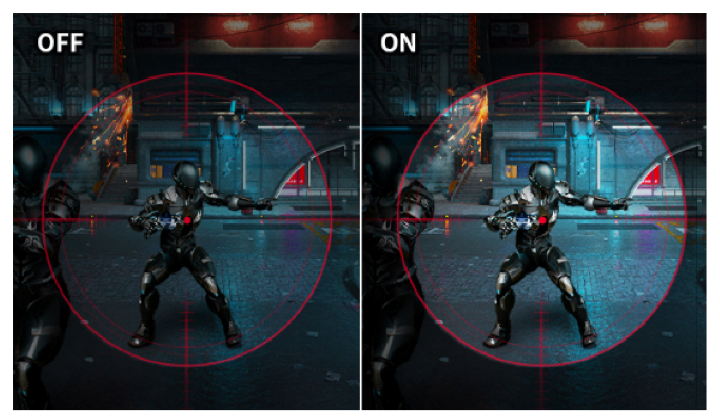
This is what Black Stabilizer looks like in a game
You can find this option in the monitor menu, accessible via, for example, the OSD button at the bottom of your monitor and click on Game Adjust and then Black Stabilizer. However, you can only adjust this in the customizable game modes Gamer 1 and Gamer 2. And you can select them via Game Adjust > Game Mode.
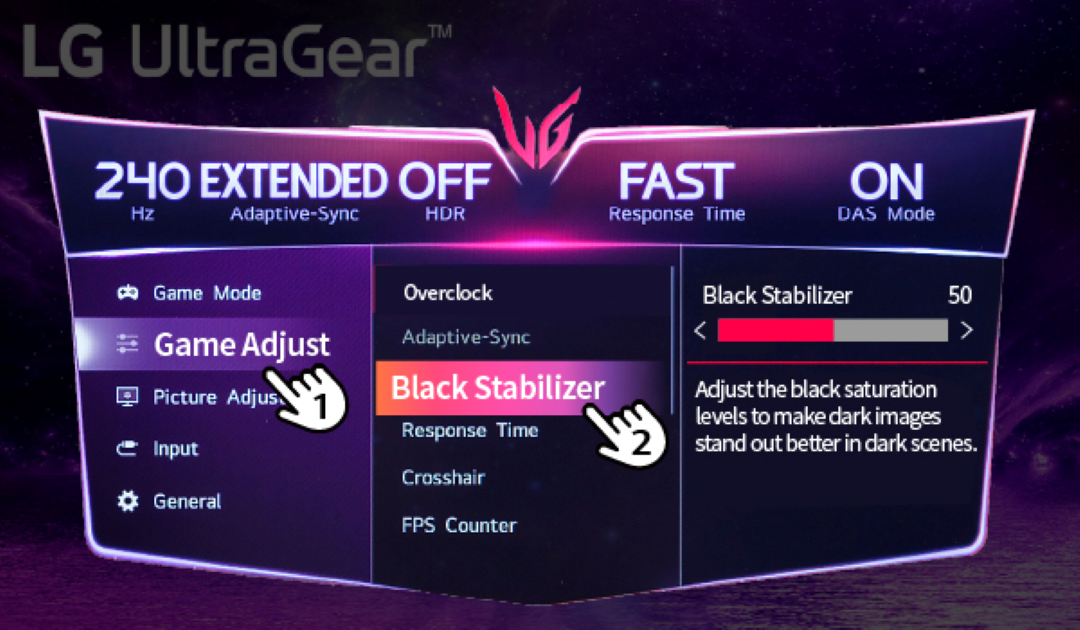
This is how you can enable/adjust Black Stabilizer on LG monitors