
If you can no longer store anything in your iCloud in iOS 26, first try these three ways to quickly free up some iCloud space.
This is how you free up iCloud space in iOS 26
If the storage space in you iCloud becomes full, your iPhone will eventually no longer be backed up and new photos and videos will no longer be uploaded. Apple of course wants you to add extra iCloud space. But you can also keep that money in your pocket and just free up some iCloud space. Here are three ways to do that!
1. Reduce the size of your iCloud backup
It is of course fine that an iCloud backup is made of your iPhone. But they often also contain backups of apps that you no longer use. You can disable that. Moreover, you can delete old iCloud backups to free up storage space. We’ll show you how to do that.
- Open the Settings app and tap your name;
- Tap ‘Backup to iCloud’;
- Choose the device you want to customize the backup for;
- Disable the apps that you don’t need to backup;
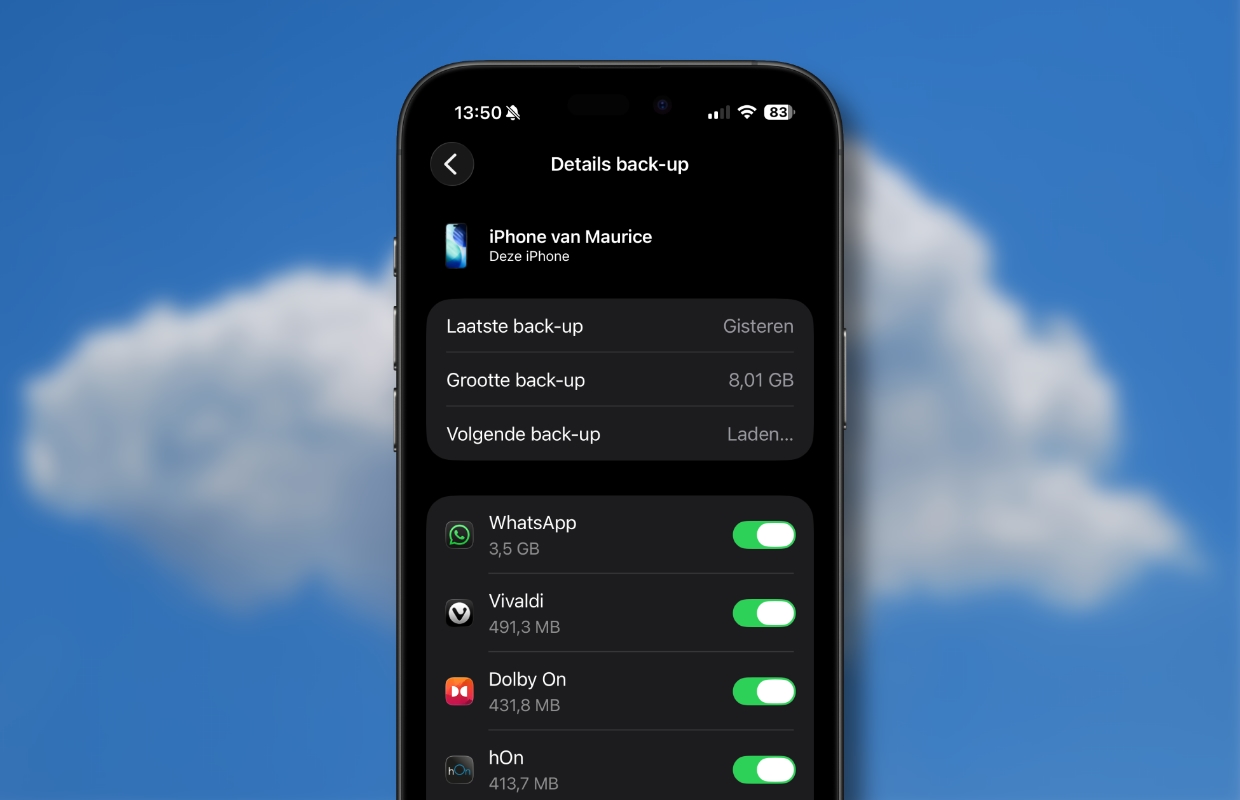
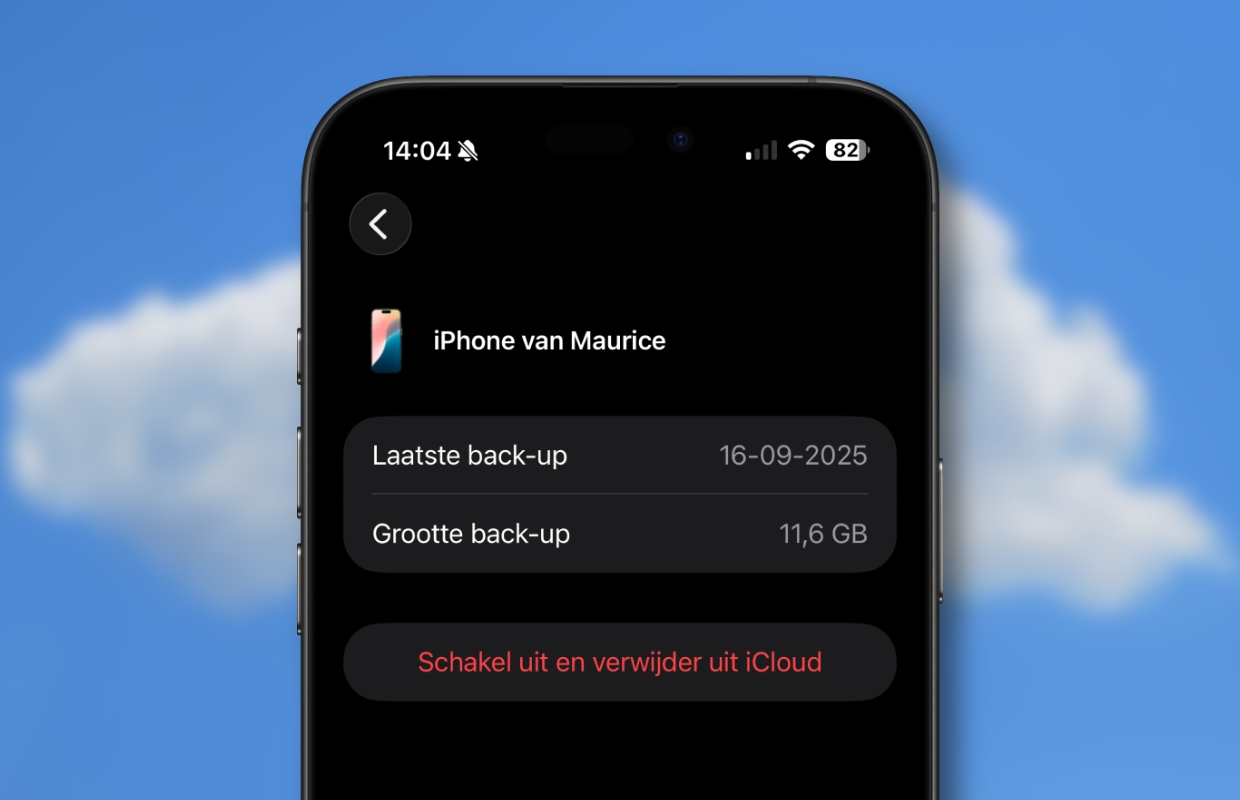
If any old devices are visible after step 2, you can also delete their backups. Tap the device in question, then tap Turn Off and Remove from iCloud.
2. Check ‘Recommended for you’
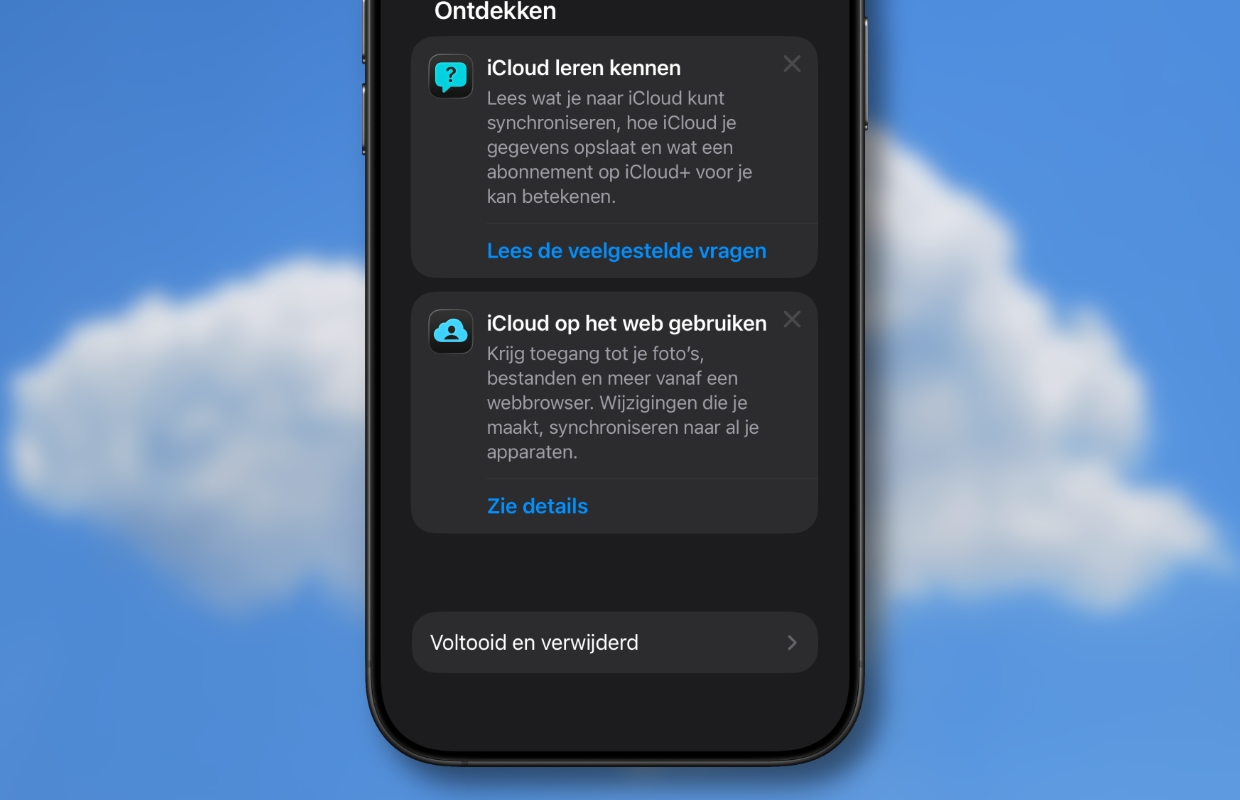
The ‘Recommended for you’ feature helps you check if there are any photos or large files that you may no longer need and can delete. You do this as follows:
- Open the Settings app, tap your name, then tap iCloud;
- Tap ‘Recommended for you’;
- Tap ‘Check your photos and videos’ to find duplicates;
- Tap ‘Check Large Files’ to find large files to delete.
Which options are visible depends on when you last went through them. If it was only recently, you will see it below under ‘Completed and deleted’.
3. Delete photos and videos from iCloud Photos
The iCloud Photos app uses iOS 26 iCloud storage to keep all your photos and videos on your Apple devices up to date. You can delete photos and videos you no longer need from the Photos app on all devices. It goes like this:
- Open the Photos app and tap ‘Library’ at the bottom;
- Tap ‘Select’ at the top right;
- Select photos and/or videos you want to delete;
- Tap the trash can at the bottom right.

If you don’t use iCloud Photos, your camera roll is part of your iCloud backup. To check how much storage space it takes up, repeat the steps in tip 1. Photos will then be in the list of apps.
More tips?
Did you like these tips and want more? On iPhoned you can read useful tips and tricks for your iPhone every week. Check out the most recent tips below!
-
3x this way you can easily free up storage space in your iCloud in iOS 26
-
Scanning unknown QR codes with your smartphone: it is better not to do that
-
2 smart ways to quickly check the battery status of your AirPods
-
You must know these 3 useful iPhone functions of 2025 (and this is how they work)
-
This way you can chat with someone without using a chat app!