
With iOS 26, your iPhone has received many new functions. Some of these functions are well tucked away. We show you three that you should actually know!
3 hidden functions in iOS 26 (which are incredibly useful)
The biggest change in iOS 26 is of course the new look. Almost all of iOS has been given a new glass appearance with ‘Liquid Glass’. In addition, Apple has put many new functions in the update. Some of them you see immediately, but some are tucked away a bit further. We show you 3 functions that are quite hidden in iOS 26, but are useful to know!
Automatic adjust colors to the color of your iPhone or case
You probably know that you can now change the icons on your iPhone. You can change the color or opt for a light or dark theme.
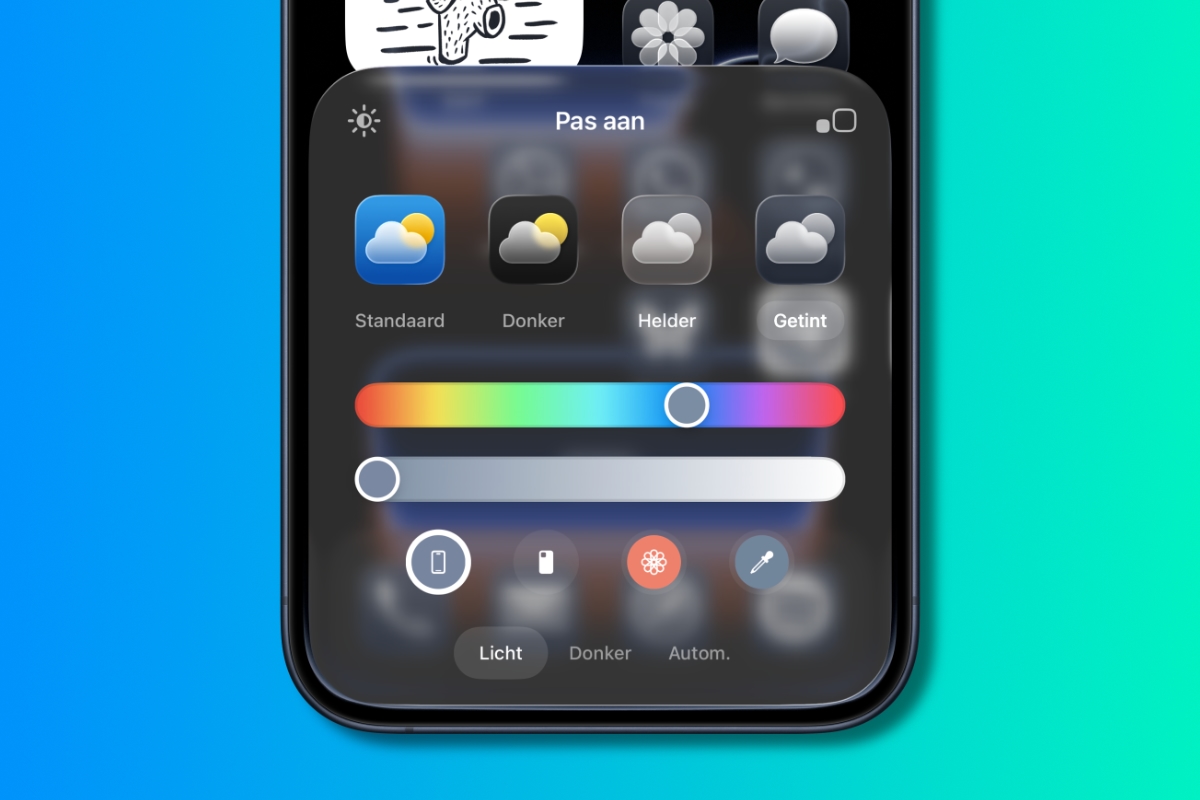
But there is even a way that your iPhone automatically adjusts the icons to the color of your iPhone or the case. You do that in the following way.
Adjust colors in iOS 26 to your iPhone or iPhone case
- Hold your finger pressed in an empty place in the home screen until the icons begin to wiggle;
- Tap on the top left for ‘Change’ and choose ‘Apply’;
- Choose the ‘tinted’ option;
- At the bottom you see four icons. The left -most left -wing icons gives the color of your iPhone, which is next to it from the case (this option only works with certain covers).
Returning to the previous page is easier
In iOS 26 you could go back to the previous page with most apps by wiping from the edge to the right. Apple has given these functions a small upgrade. Where you could first sweep from the edge, you can now do it anywhere on the screen. This is just a bit faster and easier.
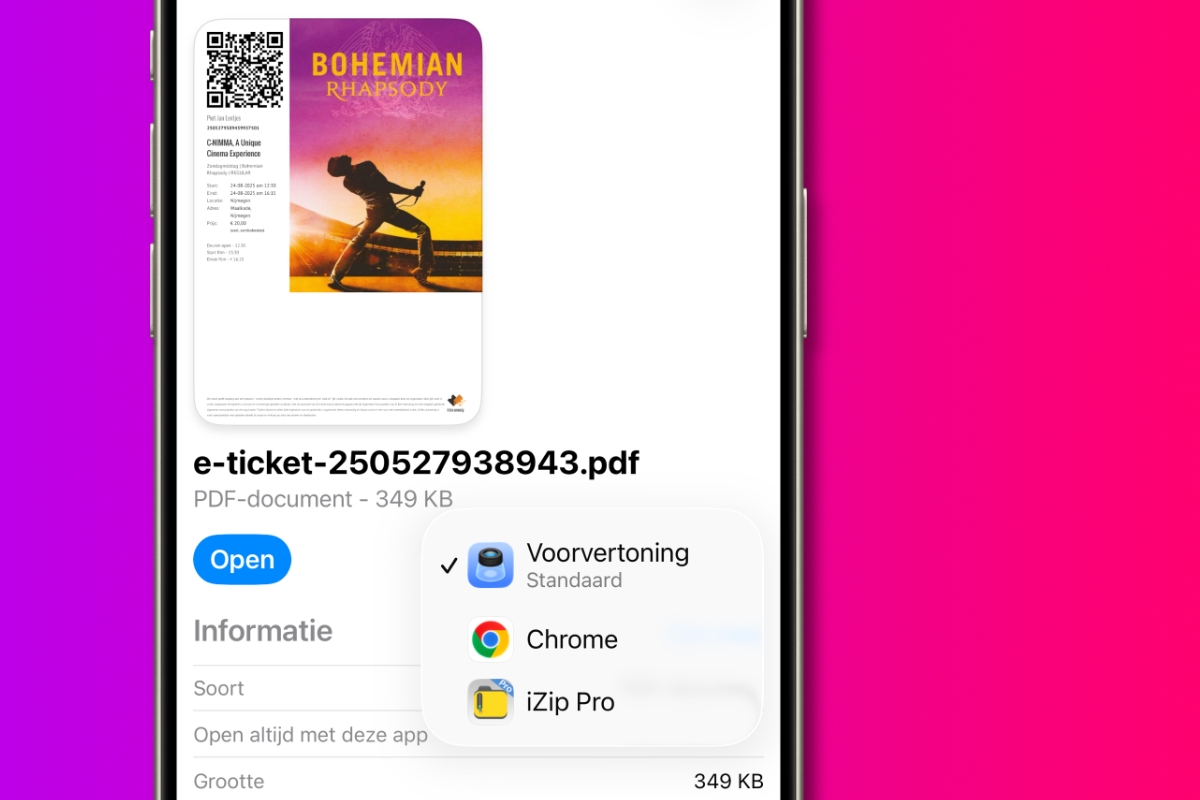
Set a standard app for files
In the app files you can indicate which program your iPhone must (always) use to open specific files. You cannot choose every program, but you can choose from a standard number of options. You set this in the following way.
- Open the app files on your iPhone;
- Hold your finger on a file that you want to open with another program from now on;
- In the menu, choose ‘Show info’;
- With the ‘Always open with this app’ option you can select one of the other programs.
More tips for iOS 26
Are you looking for more (hidden) functions for iOS 26? Then read the following articles!
-
3 hidden functions in iOS 26 (which are incredibly useful)
-
Beware: With iOS 26 this popular function of your iPhone disappears (that’s how you solve it)
-
iOS 26 installed? Then you have to switch off 5 functions right away!
-
install iOS 26 directly? Watch out with these 5 dangers for your iPhone
-
This handy setting prevents your iPhone from being empty (too) quickly