
You probably can’t completely prevent your iPhone from being stolen, but with these tips you can reduce the risk a lot!
This way you prevent your iPhone from being stolen
It’s no surprise that iPhones are popular with users and thieves alike. Apparently they are even more popular with thieves than Android devices. The only thing you can do to prevent your iPhone from being stolen is to make it as difficult as possible for thieves.

For example, it is safer to put your iPhone in a front pocket than in a back pocket. In busy locations, it is always wise not to visibly carry your iPhone. You can also adjust a number of settings that ensure that a thief cannot really do anything with your iPhone if he does get hold of it. We list the most important settings for you:
1. Use Face ID with attention detection
Face ID already protects your iPhone quite well, but it’s even more secure if you enable the ‘Require attention for Face ID’ option. You do this as follows:
- Open the Settings app;
- Tap ‘Face ID & Passcode’ and log in with your passcode;
- Enable the option ‘Requires attention for Face ID’;
- Also enable the function under ‘Attention detection facilities’.
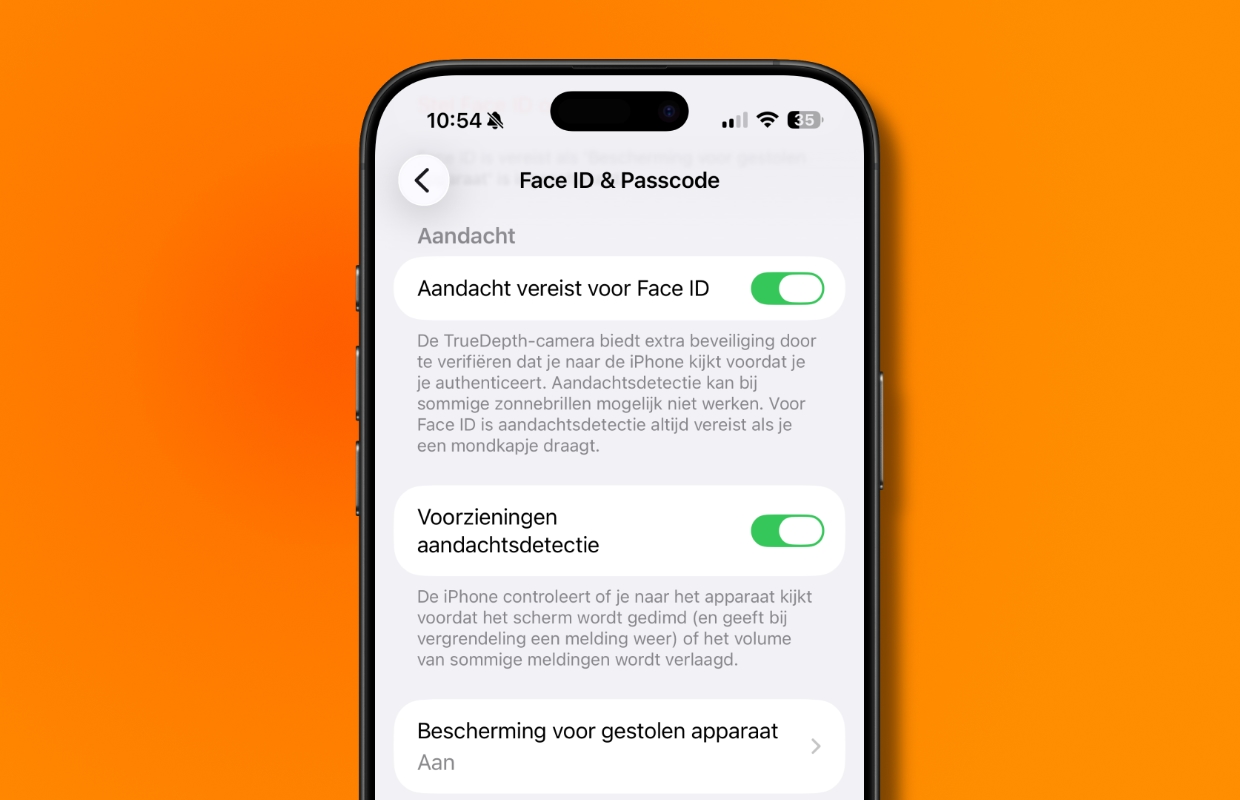
Now that you’re here, check whether the option ‘Protection for stolen device‘ is enabled. This adds a layer of security when your iPhone is not in known locations. It helps protect your accounts and personal information if your iPhone is stolen.
2. Set an alphanumeric passcode
If Face ID doesn’t work (which will be the case for a thief), your iPhone will ask for the passcode. By default, you enter six numbers for this. This can of course be done much more securely with a code consisting of numbers and letters. You set this up as follows.
- Open the Settings app;
- Tap ‘Face ID & Passcode’ (or ‘Touch ID & Passcode’);
- Enter your current code and scroll down;
- Tap ‘Change code’;
- Enter your current access code again and choose ‘Access code options’;
- Choose ‘Custom alphanumeric code’ and enter your new code;
- Go to ‘Next’ and repeat your code;
- Tap Done.

3. Enable the ‘Find My’ feature
Thanks to the ‘Find My’ function, it is possible to locate your iPhone from your MacBook or iPad. The police can often do something with this if your iPhone is stolen. Of course, the function must be enabled on your iPhone. This is how you do it:
- Open the Settings app;
- Tap your name and then ‘Find My’;
- Tap ‘Find My iPhone’;
- Turn on Find My iPhone.

4. Enable Two-Factor Authentication for your Apple ID
If a thief manages to get into your iPhone, it is all the more important that you have properly secured your Apple ID. The best option you have right now is Two-Factor Authentication (better known as Two-Step Verification). If you have enabled this, a thief cannot log in to your Apple ID even if he knows your password. This is how you set it up:
- Open the Settings app;
- Tap your name and choose ‘Log in and security’;
- Tap ‘Two-factor authentication’.

5. Disable Control Center from Lock Screen
If a thief can open Control Center from the Lock screen (i.e. without unlocking your iPhone), he can also disable Wi-Fi or your mobile network, for example. That makes finding your iPhone a lot more difficult. So disable that option to prevent this:
- Open the Settings app;
- Tap ‘Face ID & Passcode’ (or ‘Touch ID & Passcode’) and enter your code;
- Scroll to ‘Access when locked’;
- Disable the ‘Control Panel’ option.

More tips?
Did you find these security tips useful and want more? On iPhoned you can read useful tips and tricks for your iPhone every week. Check out the most recent tips below!
-
Please note: this is how you prevent your iPhone from being stolen as best as possible
-
This iPhone feature could save your life (if you enable it yourself)
-
We have been waiting for this WhatsApp feature for a very long time – but it is disappointing
-
Netflix and Apple TV in February 2026: Night Agent, Monarch, Muppets
-
Your iPhone has a secret button (and here’s how to activate it)