
In this week’s iPhone tips, we show you ten hidden features that you may not know yet, but that are useful to know.
Hidden iPhone features for every day
Your iPhone can do much more than what you generally use. It has many useful functions iOS hidden that come in handy every day. We list 10 of these clever hidden iPhone functions for you!
1. Lock your screen via the touchscreen
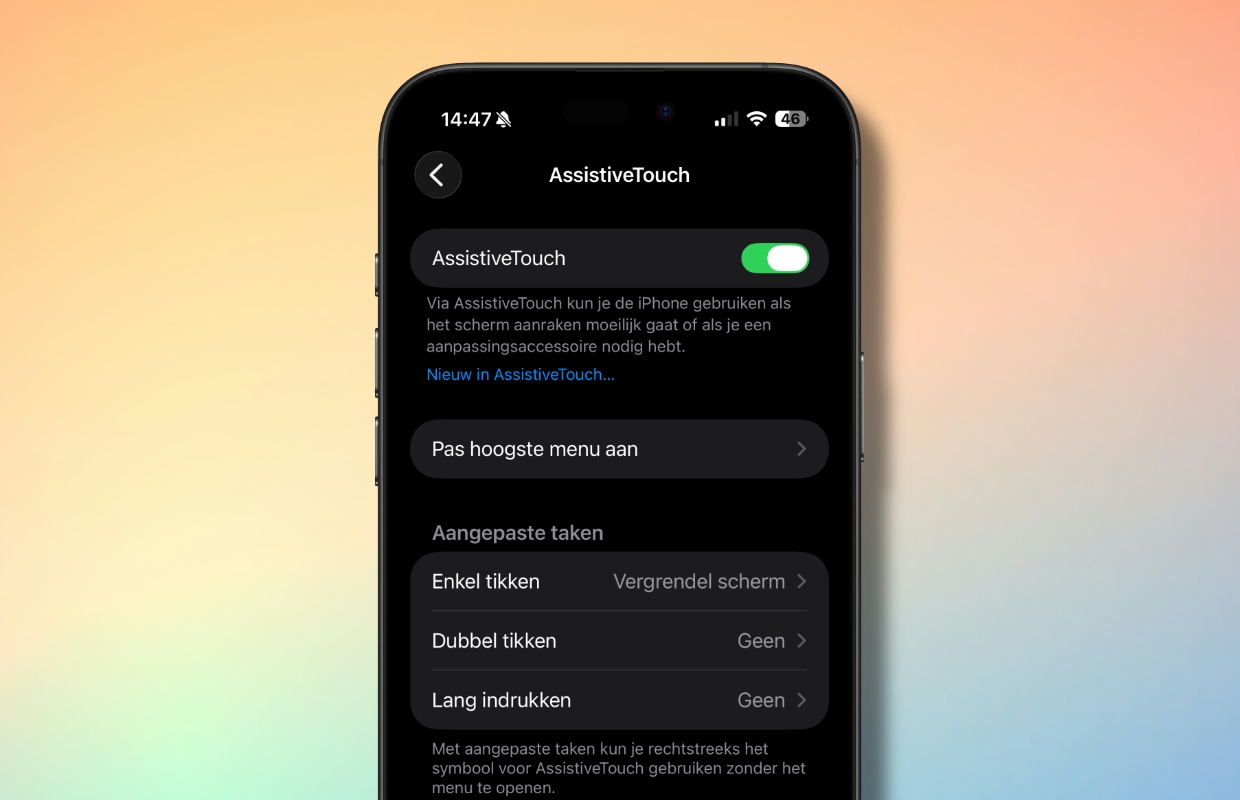
You can of course lock your iPhone via the side button, but it can also be done with a single tap on the screen. The hidden feature that makes this possible is called AssistiveTouch and works as follows:
- Open the Settings app;
- Tap ‘Accessibility’ then ‘Touch’;
- Tap ‘AssistiveTouch’ and enable the feature;
- After ‘Just tap’, choose ‘Lock screen’.
You will now see a small button on the screen. From now on, all you have to do is tap it and your iPhone’s screen will be locked.
2. Universal clipboard
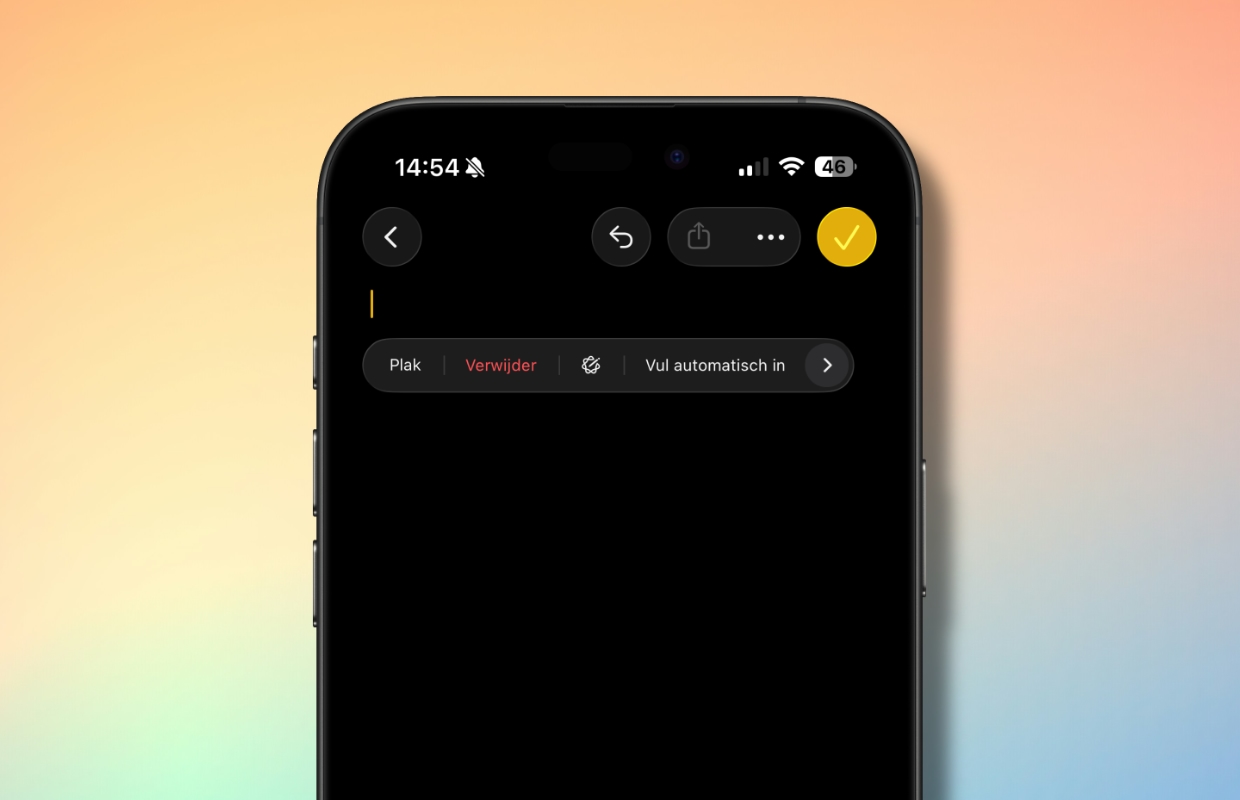
With Universal Clipboard you can copy text, photos or files on your iPhone and paste them directly to your Mac or iPad (or vice versa). You don’t have to set anything, the only condition is that you are logged in with the same Apple ID on all devices. Very useful if you often change Apple devices!
3. Hide photos in a locked folder
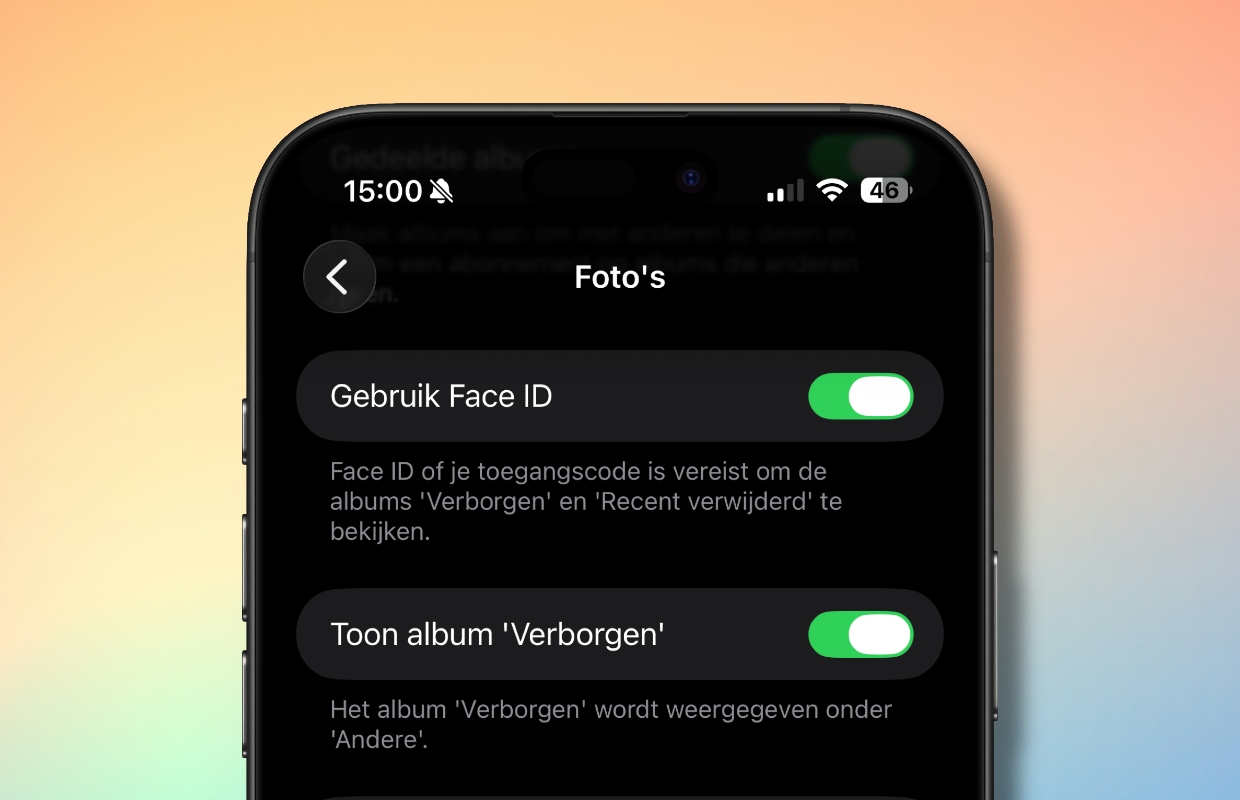
Not all of your photos need to be visible in your general camera roll. Your iPhone has ‘Hidden’ and ‘Recently Deleted’ folders, which you can lock with Face ID. Ideal places for photos that not everyone needs to see. To lock with Face ID:
- Open the Settings app;
- Scroll down and tap ‘Apps’;
- Search for ‘Photos’ and tap it;
- Turn on Use Face ID.
4. Drag multiple apps at once
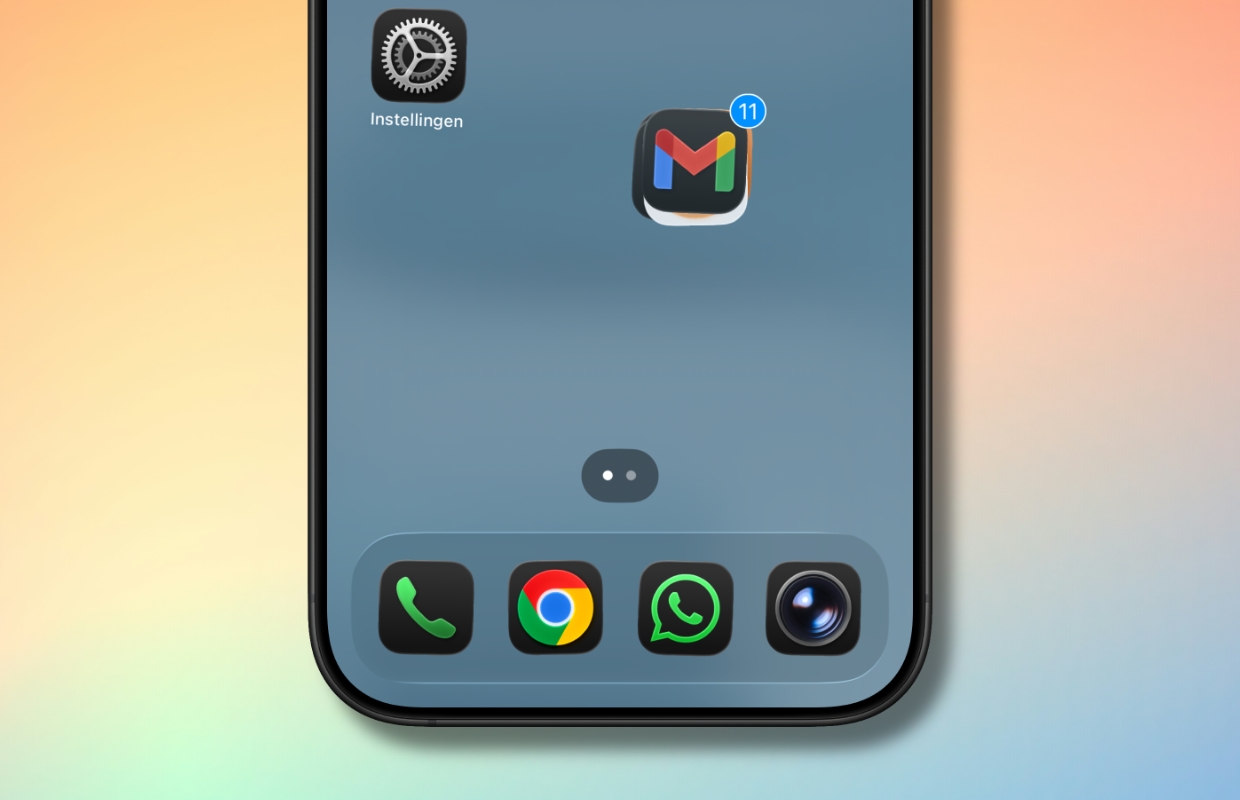
Most people move apps one at a time, but you can also move several at once. Press and hold one app until it moves along, then tap other apps with another finger to stack them on top of each other. Then drag everything at once to another place or to a folder.
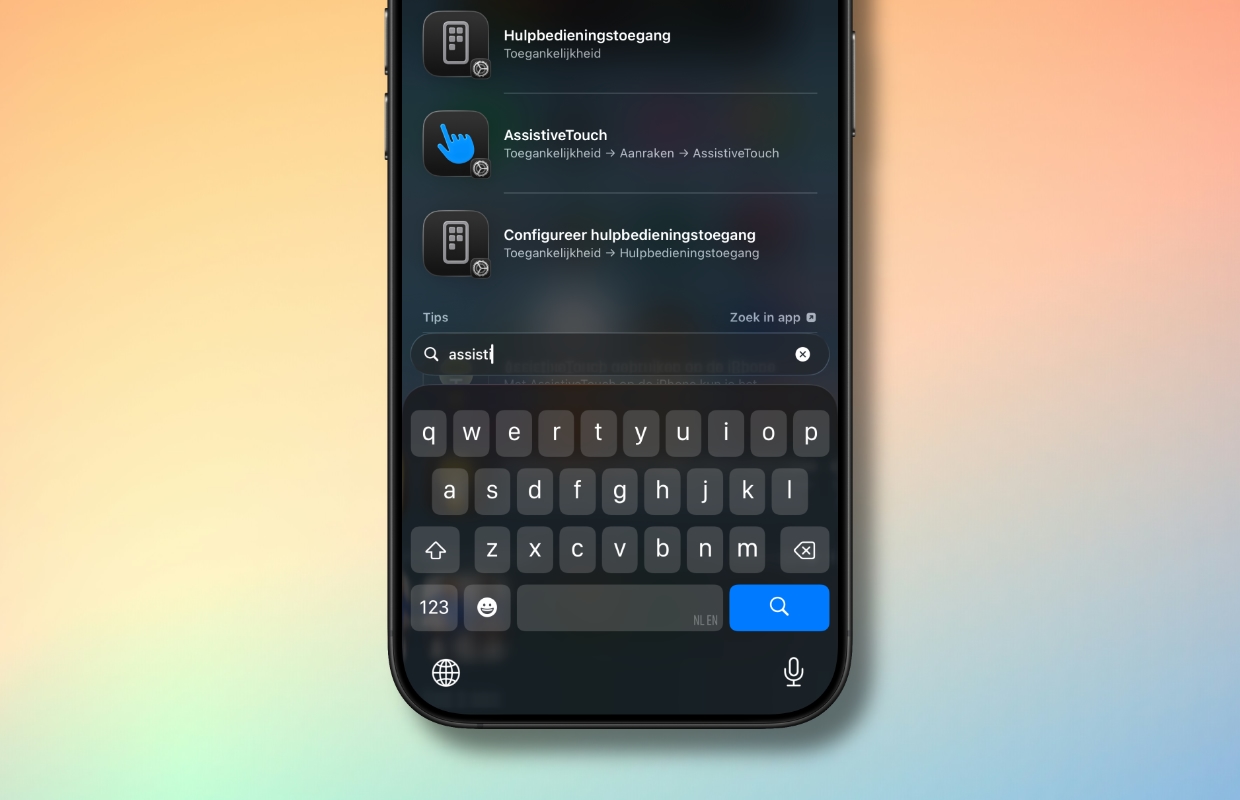
5. Search everything via Spotlight
Swipe down on your home screen and Spotlight will appear. This is a search bar where you can search not only for apps, but also for settings, photos, documents, people, accounts, web results and much more. You can even start timers or control HomeKit accessories.
6. Swipe away mistakes in the Calculator app
Did you make a typo in the Calculator app? Don’t panic. Just swipe left or right on the numbers — to delete the last characters you entered. Many people don’t know about this hidden feature, but it works surprisingly well.
7. Use the hidden scanner
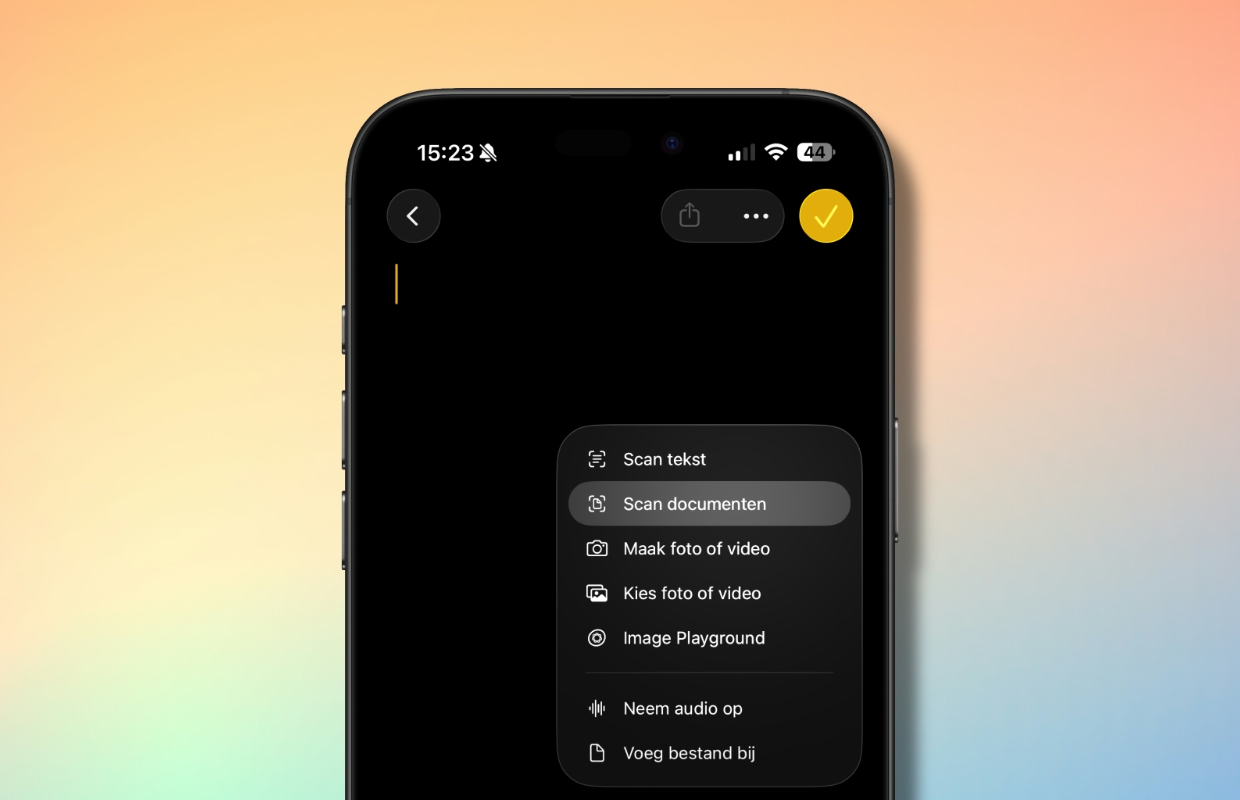
If you want to scan a document, you can of course go to the App Store and download one of the many apps. But that is not necessary at all. The Notes app has a built-in document scanner that is surprisingly good. This is how you use it:
- Open the Notes app;
- Start a new note;
- Tap the paper clip at the bottom;
- Select ‘Scan documents’.
You can now immediately scan the document. The image is automatically straightened and saved as a PDF.
8. Translate quickly
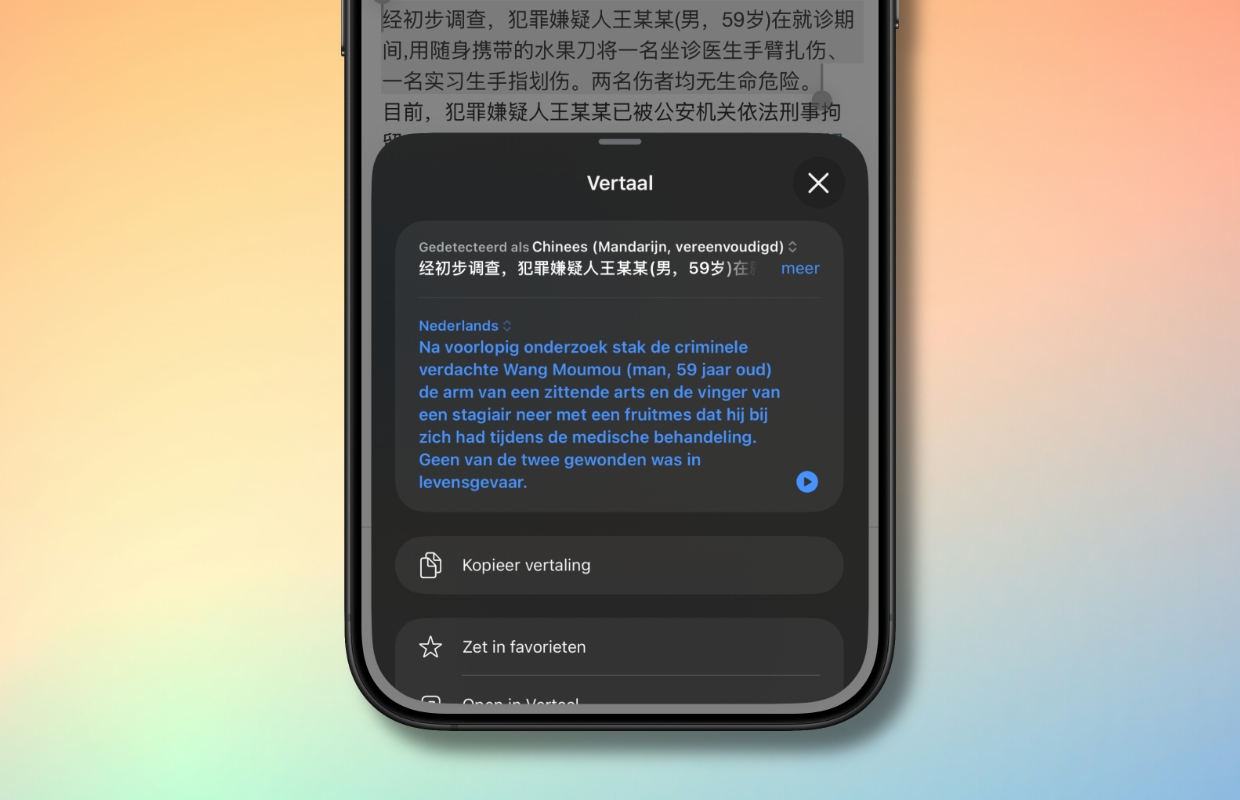
Have you come across text somewhere in a language that you cannot read? This hidden function helps you quickly. Select the text, tap it and choose ‘Translate’ from the menu that appears. Your iPhone will show the translation almost immediately.
9. Use Live Text
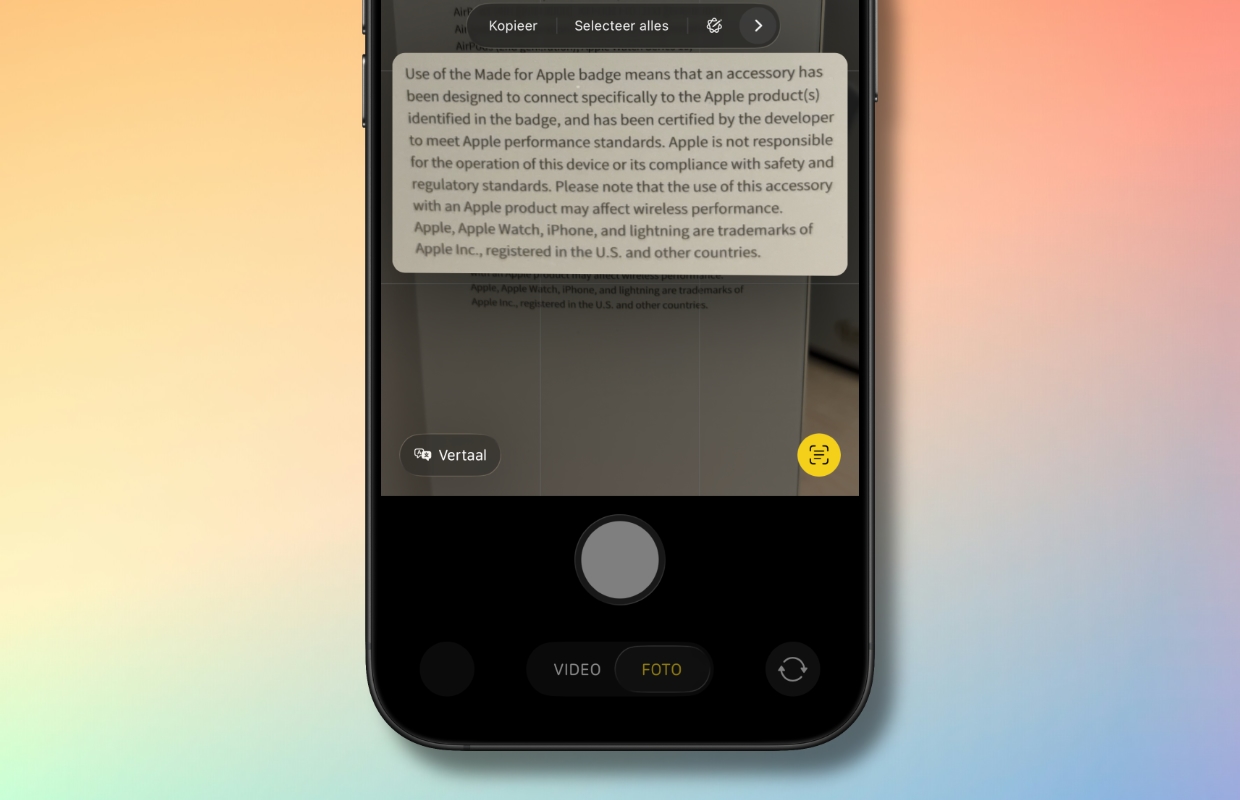
To use Live Text on your iPhone, open the Camera app, point at text, tap the Live Text icon (three lines) and you can select, copy, translate, look up the recognized text via quick actions (such as calling or opening a website). You can also use Live Text in Photos, Safari, and other apps by pressing and holding text in images or videos and choosing the options.
10. Take notes from the Lock screen
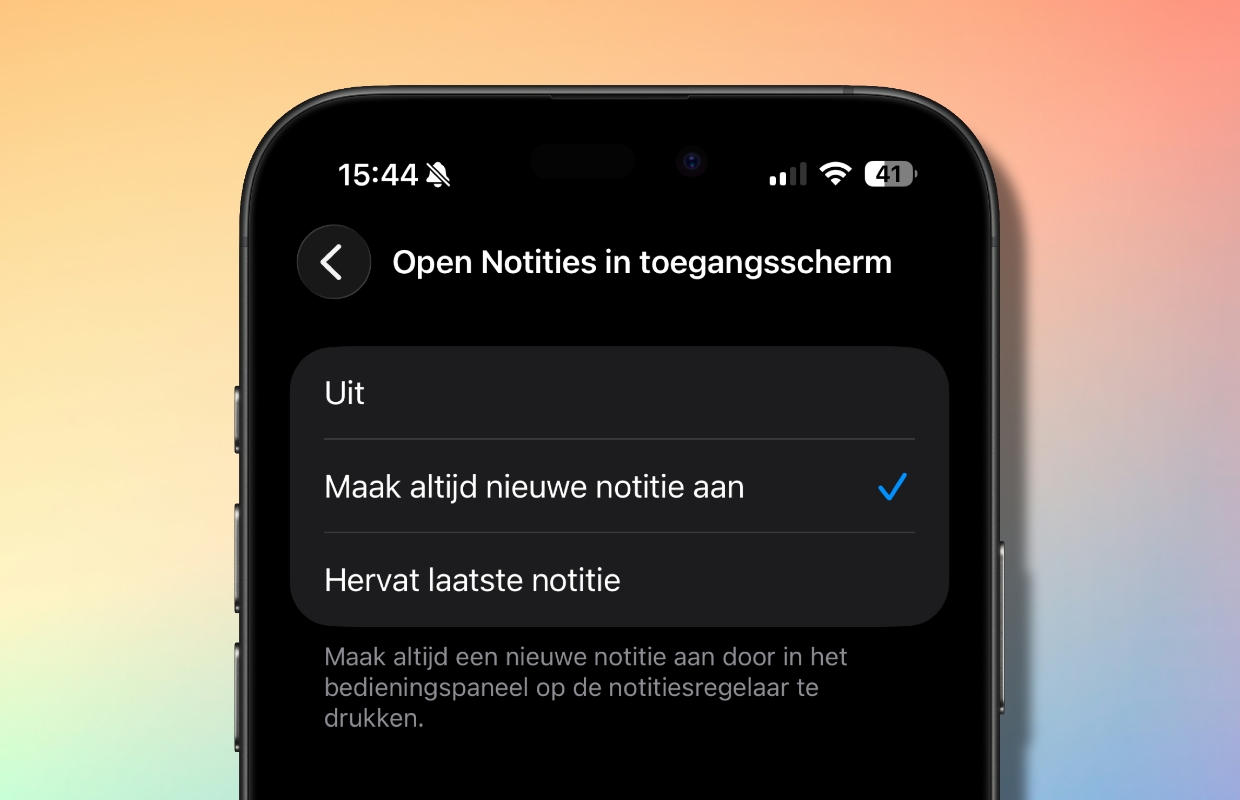
Did you know that you don’t even have to unlock your iPhone to take a quick note? The Notes app has a hidden feature that lets you create a new note (or open an existing one) right from the lock screen (Apple calls it the “Lock Screen”). Ideal for shopping lists or ideas you don’t want to forget. It works like this:
- Open the Settings app;
- Scroll down and tap ‘Apps’;
- Search for ‘Notes’ and tap it;
- Scroll down and tap ‘Open Notes in Lock Screen’;
- Select ‘Always create new note’.
From now on, just open Control Center (swipe down from the top right of the screen) and tap the Notes app icon.
More iPhone tips?
Did you find these iPhone tips useful and want more? On iPhoned you can read useful tips and tricks for your iPhone every week. Check out the most recent tips below!
-
iPhone tips: 10 hidden iPhone features that come in handy every day
-
You must enable this Apple Maps feature (to avoid problems)
-
This hidden feature makes AirDrop on your iPhone even more convenient
-
Enable this important feature in WhatsApp before recording a call
-
Has your iPhone become slower? You can solve that with these iPhone tips!