
Today we store our entire digital possessions with cloud services and social media: files, photos and private data. It is therefore important to additionally secure these services with two-step verification. In this workshop we will set up 2FA on WhatsApp, Facebook, Google, Microsoft and Apple.
 Rein de Jong
In short, two-step verification is an extra addition to the username/password combination. You do that extra verification step with another device. That other device could be a phone on which you receive or generate a code. It can also be a USB key or a device that you get from an institution such as a bank or that you have to purchase. In short: knowledge and possession!
In this article about being more secure with two-step verification, you learned what two-step verification is and how to use it. In that general story, we also described how to set up 2FA at the most important services, such as the government and banks. In this article we will look at the most used online services.
2FA . providersObviously, there are many more companies that support two-step verification than those listed here. |
 |
WHATSAPP
You can enable 2FA for Whatsapp immediately after you have registered your phone number for the messaging app. You can also do this later in your WhatsApp account.
- Open WhatsApp Settings.
- Tap on Account, on Two-step verification and then on Switch.
- Enter and confirm a 6-digit PIN of your choice.
- Enter an email address you can access or tap To skip if you don’t want to add an email address. We recommend adding an email address so you can reset your two-step verification. It also helps keep your account more secure.
- Tap on Next one.
- Confirm the email address and tap Save or Ready.
 |
 |
Now there is a PIN code that you need to confirm your identity with after installing WhatsApp on another phone. This way you are safe from telephone numbersspoofing. In order not to forget that you have set a pin code, WhatsApp regularly asks you to enter the pin code. That’s annoying, but so safe. After all, you don’t leave your house unlocked either.
FACEBOOK
When you want to enable 2FA for Facebook, you will be asked to make a choice for a certain form. In addition to sending or creating a code with a generator, Facebook also uses a so-called Fido key (secure USB sticks) and emergency recovery codes. 
To enable 2FA for Facebook, follow these steps:
- Log in to your Facebook account and then click/tap the ‘down arrow’ or the ‘hamburger’ in the top right corner of your Facebook page. Click now Institutions and Privacy, Then on Institutions, Security and Login and on Using two-step verification.
- Enter there which security you do or do not wish to use. You can also use more than one. In any case, it is wise to Recovery Codes select, print and keep in a safe place.
In Facebook you can enable as many authentication methods as you wish. You must at least set up the text message unless you enable both the Authentication app and the Security Key. Then the SMS code can be turned off.
Authentication AppsVerification or authenticator apps are apps on the smartphone or computer that generate varying codes. Those codes are the second step in two-step verification. Well-known apps are Google Authenticator and Microsoft Authenticator. Authy is a reliable open source alternative. You open these apps with a fingerprint and/or PIN. |
TWITTER
When you set up login verification for Twitter, you are required to enter a PIN in addition to the username and password, unless you have activated a security key. By default, this is a 6-digit SMS code or you use an verification app that generates the code for you (see box opposite). Turn on the two-stage safety as follows: 
- In your Twitter account menu, click/tap Settings and privacy, possibly preceded by a click on the More (…)-icon.
- Choose now Security and account access, Security and Two-step verification. Then you will see the screen as above.
- If you do not have a security key, choose at least SMS verification. Most people will opt for the SMS code. You will then be asked to enter your password again. Verification apps Verification or authenticator apps are apps on the smartphone or computer that generate varying codes. Those codes are the second step in two-step verification. Well-known apps are Google Authenticator and Microsoft Authenticator. Authy is a reliable open source alternative. You open these apps with a fingerprint and/or PIN. You will then be asked for your phone number, if you haven’t already given it to Twitter, and a code will be sent that you then have to confirm again.
- Check the Verification app, a QR code will now appear.
- Now open the verification app on your mobile or computer, add the account and scan the QR code. The app will now start generating codes for your Twitter account; you will need this for any future verification of your account.
- Choose now at Twitter for Next one and a verification code will be requested. Enter the code that the app generates.
GOOGLE
Google has different ways to use 2FA. In addition to your username and password, you will then be asked for something else. This can be an SMS verification or phone call, but also a notification (prompt) on your phone. When you answer that question with ‘Yes’, you are in. Google also offers a security key like 2FA, such as a Fido key and an authentication app. 
You can reach the Google verification page by clicking on your account icon at the top right, then on Manage your Google account and then choose Security. On that page, scroll down to the 2-Step Verification option. Then choose Get started. You can also choose More information first for additional explanation. After you have provided the password again, you can really get started.
- Google will first set up your phone number for text or voice verification. Which of the two is up to you. The most chosen is SMS verification. Here you can also choose the previously mentioned options.
- Google will send you a text or voice call with a 6-digit code preceded by G-; you only enter the six digits.
- After the verification you can click on Enable and 2FA is set.
- Now you come to a page where you can use the extra options. Don’t forget to print and save a backup code. You also get the option to set up a backup phone. Handy when your own phone is not in use.
MICROSOFT
Microsoft is one of the few services that also allows logging in other than a username and password combination, such as with Windows Hello or an authentication key (FIDO2). 
Then you do not need a username and password. This is considered as secure, if not more secure, than two-step verification with username and password and a second factor such as SMS verification. In any case, it takes less effort…
You enable two-step verification by first logging in to your Microsoft account on account. microsoft.com/security and then:
- Choose Advanced security options and To work.
- On the next screen you can Two-step verification switch. Scroll down until you find it. Now an information page is displayed. click on Next one.
 You will be prompted to download the Microsoft Authenticator app. If you have Authy or another verification app, you can skip this. For that you have to Set another authenticator app to press. Then a QR code will be shown that you can scan and confirm with your verification app. Skip this step by clicking Cancel button, Microsoft will assume you’re using SMS or email authentication. After all, you have already had to provide Microsoft with a recovery telephone number or recovery address.
 - Then a recovery code is shown. Save this to use when all other methods lock you out and print! click on Next one.
- Set an app password for your smartphone. Choose which one you wish to make. Incidentally, this is unnecessary when you use the Microsoft Outlook app on your smartphone. It is available from all app stores.
- You may need to generate application passwords for apps and devices that don’t support two-step verification, such as email apps, Xbox 360, Mac Office 2010/2011 or earlier. This can also be done later. Microsoft will send you an email about this. You can see from the image that Microsoft has even more ways of authentication, with the security key being the best option.
APPLE
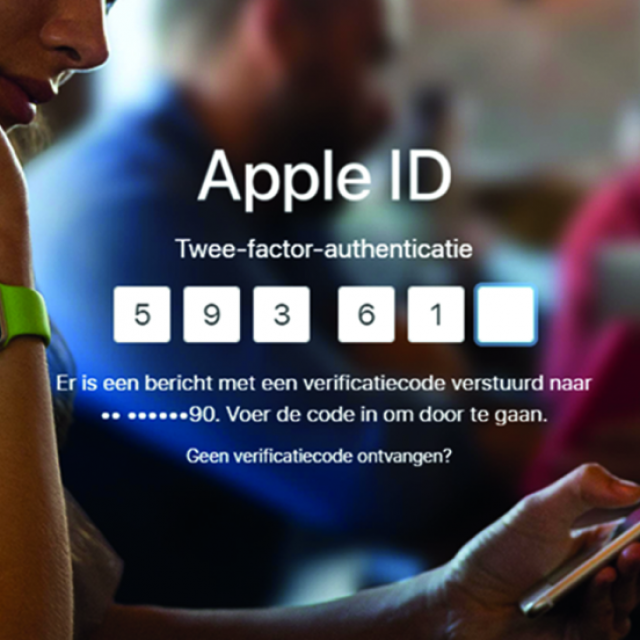
Apple’s implementation of 2FA is based on so-called ‘trusted devices’. Think of your iPhone, iPad or Mac. When you log in to an ‘iDevice’ for the first time, you will be asked for a 6-digit code in addition to your username and password, which you will receive either on your phone or on a previously trusted device. If you don’t have a ‘trusted device’, Apple has no other option than verification via text or voice message. 
If you log in with your Apple ID on, for example, iCloud and you have not set up 2FA before, Apple will enforce this. If you log in with your Apple ID in iCloud, you will see the screen on the right. If you continue, you may be required to answer security questions you once set. You will then be prompted to enter a phone number for SMS verification or voice call if you have not already done so. Since Apple enforces 2FA, you cannot disable it.
LAST PASS
LastPass is a good password manager that stores all your passwords encrypted on its server. Decryption of the passwords is done locally on your own computer or mobile device. For users who pay for LastPass, the program also offers support for YubiKey and fingerprint readers.
If you use LastPass for free, then you have to ‘make do’ with an authenticator app, SMS codes via DUO or a table (grid) with codes. 
You manage two-step verification in the browser:
- Click on your account at the top right of the browser and then on Account Settings.
- Choose Multi-factor authentication options.
- Most people will opt for an authentication app here (LastPass or Google Authenticator). If you have another verification app, choose the Google Authenticator for the steps to go through. These are the same for other authentication apps like Authy or Microsoft Authenticator.