Having problems with Apple Maps? Then enable this important function so that the navigation service works properly again!
Problems with Apple Maps
Apple Maps has become indispensable for many users to reach an unknown (or even known) destination. It is extremely annoying if the navigation service does not work properly, especially if you have to be at your next appointment within a certain time. One of the common problems in Apple Maps is that the iPhone’s location is not clearly displayed. Instead, a large blue circle appears, stretching over a relatively large area.
This issue makes it unclear what your precise location is in Apple Maps, as the blue circle is sometimes the size of an entire city. You are somewhere within this circle, but it is important that your precise location is visible for your navigation description to load. This problem is often easy to solve in the settings of your iPhone or iPad. We explain how to do that.
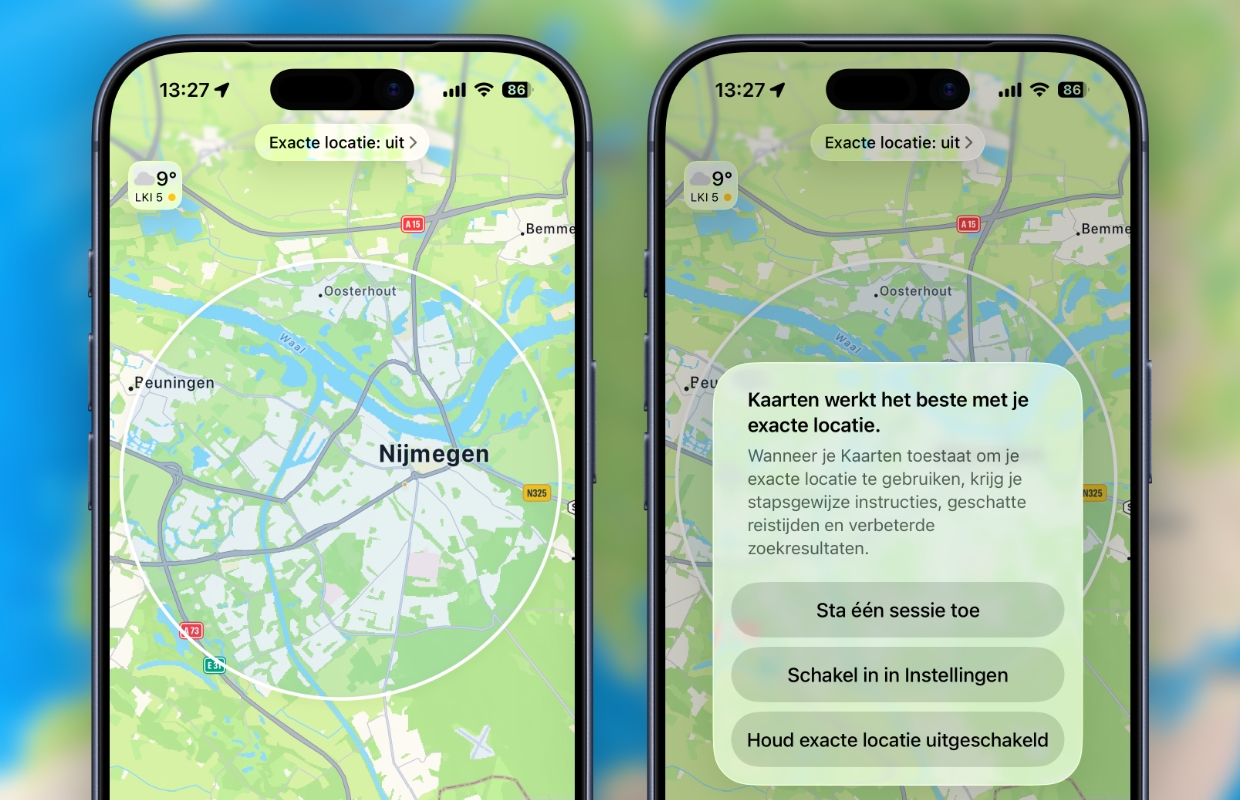
Enable precise location
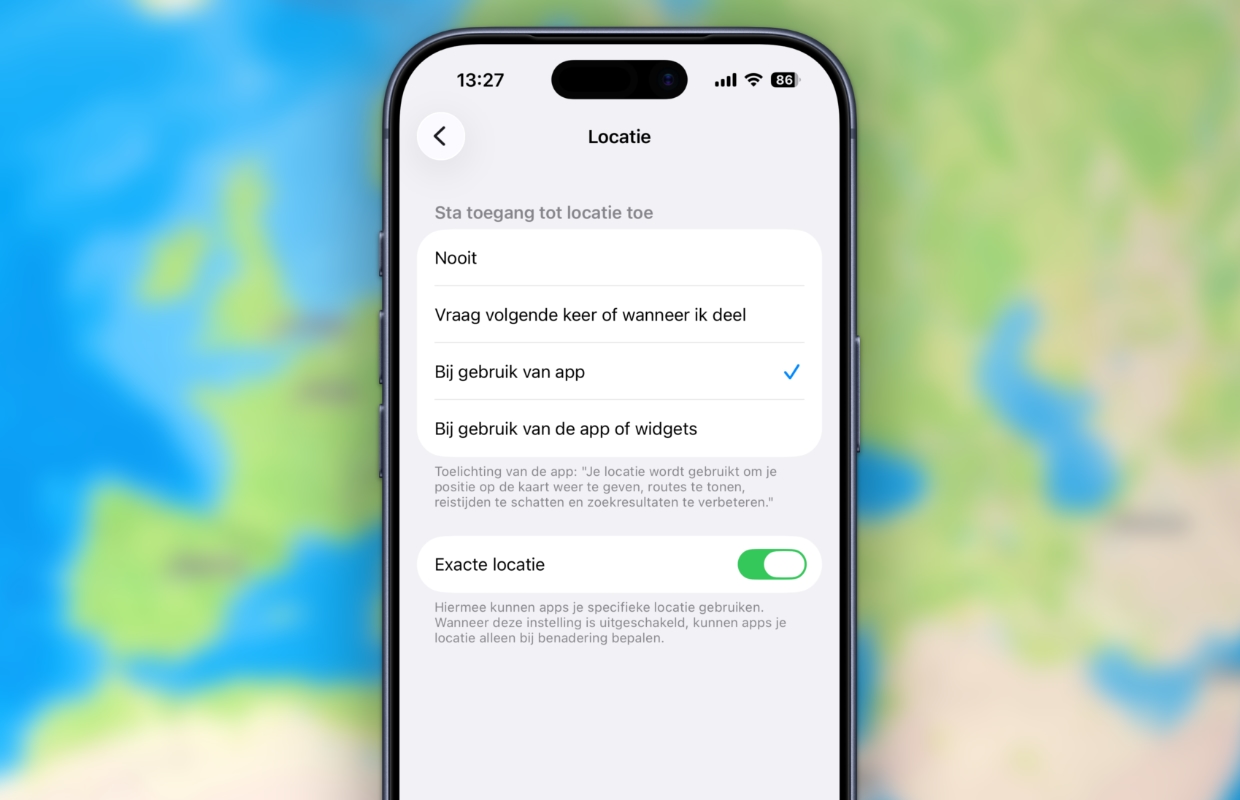
Apple Maps needs access to your exact location to work optimally. It sometimes happens that your iPhone disables the exact location in various applications. This is done to guarantee your privacy or is sometimes the result of a software error. Without your exact location, only a big blue circle appears in Apple Maps, but that problem is easily fixed. To do this, adjust the following settings:
- Open ‘Settings’ on your iPhone or iPad;
- Scroll down and tap ‘Apps’;
- Choose ‘Cards’;
- Tap ‘Location’;
- Turn on the switch behind ‘Exact location’.
Have you enabled precise location in your iPhone or iPad settings? In that case, the precise location will appear again in Apple Maps on the device. It is good to check these settings every now and then, because it may happen that access to your exact location stops with different applications. A message will also appear in Apple Maps if the exact location cannot be loaded.
More about Apple Maps
Still not seeing your precise location in Apple Maps, even with access to your iPhone or iPad’s precise location enabled? It may also be due to the mobile connection of your device. Apple Maps has trouble loading your location if the internet connection is weak or not working at all. Therefore, check carefully whether you have a working internet connection and access to the mobile network.
Would you rather not provide access to your exact location? Apple Maps does not work properly with this feature enabled, causing the navigation service to encounter issues. To use Apple Maps without any problems, you cannot ignore the exact location of your device. Did you find this tip useful and would you like to know more about Apple Maps? Then sign up for our daily or weekly newsletter so that you receive regular tips!

Download the iPhoned app