Do you regularly use Apple’s Weather app on your iPhone, iPad or Mac? Then enable this function of the Weather app immediately!
Weather app from Apple
Your iPhone, iPad and Mac (Book) contain a number of Apple applications as standard. One of these is the Weather app, where you can see the weather forecasts for places nearby and around the world. The Weather app is one of the most used applications from Apple itself, but you must enable certain functions yourself. This also applies to sending notifications, because you must give the Weather app permission for this.
Notification sharing is an important feature of the Apple Weather app on your iPhone, iPad, and Mac. In special or dangerous weather conditions, the application can warn you in time, so that you are not faced with any surprises when you go outside. This way you receive notifications in extreme weather conditions such as heavy rainfall, high temperatures or heavy winter precipitation. Does that sound useful? We’ll tell you how to enable notifications in Apple’s Weather app!
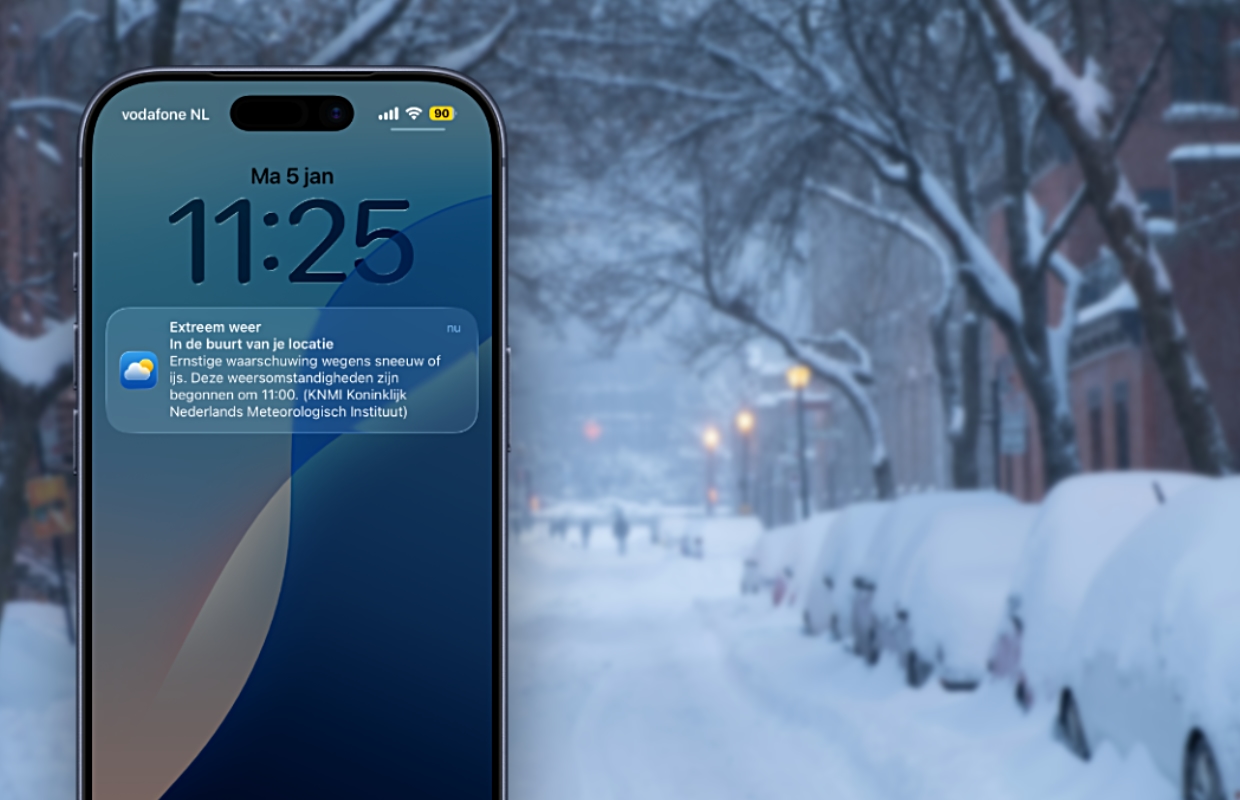
Enable notifications in the Weather app
Applications on your iPhone, iPad and Mac only provide notifications if you have given them permission to do so. This request often appears when you first open the Weather app, so there’s a good chance you’ve already set this up before. Are you not getting notifications from the Weather app? In that case, you probably haven’t given the applications permission to share notifications. To enable the Weather app feature:
- Open ‘Settings’ on your iPhone, iPad or Mac;
- Go down and choose ‘Notifications’;
- Scroll down again and select ‘Weather’;
- Turn on the switch behind ‘Allow notifications’.
Have you enabled the Apple Weather app feature? From now on you will receive notifications about extreme weather conditions. It is wise to also enable ‘Critical notifications’ and ‘Time-sensitive notifications’ under ‘Notifications > Weather’. These notifications appear on your iPhone’s Lock screen, so you never miss them. In addition, your iPhone or iPad will play a sound when critical or time-sensitive notifications arrive from the Weather app, even if focus is enabled or your iPhone is on silent.
More Apple tips
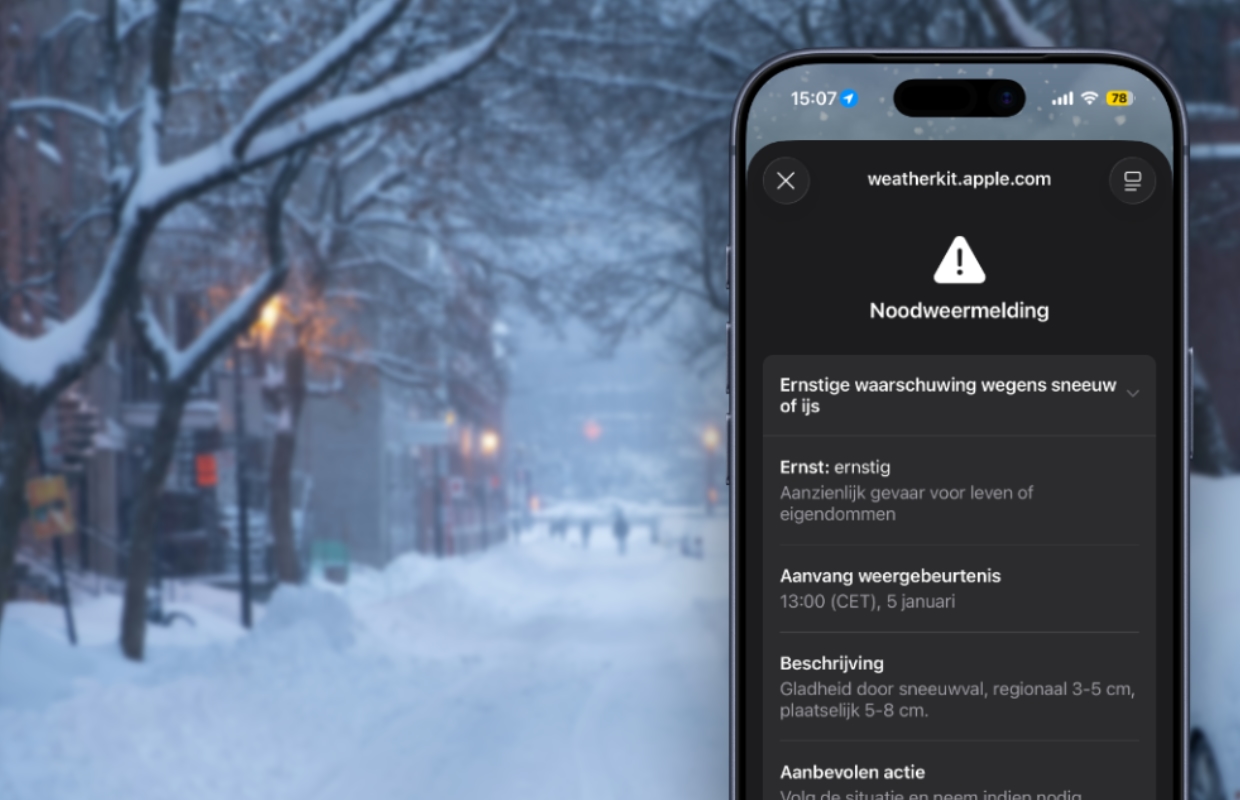
The fact that Apple’s Weather app can provide notifications is not only useful, but also important for your own safety. You can often make preparations for extreme weather conditions, so it is important that you are informed quickly. In the Weather app, for example, you can also see how long the warning has been in effect and what the severity of the situation is. Did you find this tip useful and would you like to know more? Then sign up for our daily or weekly newsletter so you always stay informed!

Download the iPhoned app