
Waze may seem simple, but the navigation app also has hidden features you’ve probably never used – here are four!
Waze: 4 hidden functions
The Waze navigation app is packed with features that everyone uses. Think of speed camera and traffic jam alerts, and alternative routes. But the app also has features that surprisingly few people know about. Here are four hidden features of Waze that will help you navigate even smarter.
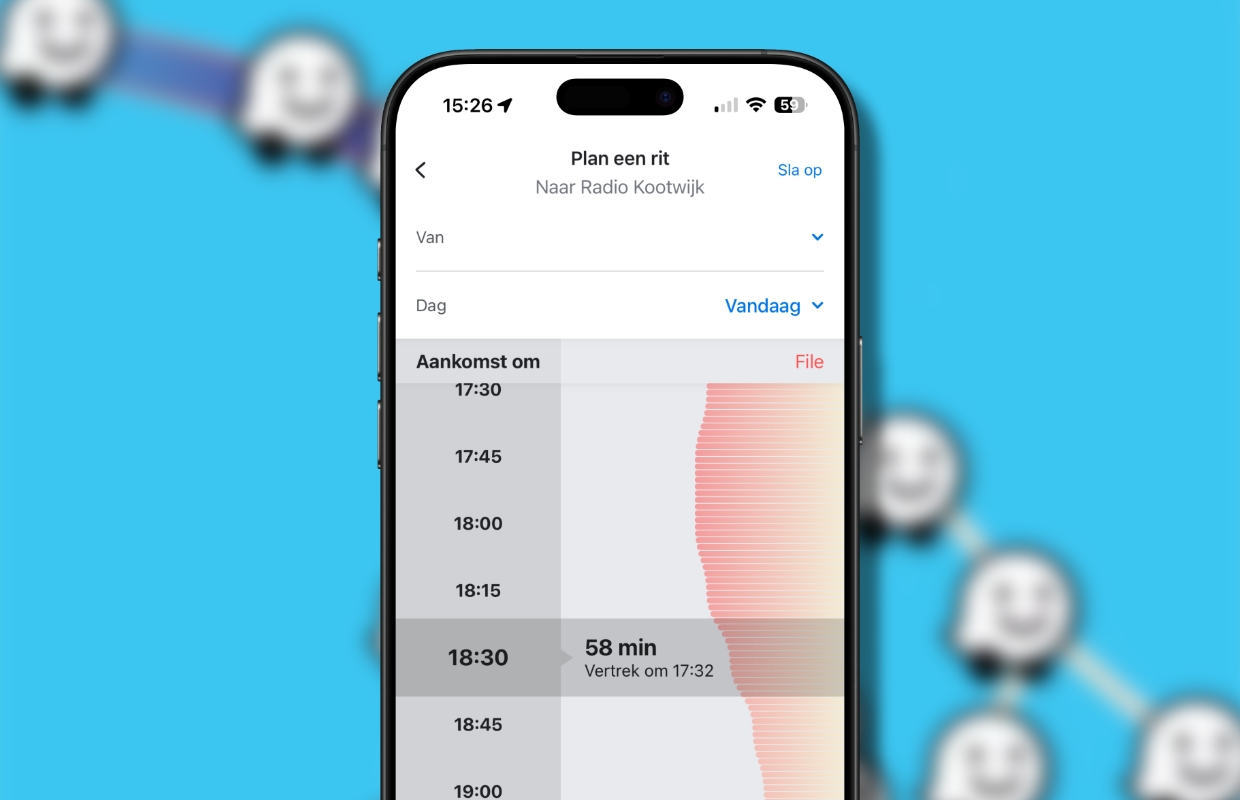
1. Plan in advance
Most people only start Waze when they are in the car ready to leave. That makes sense in itself, but with Waze you can also choose to plan your ride in advance. This is how you do it:
- Find your destination and plan your route;
- Tap ‘Depart later’ at the bottom left;
- Choose an arrival time;
- Waze immediately calculates what time you have to leave;
- Tap Save at the top right.
Waze automatically takes historical traffic data and expected crowds into account. This way you can immediately see whether it might be worthwhile to arrive at your destination a little earlier or a little later. Waze will notify you when it’s time to leave, so you don’t have to pay attention to that yourself.
2. Operate with your voice
Waze supports voice control, which is quite useful when you are driving. For example, you can tell Siri to “Drive home” or “Sound on,” to name a few. You can also enable a function so that you can report accidents, traffic jams and the like with your voice. This is how you do it:
- Tap the three lines at the top left of Waze;
- Tap ‘Settings’;
- In the top section, tap ‘Voice & Sound’;
- Enable the ‘Speak to report’ option.

You can also see here which other commands you can give Siri. To do this, tap ‘Siri commands’ under ‘Voice control’.
3. Adjust map view
Waze can warn you about just about everything, but in practice this means that you will receive a lot of notifications in some areas. Do you want more peace? Then go through the settings and only leave on those notifications that you really find important. You can find those settings here:
- Tap the three lines at the top left of Waze;
- Tap ‘Settings’;
- Under ‘Driving preferences’, tap ‘Alerts & notifications’;
- Tap ‘Notifications’.

Here you can go through all categories and disable notifications that you do not consider important. This way you make Waze calmer and more personal without missing important information.
4. Become invisible
Don’t want to be part of the Waze community at all? That’s also possible! You can enable the ‘Become invisible’ option via ‘Settings > Privacy’. If you do that, other Waze users will not be able to see your car live on the map. You just use the app normally, but without being visible in the community.

More tips?
Did you find these hidden Waze tips useful and want more? On iPhoned you can read useful tips and tricks for your iPhone every week. Check out the most recent tips below!
-
4 hidden Waze features that almost no one knows about (but are very useful)
-
Watch Formula 1 cheaper (without Viaplay): these are your alternatives
-
8 useful iPhone tips that help you get more out of WhatsApp
-
Want to prevent dangerous spam in WhatsApp? Enable this feature
-
Attention Odido customers: this is how you know whether your data has been stolen