
Do you regularly use AirDrop? Then quickly adjust this hidden function on your iPhone to make AirDrop even more convenient!
AirDrop
AirDrop is one of the most useful functions on your iPhone, iPad, Mac(Book) and Apple TV. With AirDrop you can easily share files, photos and videos between different Apple devices. This way you can still share documents with others without cables and a working internet connection. AirDrop is without a doubt the easiest way to make your iPhone, iPad and Mac(Book) work together or to share certain documents with other users’ Apple devices.
All new iPhones, iPads and Macs have AirDrop. This has the advantage that you can send and receive files easily and quickly. Unfortunately, there is also a disadvantage, because due to the many devices with support for AirDrop, in some cases you cannot find the right device. Especially in public places or in office spaces, sometimes so many devices appear in the list with AirDrop that you are no longer sure whether you are seeing the right device. Luckily, there’s a feature to make AirDrop even more convenient.
Text continues below the video.
@iphonednl Here’s how to change your AirDrop name on your iPhone! With this handy iPhone tip, others can see exactly who you are when sharing via AirDrop. Super handy and easy to adjust — did you already know this? #airdrop #iphonetips #iphonetricks #namedrop #iphone ♬ Monkeys Spinning Monkeys – Kevin MacLeod & Kevin The Monkey
Change the name of your iPhone
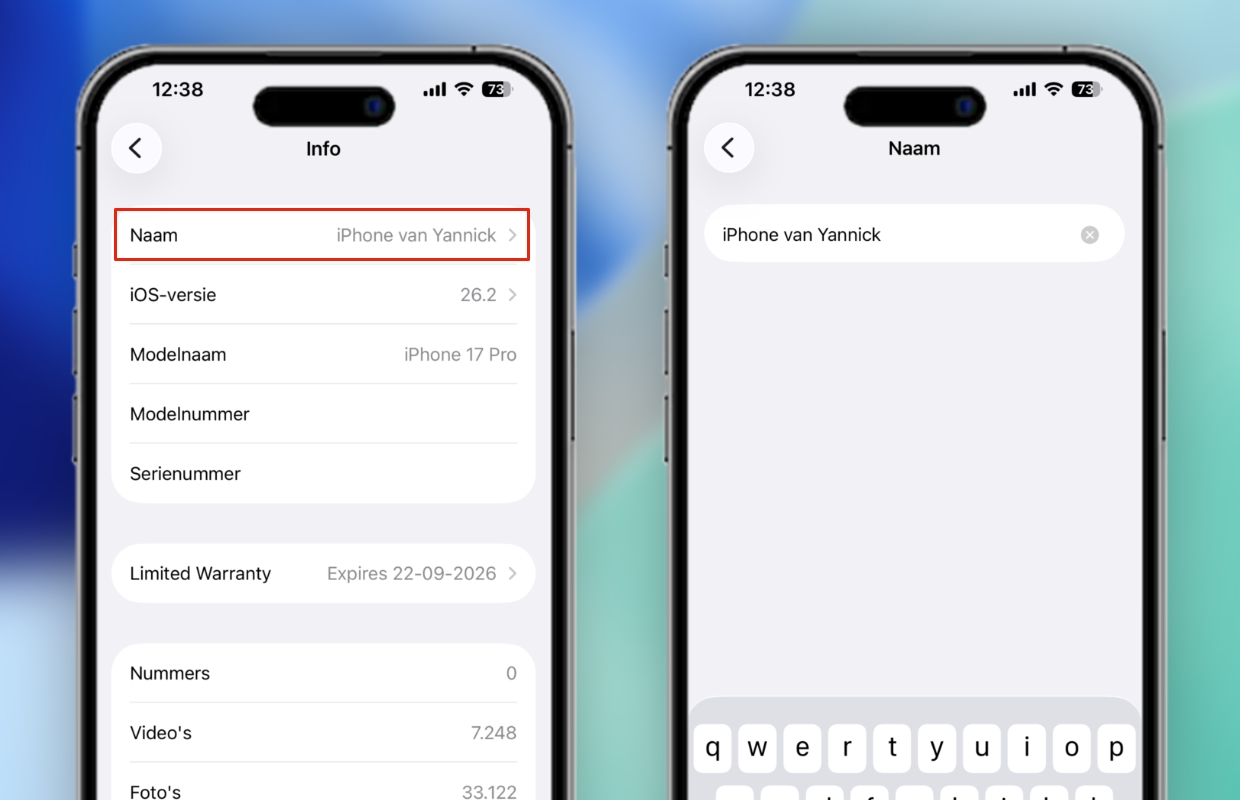
Do you want to share a document, photo or video via AirDrop? In that case, the names of all nearby AirDrop-supported devices will appear. It is important that your device has a recognizable name, so that you share the file with the correct device. Does your iPhone have a name that is too generic, such as simply ‘iPhone’? Then it is advisable to change the name. You do this as follows:
- Open ‘Settings’ on your iPhone;
- Go to ‘General’;
- Tap ‘Info’;
- Choose ‘Name’;
- Finally, give your iPhone a recognizable name.
The name you enter in your iPhone’s settings is also the name that appears in the list of all AirDrop devices. By giving your device a clear name you prevent you from accidentally sharing files with the wrong iPhone, iPad or Mac. The same applies the other way around: with a recognizable name it is easier for friends, colleagues or family members to share a file with you via AirDrop.
More iPhone tips
AirDrop is an extremely useful feature, but it works even easier if all your Apple devices have a recognizable name. You can also change the name of the device on the iPad and Mac(Book). To do this, go to the device settings and go to ‘General > Info > Name’. Make sure that you not only see that the device is yours, but also which device it is. This will save a lot of searching later when using AirDrop.
Does a device not appear at all when you want to share something via AirDrop? Then check whether WiFi and Bluetooth are enabled on both devices. It may also help in some cases to change AirDrop availability to ‘Everyone for 10 minutes’. Doesn’t that help? Learn about four solutions that fix most AirDrop issues here! Did you find this tip useful and would you like to know more? See more about AirDrop below:
-
This hidden feature makes AirDrop on your iPhone even more convenient
-
New AirDrop feature makes one-time sharing easier
-
AirDrop on Windows: how to share files between iPhone and PC
-
AirDrop not working: these 4 solutions will fix all your problems
-
AirDrop may disappear from European iPhones (iPhone News #23)