
With a Microsoft account, people can access Microsoft’s internet services, among other things. Create this account for free.
Microsoft account
Anyone who has a Microsoft account can use it to log in to all of Microsoft’s online public services. Think of OneDrive, Outlook.com, Office, Photos and Skype. Windows 10 or 11 users can also log in and download apps to their computers with this account.
Anyone with an email address that ends in @hotmail.com, @live.nl, @live.com or @outlook.com also automatically has a Microsoft account.
Create account with existing email address
People can associate a Microsoft account with an existing email address or create a new Microsoft email address right away. One is not better than the other; it’s a personal choice. However, we get messages that Microsoft does not accept some provider e-mail addresses, such as addresses ending in @kpnmail.nl. In that case, create an account with a new email address (see next paragraph).
Creating an account with an existing email address works like this:
- Surf to login.live.com
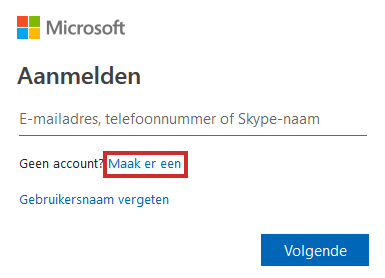
- Click behind ‘No account’ on create one.
- Type the email address that you want to associate with the Microsoft account.
- click on Next one.
- Think of a password and type the password.
- click on Next one.
- Microsoft wants to receive some more data. Type your first name.
- click on Last name and type your last name.
- click on Next one.
- Click on the drop-down menus under ‘Date of Birth’ to enter the day, month and year of birth.
- click on Next one.
- Microsoft will send a code to the email address associated with the account. Enter the code from the email in the ‘Enter code’ field.
- click on Next one.
- Microsoft wants to make sure that a person creates the account and not a robot. You must therefore retype a code. Click under “Enter the characters you see.”
- The image can consist of uppercase letters, lowercase letters and numbers. Type the characters from the picture.
- click on Next one.
- If you have not copied the characters correctly, a new image will appear and you can try again. It doesn’t matter if it goes wrong a few times. Click on audio file if you prefer to listen to narration and then type it. Make sure that the loudspeaker of the PC is switched on.
If the characters are typed correctly, you have a Microsoft account.
Create account with new email address
People can associate a Microsoft account with an existing email address or create a new Microsoft email address right away. One is not better than the other; it’s a personal choice. Create a Microsoft account and a new email address like this:
- surf to login.live.com
- Click behind ‘No account’ on create one.
- click on Create new email address.
- Type the name you want to use for the new email address. The address ends with @outlook.com. This is already filled in.
- click on Next one.
- If the email address is already in use, a notification will appear. Then type a new e-mail address and click again Next one.
- Think of a strong password and type the password.
- click on Next one.
- Microsoft wants to receive some more data. Type your first name.
- click on Last name and type your last name.
- click on Next one.
- Click on the drop-down menus under ‘Date of Birth’ to enter the day, month and year of birth.
- click on Next one.
- Microsoft wants to make sure that a person creates the account and not a robot. You must therefore retype a code. Click under “Enter the characters you see.”
- The image can consist of uppercase letters, lowercase letters and numbers. Type the characters from the picture.
- click on Next one.
- If you have not copied the characters correctly, a new image will appear and you can try again. It doesn’t matter if it goes wrong a few times. Click on audio file if you prefer to listen to narration and then type it. Make sure that the loudspeaker of the PC is switched on.
The account has been created.