
When you remove a program from a Windows computer, leftovers of the program may remain somewhere on the hard drive or in the registry. These can interfere with the operation of your computer. The Revo Uninstaller program removes programs completely, keeping your computer tidy.
Download Revo Uninstaller
Revo Uninstaller is a free program. It is suitable for most recent Windows versions. Learn how to download and install the program in the “Download Revo Uninstaller” article.
Launch Revo Uninstaller
- Launch the Revo Uninstaller program in Windows 10 via Start > Revo Uninstaller.
- click on Yes when you see the screen asking “Do you want to allow the following program to make changes to this computer?”
- If you see a screen with the request to download an update, click away. This is intended to let you purchase a paid version, which you do not need.
uninstall
When opening Revo Uninstaller, the ‘Uninstall’ tab is selected. You will then see an overview of the installed programs. There are even more in the ‘Windows Apps’ tab, mainly programs from the Microsoft Store.
- In these tabs, find the program you want to remove. Click on the program.
- Click in the menu on Uninstall.
.png "revo menu")
Uninstall begins
It uninstall starts by creating a system restore point. Should the computer the installation If it does not work properly, you can restore the computer to its previous state using this restore point. You can read more about how this works in the article `Troubleshooting System Restore (Windows 10)’.
Sure?
When prompted, click on the question ‘Are you sure you want to remove this selected program?’ on Yes.
In some cases, the built-in uninstall of the program to be removed starts. Continue to uninstall by clicking Next, Next, Exit, OK, Finish, Finish or other similar terms. If necessary, click the Revo Uninstaller icon in the Taskbar to return to the program.
Select way
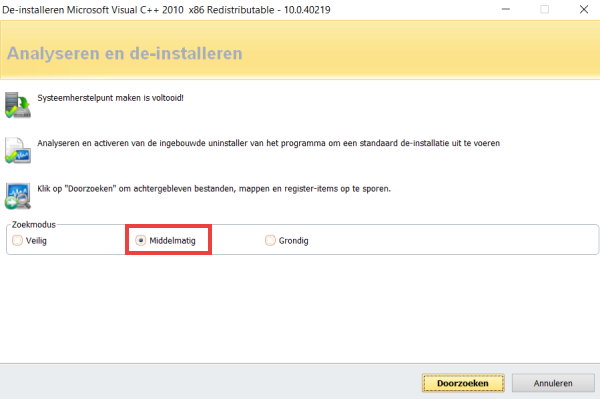
Select the way of uninstall. The first way – Safe – only fits the the installationprocedure of the program to be removed itself. So this option does not use the capabilities of Revo Uninstaller. The second way – Medium – also looks for items in the registry and hard drive that can be safely removed. The third and fourth ways – Thorough – go one step further and take longer. We choose the second option: Mediocre. click on Search.
After uninstall
When the the installation is completed, it will begin scanning the registry and hard drive for leftover files, folders, and registry references to it uninstalled program. Sometimes Revo Uninstaller will not find any leftover components. Then click Complete .
Remove registry references
If Revo Uninstaller has indeed found leftover components, you will see them in a list. The image shows an example of this.
.png "registry items revo uninstaller")
- If you are not sure which items to remove, do not select anything. click on Next one and then on Yes. The remaining files of the program then remain on the computer.
- If you would like to delete all files left behind, click on Select all.
- click on remove and on Yes.
- click on Complete.
Restart
- Close Revo Uninstaller with a click on the cross.
- Restart the computer.
You may find another shortcut to the uninstalled program. Click on this and press the Delete key on your keyboard.