
 With a Google account, people can access Google’s internet services. Create this account for free.
google account
With a Google account we can log in to all of Google’s online public services. Think of Drive, Photos, YouTube and Gmail. Anyone with an email address that ends in @gmail.com automatically has a Google account.
You can create a Google account in two ways:
- Create a free email address with Gmail. You will immediately have a Google account.
- Link an existing email address to a new Google Account.
Make sure you remember the username and password. Google services will always ask you to log in with this. Plus, resetting a password can be a hassle.
Create account with new email address
Create an email address for Gmail as follows. We did this on the Windows computer, but on Mac, Android and iPad/iPhone the steps are about the same.
- surf to www.google.com
- Click on the top right login.
- click on create Account > For myself.
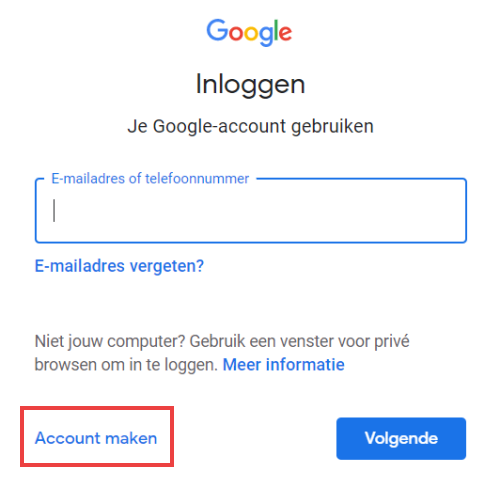
- Type your first name.
- click on Last name and type your last name.
- click on User name.
- Enter the name you want to use for the new email address. The address already automatically ends in @gmail.com.
- click on password.
- Think of a password with at least eight characters that consists of a combination of letters, numbers and symbols. Enter the password.
- A password may be generated automatically. Delete it before you start typing.
- Click in the box below ‘Confirm’ and retype the password.
- click on Next one.
- If the e-mail address is already in use, a notification will appear. Then select the text under ‘Username’, type a different username and click again Next one.
Phone number and recovery address
- Google wants to link a phone number to the account. This is used for account security such as two-step verification. Tap under ‘Phone number’ and enter a (mobile) phone number. Make sure you can reach that phone, you’ll need it later.
- For the same reason, the company also asks for a second email address. It is not necessary to specify these, but it is recommended. We click Recovery address (optional) to enter a second email address, just in case .
- click on Day and type the birthday.
- click on Month and click on the month of birth.
- click on Year and type the year of birth.
- click on Sex and click on the correct gender.
- click on Next one.
- If you have entered a telephone number, you will receive a code on the telephone for verification. click on Send.
- Type the code you received on the web page.
- click on Check.
- You can use the phone number for more than just account security. We don’t do that and click To skip.
Personalization and conditions
- Google asks what settings you want in terms of personalization. Personalization means that Google collects data about the user and about the user’s online behavior. If you want this as little as possible, tap the circle for ‘Manual personalization’. If you especially want to quickly complete the Google account, tap the circle for ‘Quick personalization’. We opt for the Fast Personalization.
- Tap on Next one.
- Under ‘Fast Personalization’: Google provides information about how it handles your data. Tap on Confirm.
- Under ‘Manual personalization’: Tap which information Google is allowed to collect. Tap on Next one. Do the same in the following steps. Click on the last one Confirm.
- The conditions appear. Read them through if necessary. Scroll down and click I agree.
The account has been created.
Create account with existing email address
Create a Google account with an existing email address. We did this on the iPad, but on Windows, Mac or Android the steps are about the same.
- surf to www.google.com
- Click on the top right login.
- click on create Account > For myself.
- Click under “First Name” and type your first name.
- Click under “Last Name” and type your last name.
- click on Using my current email address.
- Click under ‘Your email address’ and type the email address.
- click on password.
- Think of a password with at least eight characters that consists of a combination of letters, numbers and symbols.
- Click under ‘Password’ and type the password.
- click on Confirm and retype the password.
- click on Next one.
Verify
- Google will send a code to the email address provided to verify that it is yours. View the code in the email and enter it on the web page where you create the Google account.
- click on Check.
- Google wants to link a phone number to the account. This is used for account security. It is not necessary to provide a number, but it is recommended. We enter a phone number and click Next one. Make sure this is a telephone number that you can reach, because a code will also be sent here.
- click on Month and click on the month of birth.
- click on Year and type the year of birth.
- click on Sex and click on the correct gender.
- click on Next one.
- If you entered a telephone number, this number will now be checked. Google sends a code to the phone. Click on Send.
- Enter the code you received on the webpage and click Check.
- You can use the phone number for more than just account security. We don’t do that and click To skip.
Personalization and conditions
- Google asks what settings you want in terms of personalization. Personalization means that Google collects data about the user and about the user’s online behavior. If you want this as little as possible, tap the circle for ‘Manual personalization’. If you especially want to quickly complete the Google account, tap the circle for ‘Quick personalization’. We opt for the Fast Personalization.
- Tap on Next one.
- Under ‘Fast Personalization’: Google provides information about how it handles your data. Tap on Confirm.
- Under ‘Manual personalization’: Tap which information Google is allowed to collect. Tap on Next one. Do the same in the following steps. Click on the last one Confirm.
- The conditions appear. Read them through if necessary. Scroll down and click I agree.
The account has been created.