Changing your Gmail address has not been possible until now, but that is finally changing – we will show you how it works.
Gmail finally allows email address changes
Gmail has been around since 2004 and all that time Google did not allow changing the email address. Until now. Google has now started rolling out a feature that makes this possible. However, it does not come without limitations. The company sets a number of clear conditions that users must meet.
This way your old email address remains active. This means that you will continue to receive emails at your existing address, even after you have created a new email address. The new e-mail address therefore functions as an additional address and does not completely replace the old one.
These are the limitations
To begin with, you are stuck with your choice for a longer period of time if you decide to change your email address in Gmail. You cannot delete the new email address in Gmail for at least one year. In addition, there is also a limit on the number of changes: after creating a new Gmail address, you cannot add an additional email address for a year.
Google does offer some flexibility when it comes to logging in. You can use both your old and new email address to log in to your account. This way you don’t have to immediately say goodbye to your trusted address and you have the option to switch gradually. On the one hand, you get a little more freedom and control, but on the other hand, Google keeps a tight rein on things to prevent abuse and confusion.
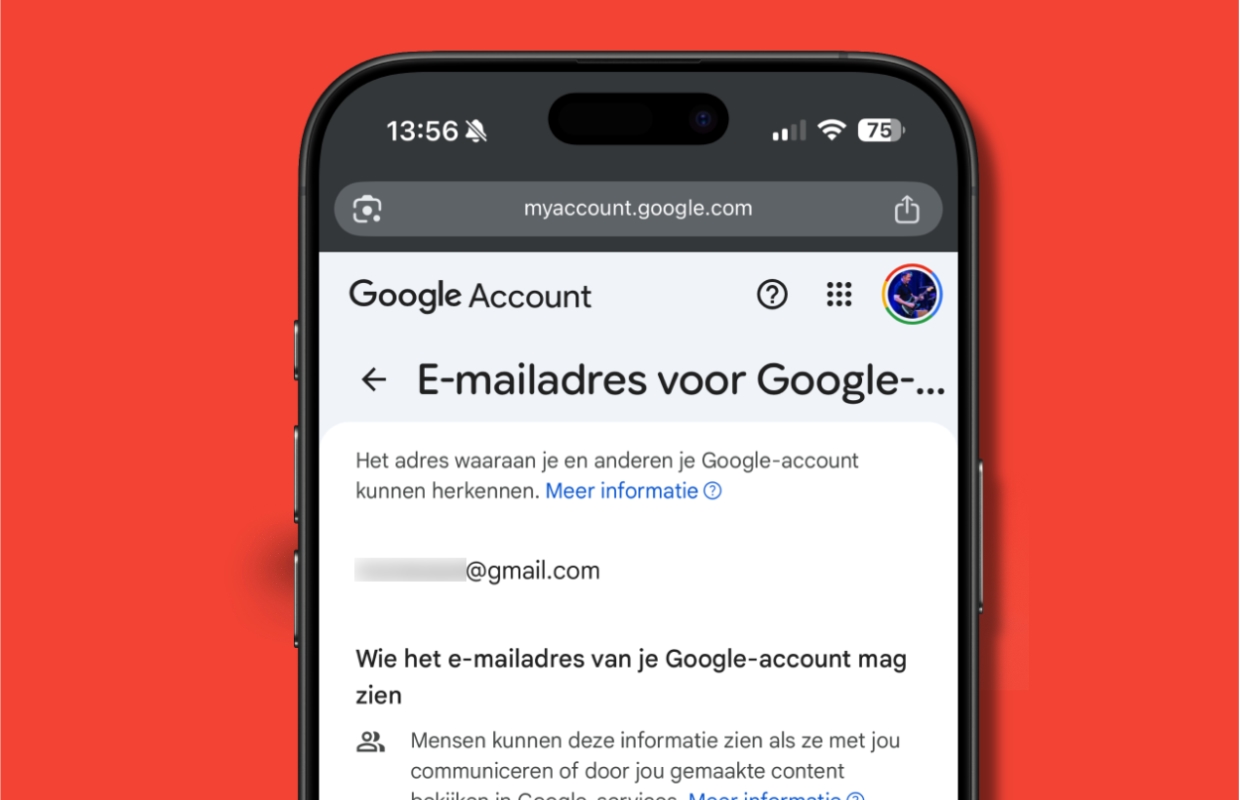
That’s how it works
Google is currently rolling out the feature that makes it possible to change your email address in Gmail. This means that the option may not yet be available to you. If so, you’ll see it soon enough when you follow the steps below:
- Go to myaccount.google.com/google-account-email (and log in if you haven’t already);
- Tap ‘Personal Information’ at the top;
- Tap ‘Email’ and then ‘Google Account email address’;
- Under ‘Google Account email address’, tap ‘Change Google Account email address’.
The rest should be self-explanatory. If you don’t want to miss any tech news from Apple and Google from now on, sign up for our newsletter!

Download the iPhoned app