
With the arrival of the iOS 26 update, many new settings have been added to your iPhone – it is best to adjust these immediately.
iPhone tips: 4 settings you need to adjust in iOS 26
You may not even know about the existence of these four institutions. Let alone that you have already determined whether you want them turned on or off. We believe that it is best to adjust them immediately!
1. Blurred background when Always on
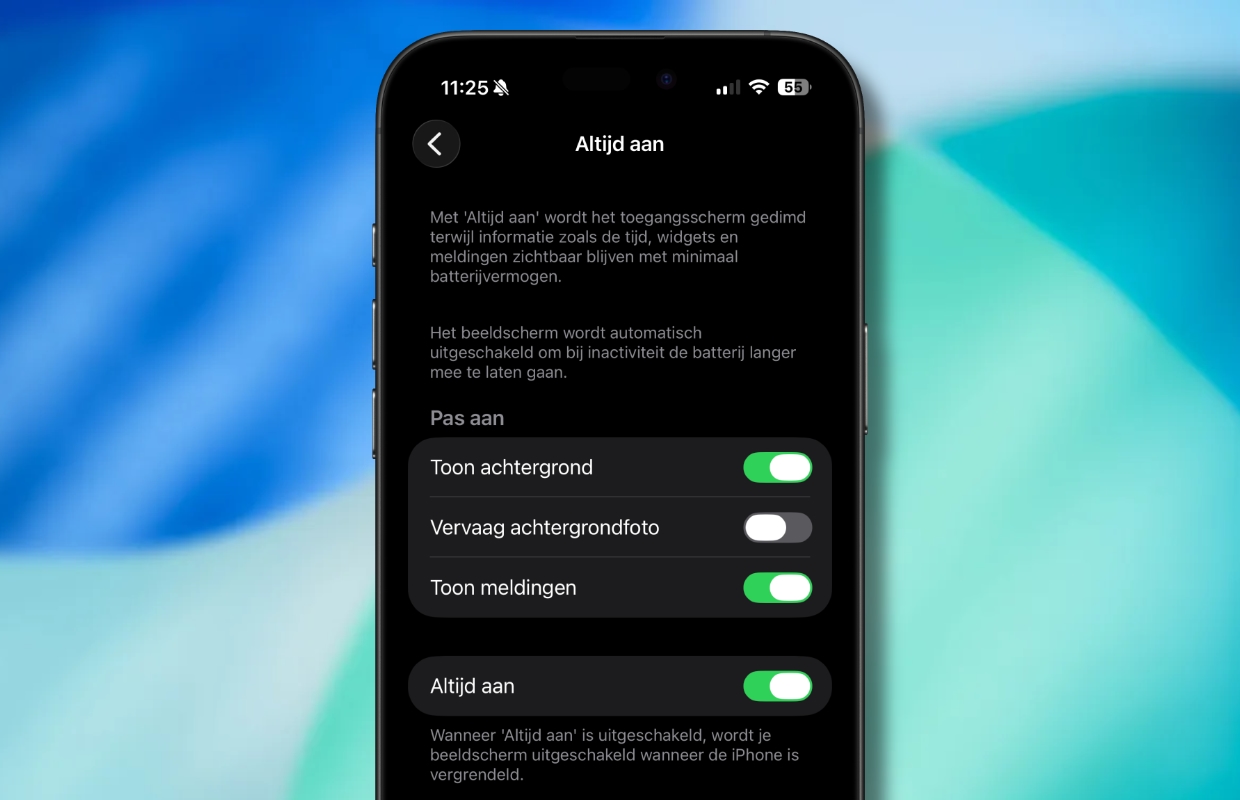
The iPhone’s Always On feature has received an unusual change in iOS 26. By default, iOS now blurs your background photo in this mode, presumably so that the new Liquid Glass clock can be seen better (or perhaps to save battery life). If you prefer not to do this, fortunately there is a simple solution:
- Open the Settings app;
- Tap ‘Screen & brightness’;
- Tap ‘Always on’;
- Turn off the ‘Blur Background Photo’ option.
This will reset the behavior of the Always On feature back to how it was in iOS 18.
2. Camera from the lock screen
For years, you could quickly open the Camera app by swiping left on the lock screen (Apple calls it the “Lock Screen”). While that’s probably still a popular way for many users, Apple has added more options in recent years. You can now open the Camera via the Camera control, the action button or the button at the bottom right of the screen.
If you never use the old swipe gesture, then that function is just annoying. There is a good chance that you regularly open the Camera app unintentionally. In that case, it’s better to disable the feature. This is how you do it:
- Open the Settings app;
- Tap ‘Camera’ and scroll down;
- Turn off “Swipe on lock screen to open camera.”

3. Adaptive flow
The iPhone has long had a power saving mode that is very useful if you want to extend battery life. However, the feature reduces performance quite drastically in a number of ways. In iOS 26, there’s a new option for all Apple Intelligence-compatible devices: Adaptive Power. You can enable this as follows:
- Open the Settings app;
- Tap ‘Battery’;
- Tap ‘Energy saving mode’;
- Turn on ‘Adaptive Power’.
Adaptive power only activates when it detects that battery consumption is unusually high on a given day. In that case, minor changes are made to save energy without affecting performance too much. You can optionally enable notifications when Adaptive Flow is activated.

4. AirPods sleep detection
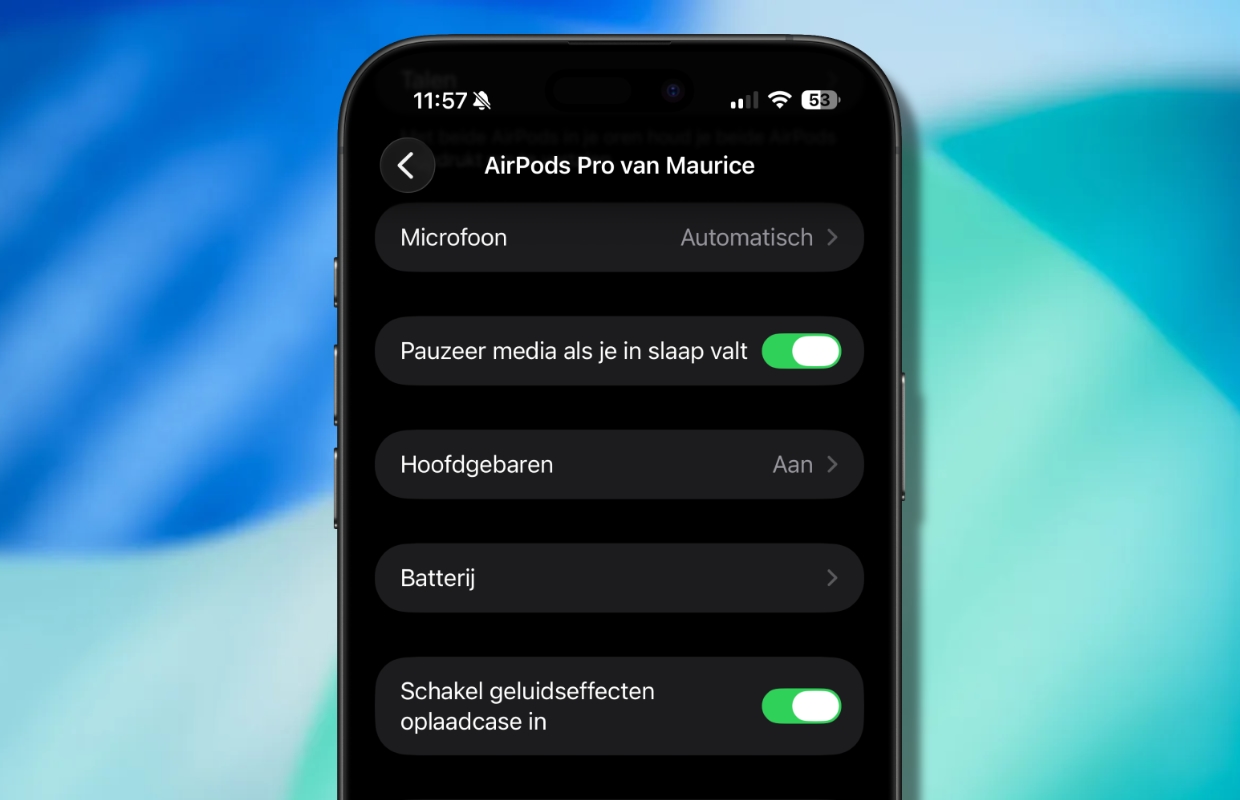
iOS 26 brought a number of new AirPods features, including sleep detection to pause media. The feature is called ‘Pause Media When You Fall Asleep’ and can be very useful if you often wear your AirPods to bed. This way your audiobook or podcast doesn’t run endlessly and you have a much better idea of where you left off. The feature is available on the AirPods Pro 3, AirPods Pro 2 and AirPods 4.
More iPhone tips?
Did you find these iPhone tips useful and want more? On iPhoned you can read useful tips and tricks for your iPhone every week. Check out the most recent tips below!
-
iPhone tips: 4 settings you need to adjust immediately in iOS 26!
-
This secret iPhone button has been hidden for 9 years (but here’s how to activate it)
-
Turn off “Download and Save Originals” to save space
-
This way you prevent apps on your smartphone from (secretly) listening in on you
-
You must enable this iPhone feature every day (for this benefit)